
How to Pay a Vendor Bill with a Company Credit Card
When a company credit card is used to pay a vendor bill that is already entered in NolaPro, record the payment in Write Checks with Pay How set to Credit Card, using a bank account set up for that card. The bill is marked paid, and the payment is charged to the card's GL account instead of your checking account. If you use Credit Card Tracking, the payment is also listed on the card's next credit card bill, so it is included with the rest of the statement's charges.
This article covers bills that already exist in Expenses. For charges that have no vendor bill in NolaPro (fuel, supplies, travel bought on the card), record them as credit card purchases instead; see How to Track a Credit-Card Purchase and Reconcile the Card Bill.
Requirements
Steps 1 and 2 need no extra features. Step 3 requires the Credit Card Tracking feature, with the card set up under Expenses -> Credit Card Purchases -> Credit Cards.
Step 1: Set Up a Bank Account for the Card (one time)
Where: Admin -> Ledger -> Bank Accounts
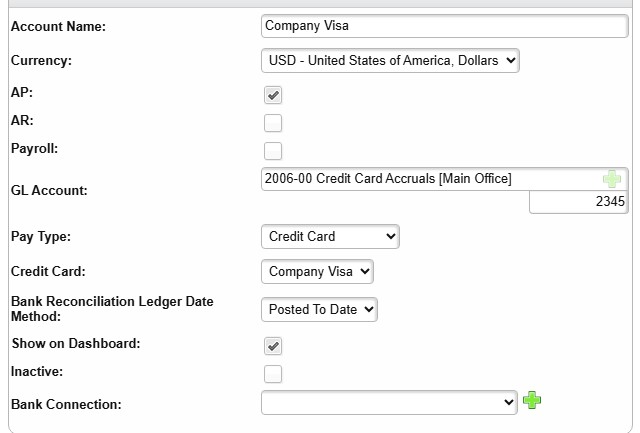
1) Add a new bank account for the card, or select an existing one and edit it. Give it a clear Account Name, such as Company Visa.
2) Check AP so the account is offered when paying bills.
3) In GL Account, choose the GL account for the card (the list is limited to cash and credit card type accounts).
4) Set Pay Type to Credit Card.
5) If you use Credit Card Tracking, choose the card in the Credit Card field. This field appears only when Pay Type is Credit Card and at least one card is set up. This link is what puts the payments on the card's bill in Step 3.
6) Save the account.
Step 2: Pay the Bill by Credit Card
Where: Expenses -> Checks -> Write Checks
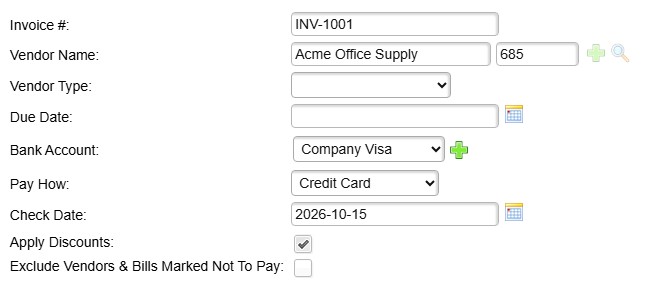
1) Enter the bill's Invoice # or the Vendor Name to find the bill. You can also click Pay on the vendor bill itself to open this page with the vendor and invoice number filled in.
2) In Bank Account, choose the card's bank account from Step 1. Pay How changes to Credit Card automatically; check that it shows Credit Card.
3) Set the Check Date to the date the card was charged, then click Next.
4) Select the bill and click Next (when only one bill matches, this step is skipped), then confirm the Amount charged to the card.
5) Save. No check number is used. The confirmation shows a Payment Record link marked Credit Card, and the bill is marked paid. There is no check to print, even though the confirmation uses the same wording as a check run.
Step 3: Include the Payment on the Card's Bill (optional)
Where: Expenses -> Credit Card Bills -> New Credit Card Bill
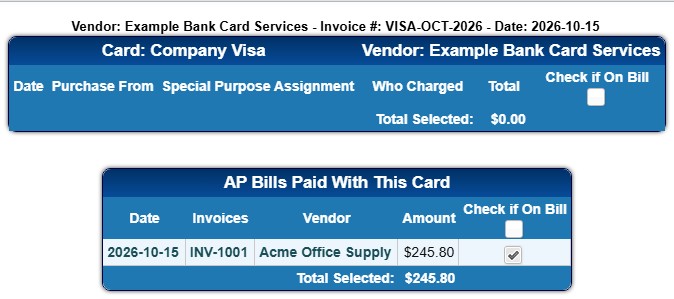
1) When the card statement arrives, choose the Credit Card, enter the statement's Invoice # and Invoice Date, and continue through the bill details.
2) The page lists the card's unbilled purchases and, in a separate AP Bills Paid With This Card section, the vendor bills paid with this card in Step 2. Check Check if On Bill for each one that appears on this statement.
3) Add any other charges, such as interest or fees, and save. The card's bill total includes the checked payments, so it matches the statement. Pay that bill to the card company as you would any vendor bill.
Notes
- Always choose the card's bank account in Write Checks. If a checking account is selected, the payment is taken from that checking account's GL account even when Pay How is set to Credit Card.
- When the payment is added to the card's bill, it is charged back to the card's GL account and the balance moves to the amount owed to the card company. The card's GL account then works as a clearing account between the vendor payments and the card bill.
- A payment is listed under AP Bills Paid With This Card only when it was made from a bank account linked to that card, is not voided, and is not already on another credit card bill. Payments already on a bill can be reviewed on Expenses -> Credit Card Bills -> Edit Credit Card Bills.
- To pay a vendor by card when there is no bill in NolaPro, record a credit card purchase instead of using Write Checks.