Navigating NolaPro: Menus, Lists, and the Meta Menu
NolaPro uses the same layout on every screen, so once you know the main menu down the left side, the list/report screens, and the per-record Meta Menu, you can find your way around any module. This overview explains how to get around.
The Main Menu
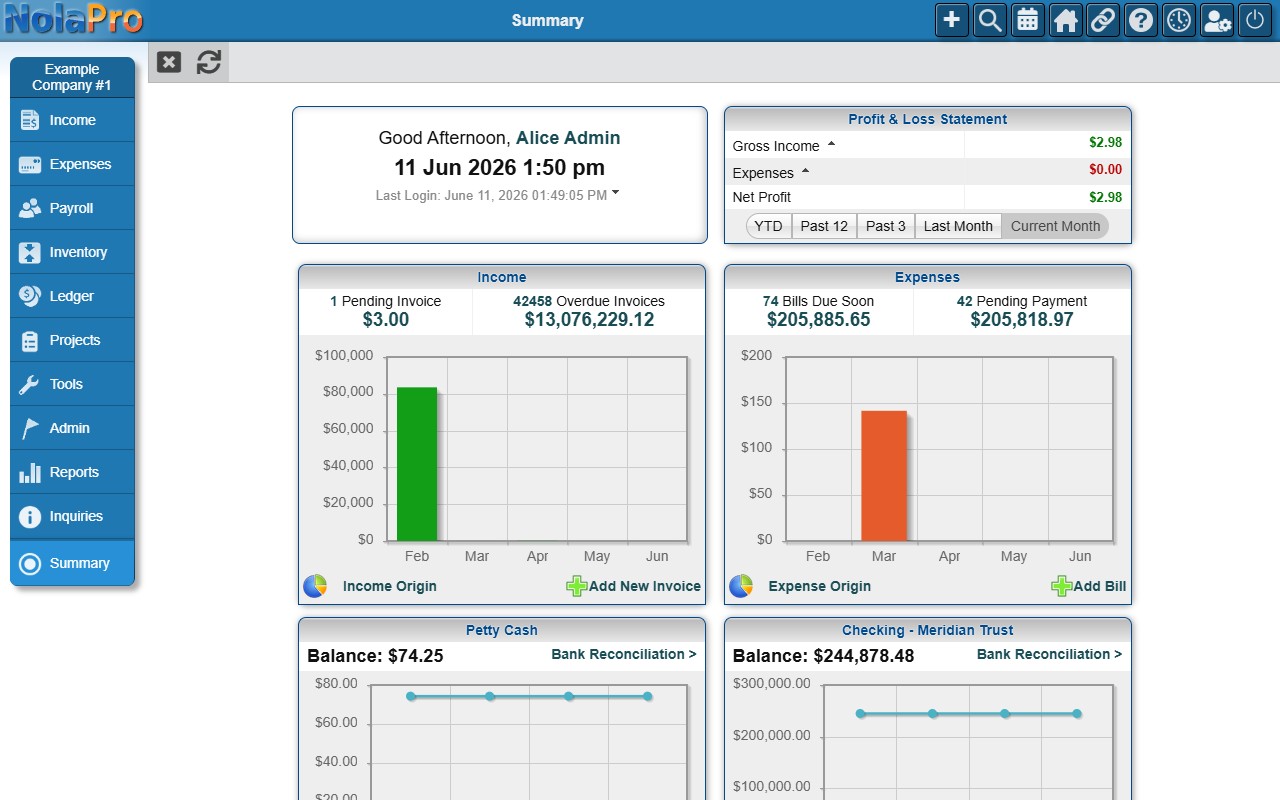
The main menu runs down the left side of every screen, with the company you are working in shown at the top of it. Each entry is a top-level area: Income, Expenses, Payroll, Inventory, Ledger, Projects, Tools, Admin, Reports, Inquiries, and Summary. Click an area to open it; its sections then appear as a row of tabs across the top of the page. For example, Income opens Home, Customers, Quotes, Orders, Invoices, Payments, and more. Click a tab to reach the page you want.
Reports is its own area in the left menu, grouping reports by module, so report paths read Reports → Expenses → .... If you manage more than one company, switch the active company from the top-right toolbar before you enter data, because every screen applies to the company that is currently selected.
A small toolbar of quick icons sits in the top-right corner of every page, including Add (new record), Search, a calendar, Home, Links, Help, recent items, your user settings, and Log Out.
List and Report Screens
Most pages open as a list or a report drawn with NolaPro's standard table. Click a column heading to sort by that column, use the paging controls to move through long results, and use the download link to save or print a PDF. Listing pages, such as Income -> Customers, Expenses -> Vendor Bills, and Expenses -> Purchase Orders, also offer a search or filter row at the top to narrow what is shown, plus an Add action to create a new record.
The Meta Menu (Record Quick-View)
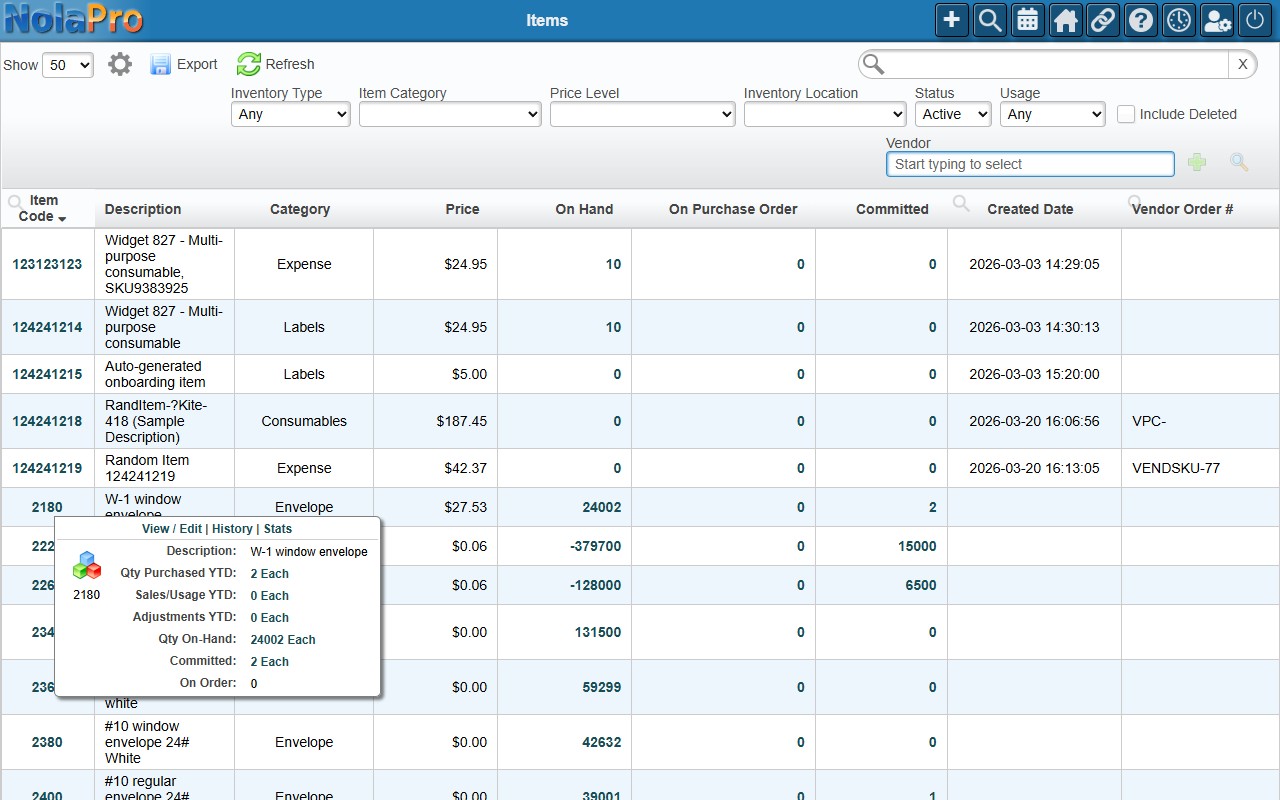
Throughout NolaPro, many links have a small drop-down caret next to it, which appears when you point at the row. Clicking it opens the record's Meta Menu: a popup quick-view panel that summarizes the single record and links to its related records and common actions, without leaving the screen you are on. It is the fastest way to glance at a record's details, jump to a linked document, or reach an action, instead of opening the full record.
The Meta Menu appears on records across the system, including:
- Customers (from the Income -> Customers list) — contact info, a recent-activity summary, and aging, with View / Edit, Email, and Make Payment links.
- Vendor Bills (from the Expenses -> Vendor Bills list) — bill header and vendor details, line items, check-payment history, and attached files.
- Purchase Orders (from the Expenses -> Purchase Orders list) — PO details, line items, associated AP bills and receipts, linked sales orders, and attachments.
- Item Fulfillment Orders — an order summary with customer, line items, logged hours, and linked invoices. Shipments have their own Meta Menu with quick links to shipment-related actions.
- Inventory Items — year-to-date purchased, sales/usage, and adjustment quantities, plus on-hand, committed, and on-order, with View / Edit, History, and Stats links.
- GL Budgets (from the Ledger -> Budgets list) — the account, year, budget amount, year-to-date actual activity, open purchase-order commitments, and remaining budget, with links to the GL Activity and Budget Variance reports.
Because it is read-only and self-contained, the Meta Menu is safe to open any time you just need to look something up or hop to a related record.
Adding Your Own Menu Links
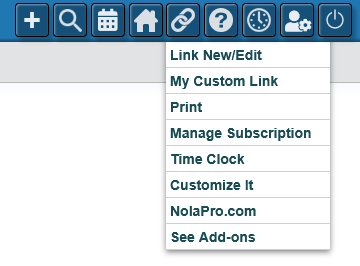
You can extend the menu with your own shortcuts from Admin -> System -> Link New/Edit. Give a link a name and a URL, either an internal NolaPro page or an outside website, and your saved links become available from the Links icon in the top toolbar, alongside built-in shortcuts such as Print, Manage Subscription, and Time Clock. This is handy for the pages or external tools your team uses most.