
Item Price and Vendor Price Reports
Three inventory reports look at pricing from different angles: Item Prices lists what you sell items for at a price level, Item Vendor List shows what each vendor supplies you and what it costs next to your selling price, and Item Vendor Prices lets you review and update the quantity-break prices a vendor charges you, straight from the report.
Requirements
The Inventory module. Price levels are set up under Admin, Inventory, Price Levels, and the company's default price level (set on the inventory General Setup page under Admin, Inventory) pre-selects the price level on the first two reports.
Item Prices
Where: Inventory -> Reports -> Item Prices
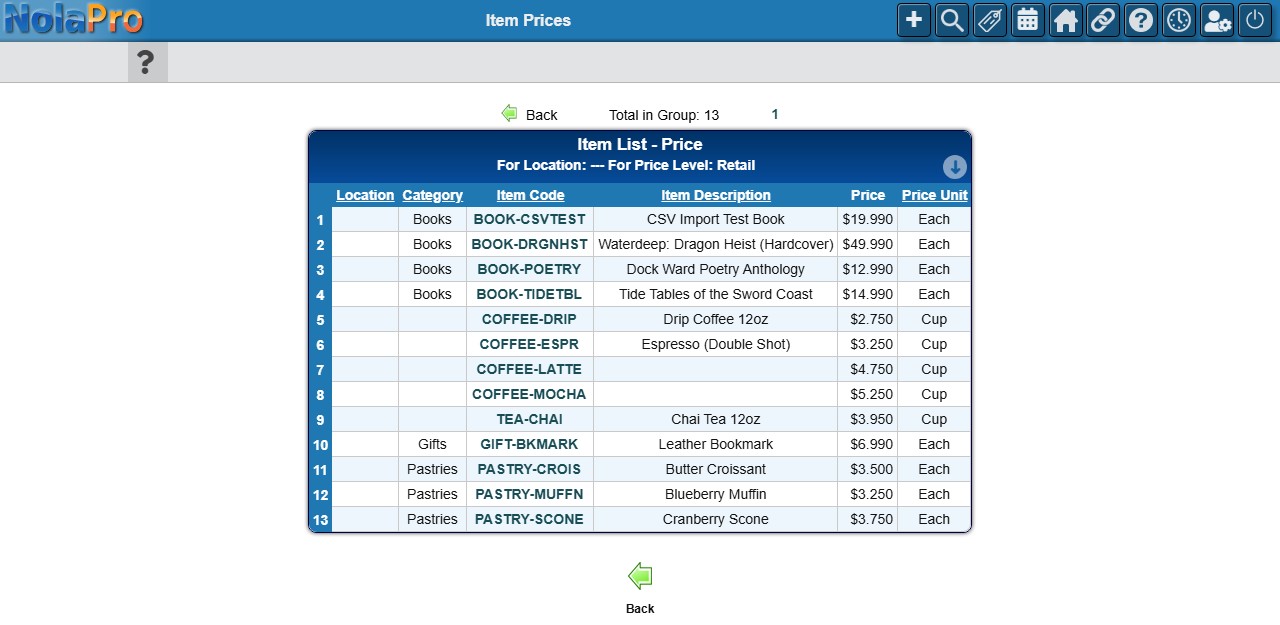
A price list for one price level, with one row per item and location, which also makes it easy to spot items that have no price entered.
1) Optionally narrow the report to one item (Item Description or Code is a type-ahead: pick the item from the list, because text that is not picked is ignored and the full list comes back), one Location, or one Category (the Category dropdown appears only when the company has more than one). Choose the Price Level to list (the dropdown only appears when the company has more than one) and the Sort By order: location, category and item code in the combinations offered.
2) Set the Page Size (100 items per page by default) and check Show Inactive to include inactive items, then click Next (its hover text reads "Create Report").
3) The report is subtitled with the location and price level chosen and has a bar at the top with Back (to change the selections), Total in Group and the page links. Each numbered row shows the location, category, item code and description, the price and its price unit. The item code opens the item for editing in a new tab, which is where a missing price is entered. With the location, category, item code sort the column headings are clickable to re-sort. "No matching items found" is shown when nothing fits, and users limited to certain inventory locations only see those locations.
Item Vendor List
Where: Inventory -> Reports -> Item Vendor List
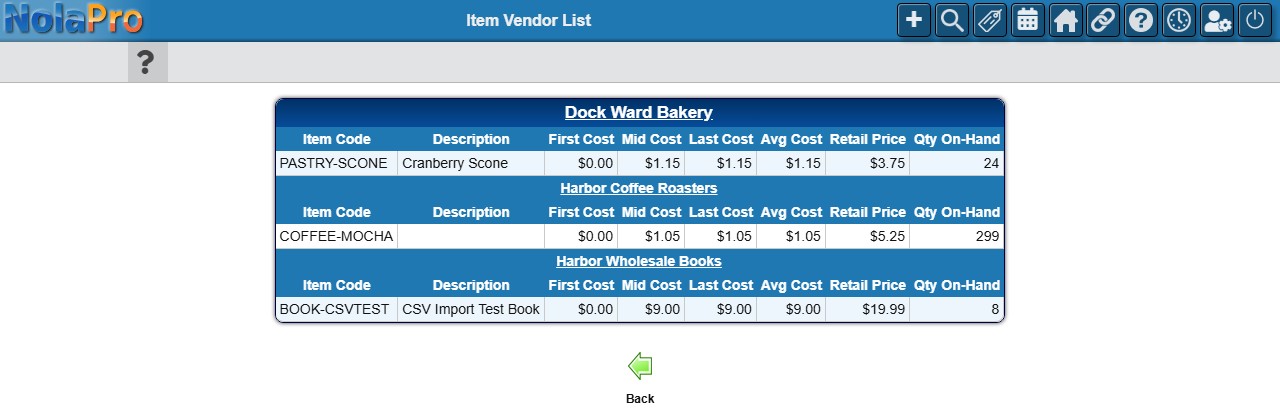
Items grouped by the vendor you buy them from, with their cost layers and your selling price side by side.
1) Pick a single Vendor Name, or select several vendors in Vendor Range (hold Ctrl to pick more than one; All includes every vendor). A selection of specific vendors in Vendor Range takes precedence over the name box; with All selected the name box wins.
2) Choose the Price Level whose selling price should appear, the Inventory Location to report on (one location is required; only the vendor's items stocked at that location are listed), and whether to Show Inactive items, then click Next.
3) Each vendor starts with a header row showing the vendor's name (a link to the vendor record) and phone, followed by that vendor's items with the first, mid, last and average cost (the last cost is the last purchase order cost when that feature is on), the price at the chosen level (the column is titled with the level's name, for example Retail Price), and quantity on hand. The column headings repeat every ten items. An item with no price at that level shows a Not Set link that opens its pricing setup; "No Records Found" is shown when nothing matches.
Item Vendor Prices
Where: Inventory -> Reports -> Item Vendor Prices
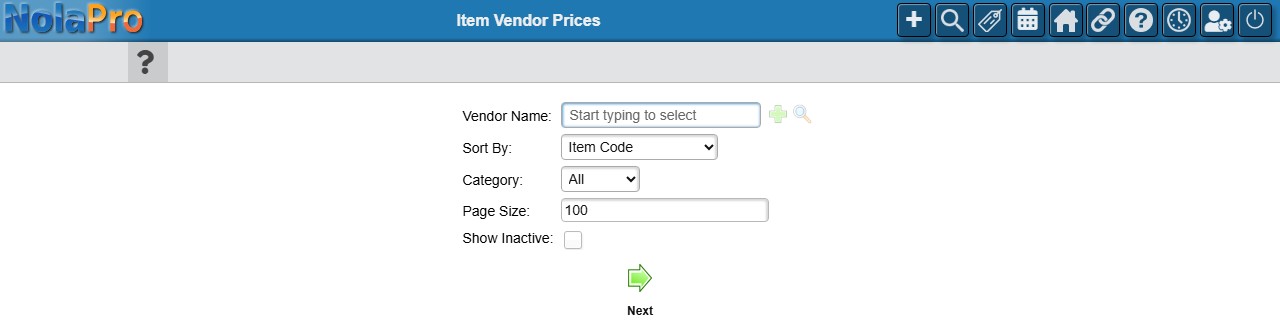
The prices one vendor charges you for each item, in up to four quantity-break tiers, editable on the page. Use it when a vendor sends a new price sheet.
1) Enter the Vendor Name (if it is left blank the page simply shows the form again), choose the Sort By order and optionally a Category, set the Page Size, check Show Inactive if needed (inactive items are then counted in the total and paged with the rest), and click Next.
2) The report shows the Total in Group count (and page links when there is more than one page) above the list. Each item has four Price boxes; the first three are followed by the up to qty (in the item's stock unit) that the tier applies to, and the fourth price covers everything above that. Prices are shown per unit in the vendor's currency, at the precision they are stored with (up to five decimal places), so a cost such as 0.03575 is shown in full rather than rounded. Type the new prices into the boxes. Click the Category, Item Code or Description heading to re-sort; the Item Code sort puts the item code first.
3) Click Save (beside Back below the list). Only the prices you actually changed are saved; boxes you did not touch are left as they were. The vendor prices on the items' vendor records are updated at once and the report redisplays with the new values; no separate confirmation message is shown. "Error During Update" appears if a save fails.
Notes
- Item Prices and Item Vendor Prices are paged; use the page links to move through long lists. Item Prices offers PDF and Export (Excel) links, Item Vendor List a PDF link.
- Only Item Vendor Prices changes data. The other two are read-only reports.
- Vendor item prices come from the item's vendor records (edit the item, then its vendor list), so an item that is not linked to the vendor will not appear on the vendor reports.