
Item Valuation Report
The Item Valuation report shows your on-hand inventory quantities and what they are worth, by item and location. It supports several cost methods, an optional price-level value column, and a range of filters, and can be viewed on screen, downloaded as a PDF, or exported to CSV.
Open it from Inventory -> Reports -> Item Valuation.
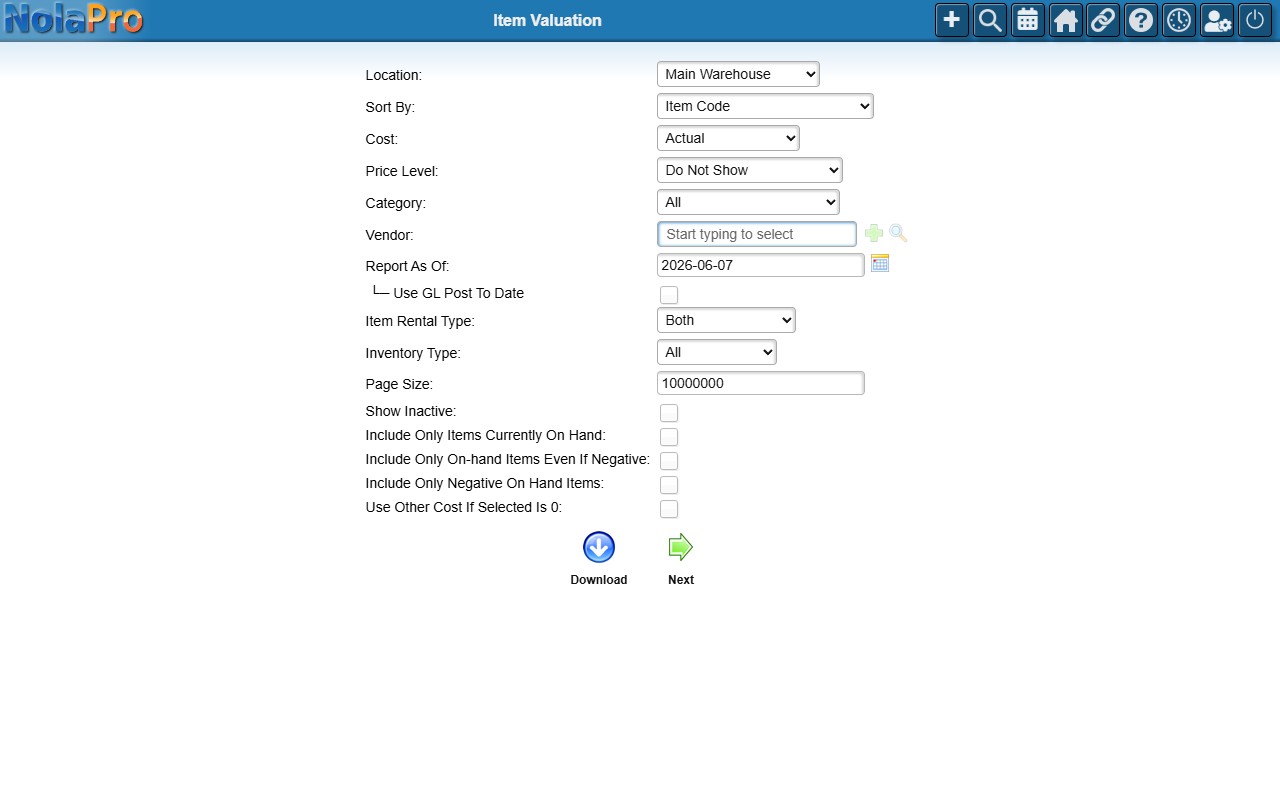
Choosing What to Report
Set the options on the search form, then click Next to view the report on screen or Download to export it as a CSV file.
- Location — report on one location or choose All. (When the User Locations feature is in use, results are limited to the locations you are permitted to see.)
- Sort By — how rows are grouped and ordered: Location, Category, Item Code; Location, Item Code; Category, Item Code; or Item Code. A selection is required to run the report.
- Cost — which cost layer to value the stock at: First/Actual Cost, Mid Cost, Last Cost, Weighted Average Cost, or Static Cost. This defaults to your company's configured cost method.
- Price Level — leave on Do Not Show, or pick a price level to add a Price Value column (the item's price at that level × on-hand quantity).
- Category and Vendor — narrow the report to a single item category or to items supplied by a particular vendor.
- Report As Of — defaults to today. Set an earlier date to value the inventory as it stood on that date (on-hand quantities and weighted-average costs are recalculated to that point in time). Tick Use GL Post To Date to snap the date to the end of the matching GL period.
- Inventory Type — All, Stock, Non-Stock, or Other Charges.
- On-hand filters — Show Inactive, Include Only Items Currently On Hand, and (with the Negative Inventory Valuation feature) options to include or isolate negative on-hand items. Tick Use Other Cost If Selected Is 0 to fall back to another cost layer when the chosen one returns zero for an item.
Reading the Report
Each row shows the Item Code, Description, Category, Quantity and Unit, the selected Cost, and the Cost Value (cost × on-hand quantity). If you chose a price level, a Price Value column is also shown. Click a Quantity value to drill into that item's full on-hand detail.
When the sort order includes Location, an item appears once per location; otherwise its locations are combined into a single line. Use the Download button on the search form to export the columns to CSV.
Settings That Affect This Report
- The Inventory Cost Method company setting determines which cost layer is pre-selected in the Cost dropdown. Set it under Admin → Inventory → Company Options → General.
- Cost and value columns are formatted in your company's base currency, set under Admin → System → Company New/Edit.