
GL Budgets and Budget Variance
A General Ledger budget is a month-by-month plan for each income and expense account over one fiscal year. NolaPro keeps as many budgets as you like (for example an original plan and a mid-year revision), lists them by account, and compares any of them against the actual activity posted to the ledger so you can see where the business is running ahead of or behind plan.
Requirements
The General Ledger Budgets feature and Ledger access. Budgets are kept per company. Cost Code, Cost Center, Department and GL Category filters only appear when those Ledger features are enabled.
Creating a budget
Where: Ledger -> Budgets -> New/Edit Budget
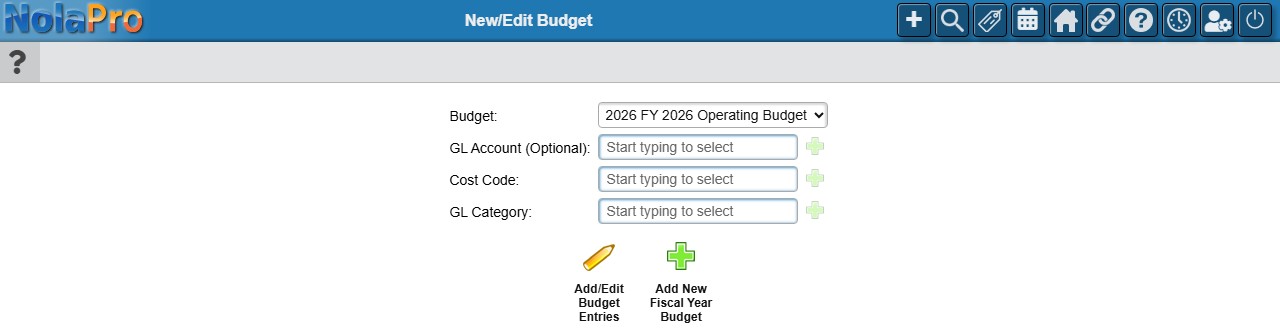
1) Click Add New Fiscal Year Budget (hover text "Add Budget"). If budgets already exist, choose Copy Budget Data From an existing budget to start from its monthly amounts (the new grid is pre-filled with the source's name and figures), or leave it blank for an empty grid, then click Next (with no budgets yet the dropdown reads "No Budgets Have Been Created" and this step is skipped).
2) Enter the Fiscal Year Begin (the four-digit year the fiscal year starts in; it opens pre-filled with the current fiscal year) and a Budget Name, for example "FY 2026 Operating Budget". Both are required. More than one budget can share the same fiscal year as long as the names differ.
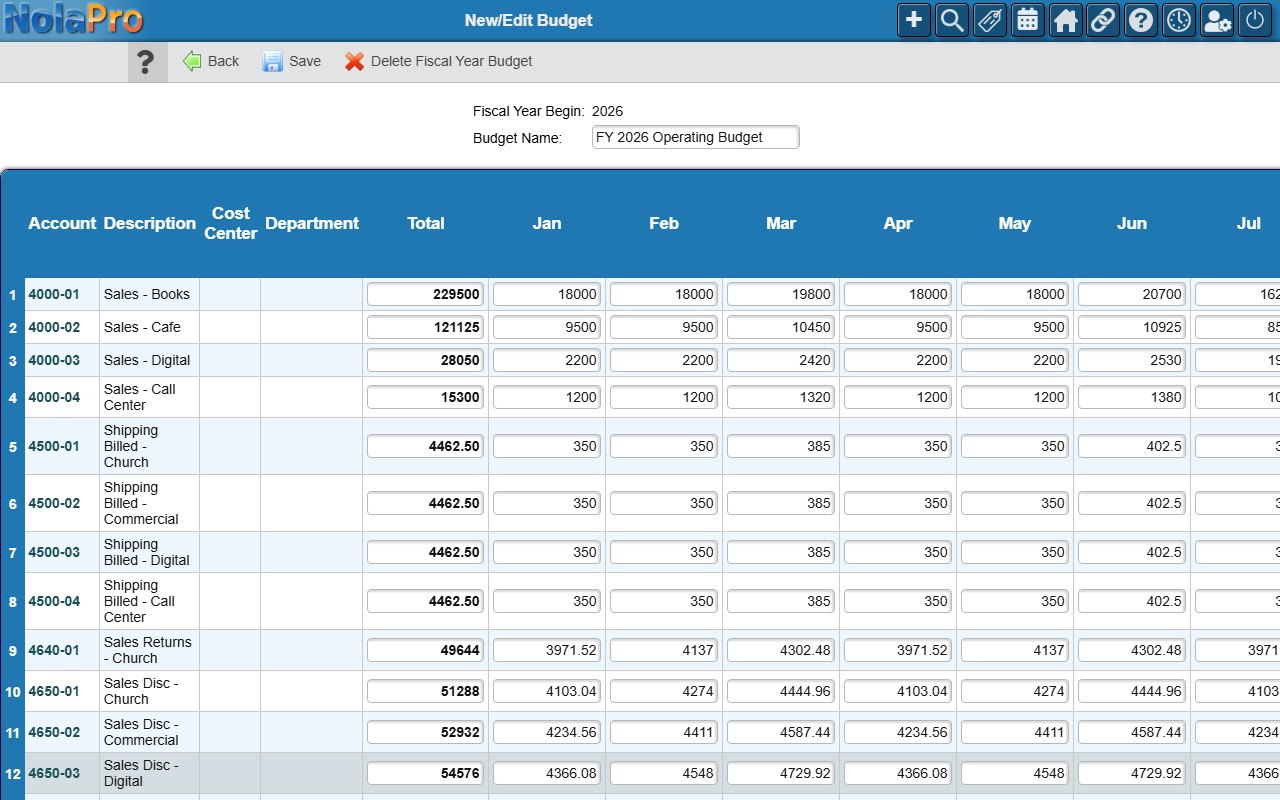
3) The grid lists one numbered row per income and expense account (with cost center and department columns when those features are on) and a column for each month, starting from your fiscal year's first month. Type the amount for each month, always as a positive number; NolaPro keeps track of the sign for income accounts itself. Typing a figure in the row's Total box spreads it over the twelve months in whole units (any remainder goes to the last month), and checking Make All Months Same on a row copies whatever you type in one month to the rest of the row. The checkbox in the column header turns that on for every row at once.
4) Click Save. All rows are saved together; if anything fails, nothing is saved. The page returns to the New/Edit Budget start screen with the new budget at the top of the Budget list (no separate confirmation text is shown).
Editing a budget
1) Pick the budget in the Budget dropdown (newest fiscal year first, shown as the year and the name). To work on one account only, enter it in GL Account (Optional); the grid then shows just that account plus three extra Actual columns with its actual totals for the budget year and the two years before it (each links to the Budget Variance report), which is the quickest way to base a budget on history. Cost Code and GL Category filters are offered too. Click Add/Edit Budget Entries (hover text "Update Account Budget").
2) Change any amounts and click Save. The Fiscal Year Begin of an existing budget cannot be changed. The Delete checkbox at the end of each row removes that account's line immediately, without a confirmation and before you save; Delete Fiscal Year Budget removes the whole budget after "Are you sure you want to delete the entire fiscal year budget?" and returns to the start screen without a message. Both are soft deletes; the figures stay in the database but no longer appear.
3) Accounts that have no line yet in this budget are listed under Accounts Without a Budget Set below the grid. Click one to add its budget line (in a new tab) without rebuilding the rest.
Budget List
Where: Ledger -> Reports -> Budget List
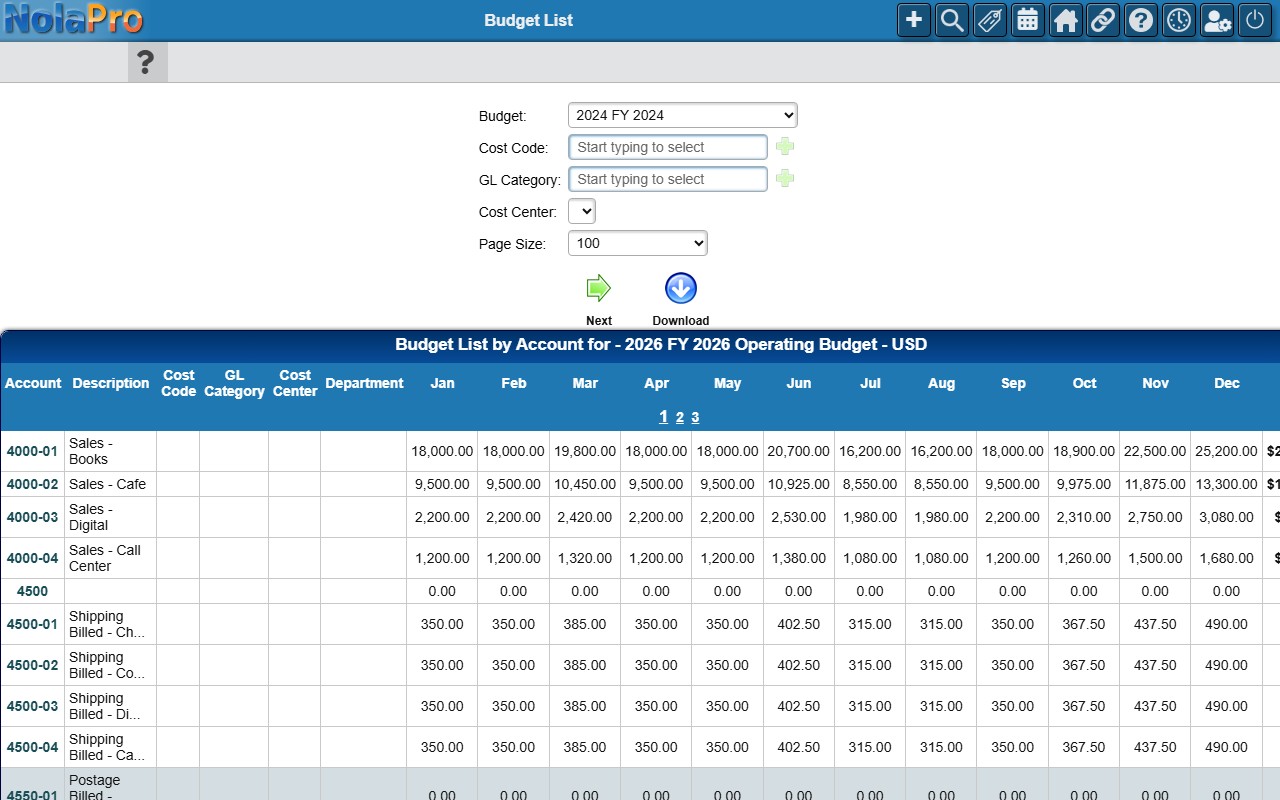
1) Choose the Budget and, if you use them, a Cost Code, Cost Center, Department or GL Category, set the Page Size (Show ALL Entries, or 10 to 250 rows; 100 by default), then click Next. The filter form, with its Download button (hover text "Download All Results") for a CSV copy, stays above the results.
2) The report, headed Budget List by Account for the budget and currency, lists every income and expense account with its cost code, category, cost center and department columns, twelve monthly amounts and total; accounts with no line in the budget (including everything when a filter matches no budget lines) show zeros, and long descriptions are shortened. The account number opens the listed budget's New/Edit Budget grid for that account in a new tab, so you can change a figure straight from the list.
Budget Variance
Where: Ledger -> Budgets -> Budget Variance
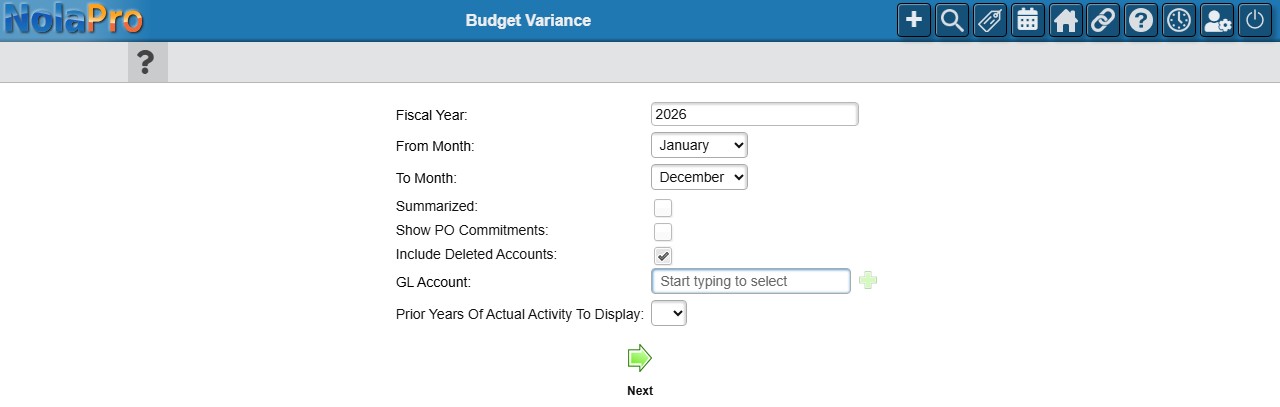
1) Enter the Fiscal Year (the year the fiscal year begins, the same year you entered on the budget; when your fiscal year does not start in January the box opens with the year the fiscal year ends in, so correct it) and the From Month and To Month to compare. Optionally limit the report to one GL Account, cost center or department (with totals by cost center or department). Check Summarized to roll accounts up to their summary accounts, Show PO Commitments to add a Committed column with the unbilled portion of open purchase orders, and choose how many Prior Years Of Actual Activity To Display (none, one or two). Include Deleted Accounts is checked by default. Click Next (hover text "Continue").
2) The report is headed with the company, budget name and period, and groups accounts by account type with a total row for each group (Sales, Sales Adjustments, Cost of Goods Sold, Expenses, Other Income and Expenses) and an overall total. For each account it shows two sections, Selected Period and Fiscal Year To Date (through the To Month), each with the prior-year actuals you asked for (2 Years Prior Actual, 1 Year Prior Actual), the Committed amount when requested, Actual, Budget, Variance (actual minus budget) and % Variance (blank when the budget is zero). Click an Actual amount to open the GL activity behind it, or a Committed amount to see the purchase orders behind it. Accounts with nothing in any column are left out unless you filtered to one account. "No budgets set for the selected fiscal year" means no budget exists for that begin year, and "No entries match the specified criteria to report" means the chosen filters produced no rows.
3) Above the report, Select Budget to Use and the GL Account, Cost Code, GL Category and Show PO Commitments filters let you change the comparison and click Recalculate without starting over; the budget choice matters when more than one budget exists for the year, and the dropdown keeps the budget you selected after a recalculation. Note that the GL Account box above the report does not repeat the account you filtered on; read the report heading to confirm what was used.
Notes
- Month columns always start from the company's fiscal year begin month (Admin, Ledger, Accounting Calendar, Calendar Setup, Start Month), so a July fiscal year shows July through June.
- Copying a budget creates a new, independent budget; the one you copied from is not changed.
- Budgets can also be loaded from a spreadsheet with Tools -> Import -> Import GL Budgets. Download the Import Template there: its columns are Budget Year, Budget Name, GL Account (the account number), Cost Code and GL Category codes when those features are on, and one column per month headed by the calendar month number (4 for April, 1 for January), listed in fiscal-year order. Each row is one account line; a Budget Year and Budget Name that already exist update that budget (an account already in it is overwritten, a new account is added), a new year-and-name pair creates the budget, and rows with an unknown account are skipped with a "GL Account Not Found" message. Amounts are entered as positive numbers here too.
- On the budget grid, the account number links to the Budget Variance report for that account.