
Customer Account Reports: Accounts, Balance History, Activity History, Customers by Sales
Four reports under Reports, Billing look at receivables from the customer's side: a one-page snapshot of a customer's account, a day-by-day balance history, a transaction-by-transaction activity history, and a ranking of customers by sales. Use them when a customer calls about their account, before a credit decision, or to see who your best customers are.
All four are read-only. For the aging view of the same balances see Receivables Aging Report (Details); for the payments themselves see Payment Report (Billing).
Requirements
The Accounts Receivable module. When Block Salespeople From Seeing Orders, Invoices, Customers Other Than Own is on (Admin, Billing, Company Options) and your user is tied to a salesperson, the customer pickers on these reports only list that salesperson's customers.
Customer Accounts
Where: Income -> Reports -> Billing -> Customer Accounts
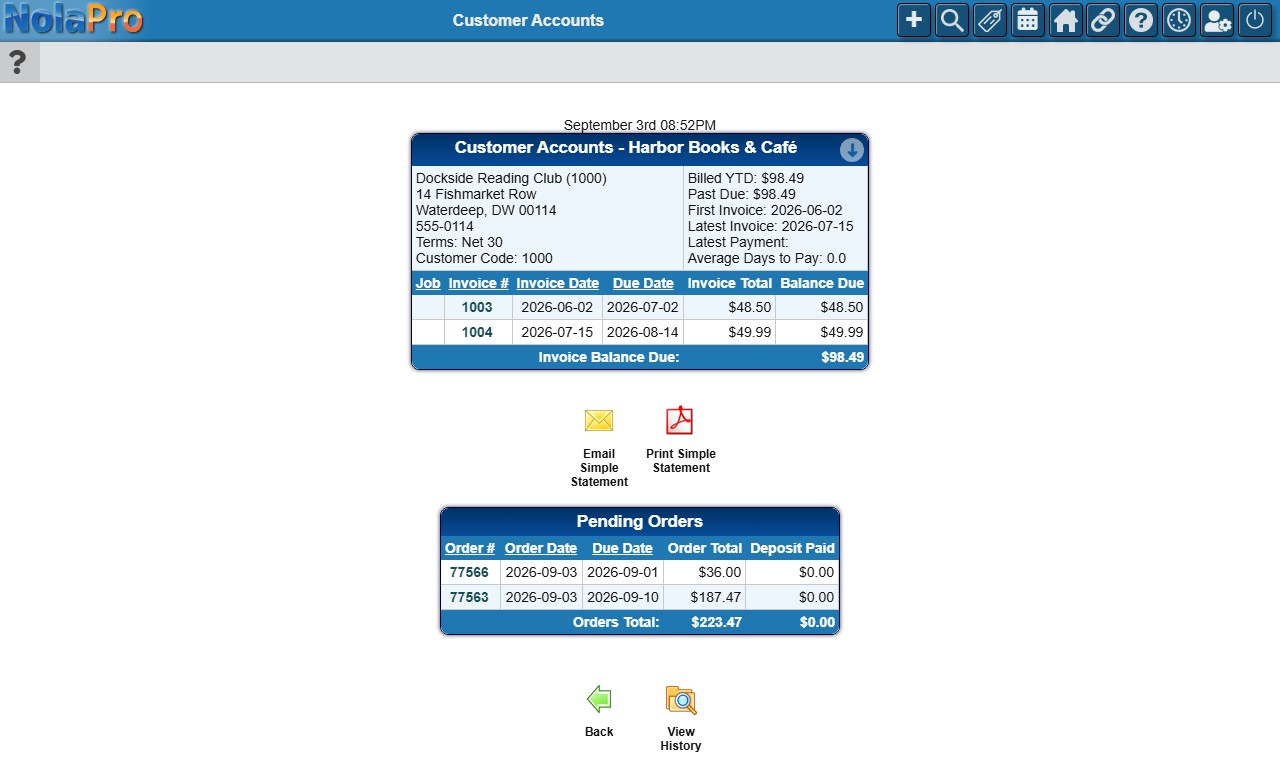
A snapshot of one customer's account: how much they have been billed and paid this fiscal year, what is past due, and what is still open.
1) On the View Customer Account screen pick the Customer Name (start typing the name or customer number) and click Next (its hover text reads "Continue"). "No matching customer found" is shown if the customer does not exist or is not yours to see.
2) The header (Customer Accounts and the customer's name) shows the address and phone with the customer code, terms, credit limit, Billed YTD, Paid YTD (both from the start of the fiscal year), Past Due, the dates of the first and latest invoice and the latest payment, and Average Days to Pay. The three money lines and the First Invoice, Latest Invoice and Latest Payment lines are shown only when the customer has them, so a customer with no invoices or payments yet sees neither the labels nor blank values. A write-off counts as a payment here, so it can be the latest payment date.
3) Below it, Open Invoices lists each unpaid invoice (up to 500, sortable; credit invoices appear with negative balances) with its job, date, due date, total and balance due and an Invoice Balance Due total (the invoice number opens the invoice in a new tab); when there are none it reads "No Open Invoices Found". Pending Orders lists the customer's open fulfillment, rental and service orders with order date, due date, order total and deposit paid and an Orders Total (the order number opens the order's pick ticket); when there are none it reads "No open orders found.". Email Simple Statement and Print Simple Statement produce a statement of the open invoices; View History opens the Customer History report (invoices by day, month, year or in detail for a period), and Back returns to the picker. The Pending Orders table and these buttons are always shown, even for a customer with no open invoices.
Customer Balance History
Where: Income -> Reports -> Billing -> Customer Balance History
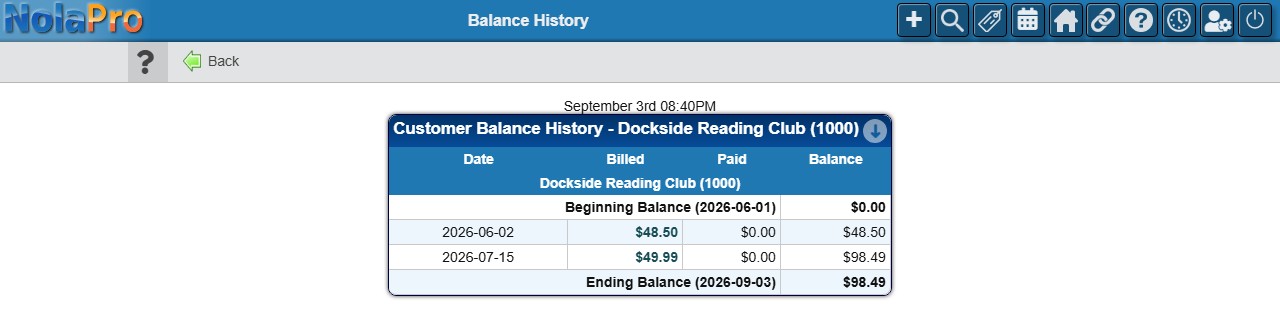
A running balance for a customer, one line per day that had activity, between two dates.
1) Enter the Begin Period and End Period (they default to the previous month) and pick a Customer Name. Leave the customer blank to run the report for every customer with activity in the range, one block per customer. Click Next (hover text "Continue").
2) The block opens with a Beginning Balance row (everything billed, paid and discounted before the begin date), then one row per date with the amount Billed, the amount Paid, and the running Balance, and closes with the ending balance. Negative balances (credits) are shown in red. A single customer with no activity in the range shows just the ending balance row; a customer who has never been invoiced shows only the column headings and their name.
3) Click a Billed amount to open that day's Summary of Invoices, or a Paid amount to open that day's Payment Report, each in a new tab; the Payment Report's total matches the amount you clicked. The report can be exported with the Export (PDF) quick link.
Customer Activity History
Where: Income -> Reports -> Billing -> Customer Activity History
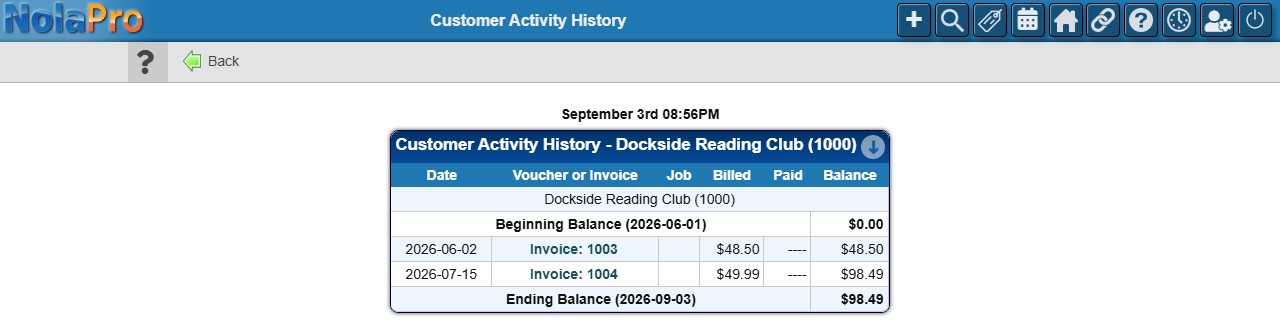
The same idea as the balance history, but one row per invoice or payment instead of one row per day, so you can see exactly which documents moved the balance.
1) Enter the Begin Period and End Period (they default to the last 30 days) and pick the Customer Name; a customer is required here ("Required Information Missing: Customer Name"). With the Construction feature a Job filter is also offered. Click Next (hover text "Continue").
2) The columns are Date, Voucher or Invoice, Job, Billed, Paid and Balance. Each row shows Invoice: number or Payment: voucher with the amount billed or paid (a discount taken with a payment shows under Billed; a write-off appears as a payment with its voucher) and the running balance, between a Beginning Balance and an Ending Balance row; with no activity only the ending balance row appears. An invoice row opens the invoice in a new tab; a payment row opens the Payment Report for that voucher. A single payment that covered several invoices appears once, as its voucher. An Export (PDF) quick link is offered.
Customers by Sales
Where: Income -> Reports -> Billing -> Customers by Sales
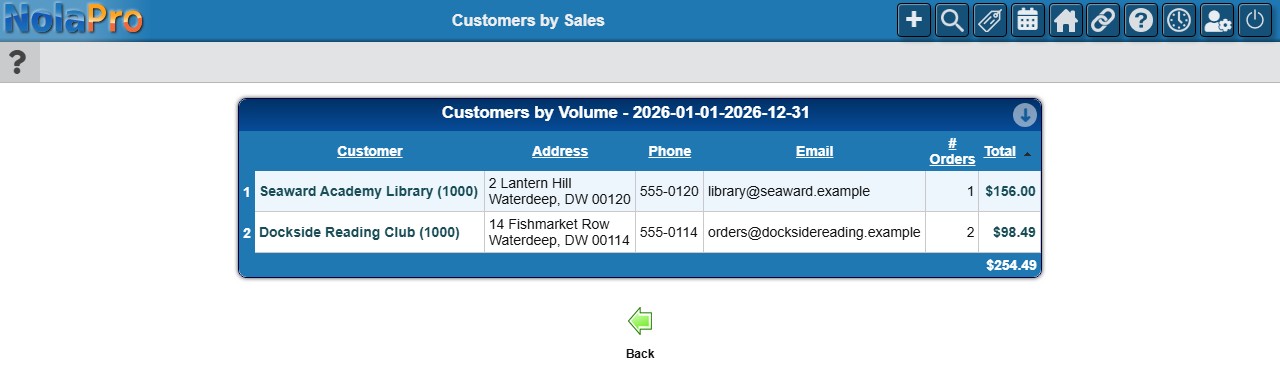
Customers ranked by the total of their posted invoices in a date range, so you can see your top (or bottom) customers.
1) Enter the Beginning Invoice Date and Ending Invoice Date (they default to the last year). Optionally limit the list to a Price Level and/or a Sales Category (shown when categories exist; the two filters combine), or enter a Minimum Sales amount to leave out small customers. Click Next (hover text "Create Report").
2) The report (headed Customers by Volume with the date range, and the minimum and sales category when used) ranks each customer with address, phone and email, the number of invoices in the # Orders column, and total sales, highest first, with a total row at the bottom. Click a column heading to re-sort. The customer name opens their Customer Accounts snapshot and the total opens the Summary of Invoices for the range, each in a new tab. "No items found" is shown when nothing matches.
Notes
- Cancelled invoices and invoices on payment plans are left out of the balance, activity and sales figures; Customers by Sales also counts only posted invoices and skips customers with zero sales.
- The all-customers Balance History states that its amounts do not include accrued interest; compare with the customer's statement when interest is charged.
- A customer with invoices in more than one currency gets a separate block per currency on the balance and activity histories; Customers by Sales converts other currencies to the base currency before ranking and applying the minimum.
- The all-customers Balance History runs one customer at a time and can be slow on large customer lists; pick a customer when you only need one.
- When the Customer Weather/Time feature is on and a customer has a weather ZIP saved, a small local time and weather panel appears above their history; it can be hidden with the user's Hide Weather preference.