
Write Off an Invoice as Bad Debt
When an invoice will never be collected, write it off as bad debt rather than deleting it. The Write-off page clears all or part of the balance of one or more of a customer's open invoices, posts the amount to your write-off (bad debt) expense account in the General Ledger, and leaves the invoice history intact. An invoice whose whole balance is written off is marked paid and drops out of aging and statements; a partial write-off leaves it open with the reduced balance.
To cancel an invoice that was entered by mistake, see Delete an Invoice; to give a customer a credit they can use later, see How to Issue and Apply a Credit Memo or Customer Credit.
Requirements
The Bad Debt Write-Off Support add-on, the Accounts Receivable module with rights to enter payments, and a Write-off GL account set in the receivables standard accounts (Admin, Billing, General Setup). Without that account the page shows "Write-off Account Must Be Set In Billing Setup Standard Accounts" and cannot proceed; if the account set there has since been deleted, the page shows a caution icon reading "GL Account Deleted" in the account box and you must pick another account before saving.
Writing off invoices
Where: Income -> Payments -> Write-off
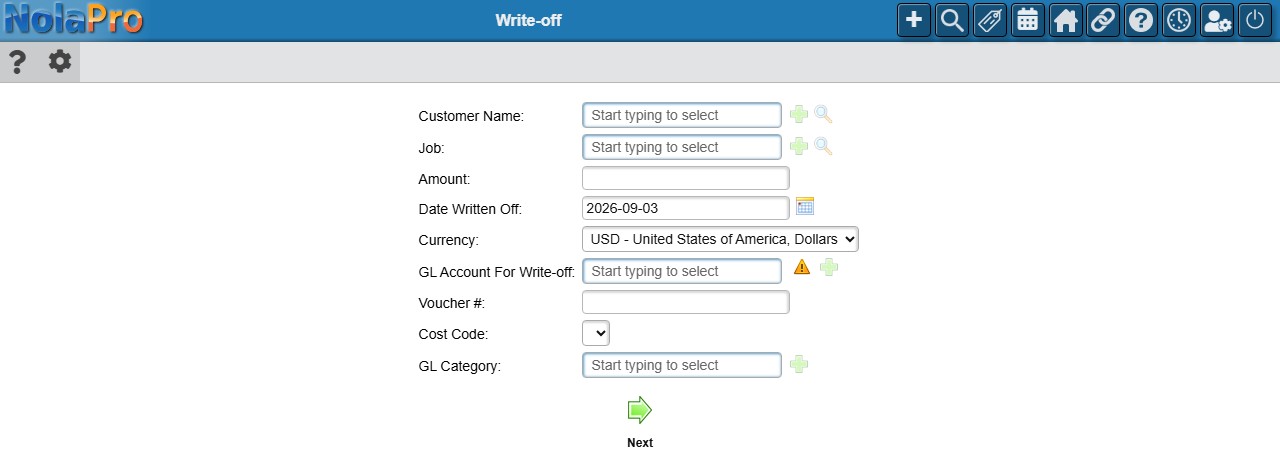
1) Enter the Customer Name (start typing, or use the lookup button to search by phone or ZIP). A customer is required; leaving it blank gives the alert "Customer Must Have an Entry". With the Construction feature a Job box follows it.
2) Enter the total Amount to write off, or leave it blank to decide invoice by invoice on the next screen. The Date Written Off defaults to today and is subject to the company's back-dating rules. With Multi-Currency a Currency dropdown follows; only invoices in that currency are offered (a currency the customer has no invoices in gives an empty list).
3) The GL Account For Write-off defaults to the company's write-off account; change it only if this write-off belongs somewhere else. Enter a Voucher # (a short reference of up to 20 characters, required). Depending on your setup you may also see Location (when inventory location options are shown on payment pages), Cost Code (Cost Codes for AR/AP) and GL Category (GL Categories). Click Next.
4) The next screen is headed with the customer's name and the amount entered. The customer's open invoices are listed with their job (Construction), amount, amount paid, balance and due date; credit invoices (negative balances) and zero-balance invoices can appear too, so leave their write-off amount empty. Type the amount to write off against each invoice, or click an invoice's Balance to fill in its full balance. Alternatively switch on Apply Write Off To Oldest Invoices to spread the amount from step 2 across the oldest invoices automatically. The totals at the bottom show the Write-off Total (the amount entered, also echoed as "Original Payment"), Selected For Write-off (the amount allocated) and Yet To Select (what is left). A Write-off Note box is shown but its text is not kept with the write-off.
5) The Save button (its hover text reads "Complete Payment", or "Complete Write-off" once Make Equal has been used) appears only when Yet To Select is exactly zero. If the total and the allocations do not match, the page shows Not Fully Applied with a Make Equal checkbox; tick it to set the total to what you allocated and reveal Save. If you left the Amount blank, the totals start at zero with Make Equal and Save already on screen; type the invoice amounts (Yet To Select goes negative), tick Make Equal to set the total to what you allocated, then Save. Back returns to the entry screen.
6) Click Save. Each invoice's balance is reduced by its write-off amount and a journal entry ("AR Invoice Write-off") debits the write-off account and credits accounts receivable. The page then returns to a blank entry screen; in the current release the "Invoice Write-off Added Successfully" message is not shown on the way, so confirm the write-off on the customer's activity history or the Payment Report.
Notes
- A write-off is recorded like a payment against the invoice with the method Write-off, so it appears on the Payment Report (which has an Exclude Write-offs checkbox) and on the customer's activity history.
- Invoices on a payment plan, cancelled invoices and unposted invoices are not offered for write-off.
- If the customer later pays a written-off invoice, record the payment normally; the write-off will need to be reversed by your accountant with a journal entry.