
How to Issue and Apply a Credit Memo or Customer Credit
A customer credit is a credit balance sitting on the customer's account. You usually issue one against an existing invoice (returned goods, a price or tax correction, or a goodwill credit), though a credit can also arise from an overpayment. NolaPro gives you several ways to issue the credit — pick the one that matches the situation. Once a credit exists, you clear it one of two ways: apply it against the customer's other open invoices on the Enter Payments screen, or pay it back to the customer as a refund on the Refund Credit screen.
Step 1: Issue the Credit (choose the method that fits)
There is more than one way to put a credit on a customer's account. The first three reverse inventory, tax, and the GL correctly for returned goods; the last is for a credit that is not a goods return.
Method A — Item Returns (return goods against an invoice). Reach it at Income -> Invoices -> Item Returns.
1) Search for the posted invoice and click it to open the line-by-line return form (Create Return).
2) Enter the Return Quantity per line, choose the Return To Location where inventoried goods go back into stock, and apply a restock fee if appropriate.
3) Click Create Credit Memo. NolaPro creates the credit-memo invoice tied to the original, posts the matching GL entries, and returns inventoried goods to stock.
Method B — the Issue Credit button on an invoice. Open the invoice's View screen and click Issue Credit. The window offers a Credit Type:
• Return — opens the full return form (the RMA screen when the invoice is tied to a shipment, otherwise the Item Returns detail form, the same as Method A).
• Price Adjustment — credits a price difference on the invoice's lines.
• Tax Adjustment — credits or corrects the sales tax on the invoice.
• Simple Credit — directly credits an amount you type, with a description (and optionally the invoice's taxes). Use this for a credit that is not a goods return.
Method C — RMA (authorize, then receive a return). Reach it at Income -> Orders -> Fulfillment Order -> Process RMAs.
For order/shipment-based returns, create an RMA against the original shipment and then receive it; receiving the RMA generates the customer's credit memo (and can charge a restocking fee or create a replacement order). See the Process a Customer Return or RMA article for the full flow.
Method D — a manual negative invoice. Reach it at Income -> Invoices -> New Invoice.
You can hand-key an invoice with negative amounts to place a credit on the account, but this does not return goods to stock or reverse tax automatically — use it only for non-inventory credits or adjustments. For anything involving returned goods, prefer the return form (Method A, or the Issue Credit Return option); for a plain dollar credit, the built-in Simple Credit option in Method B is the cleaner route.
Step 2: Apply the Credit to Open Invoices
Where: Income -> Payments -> Enter Payments
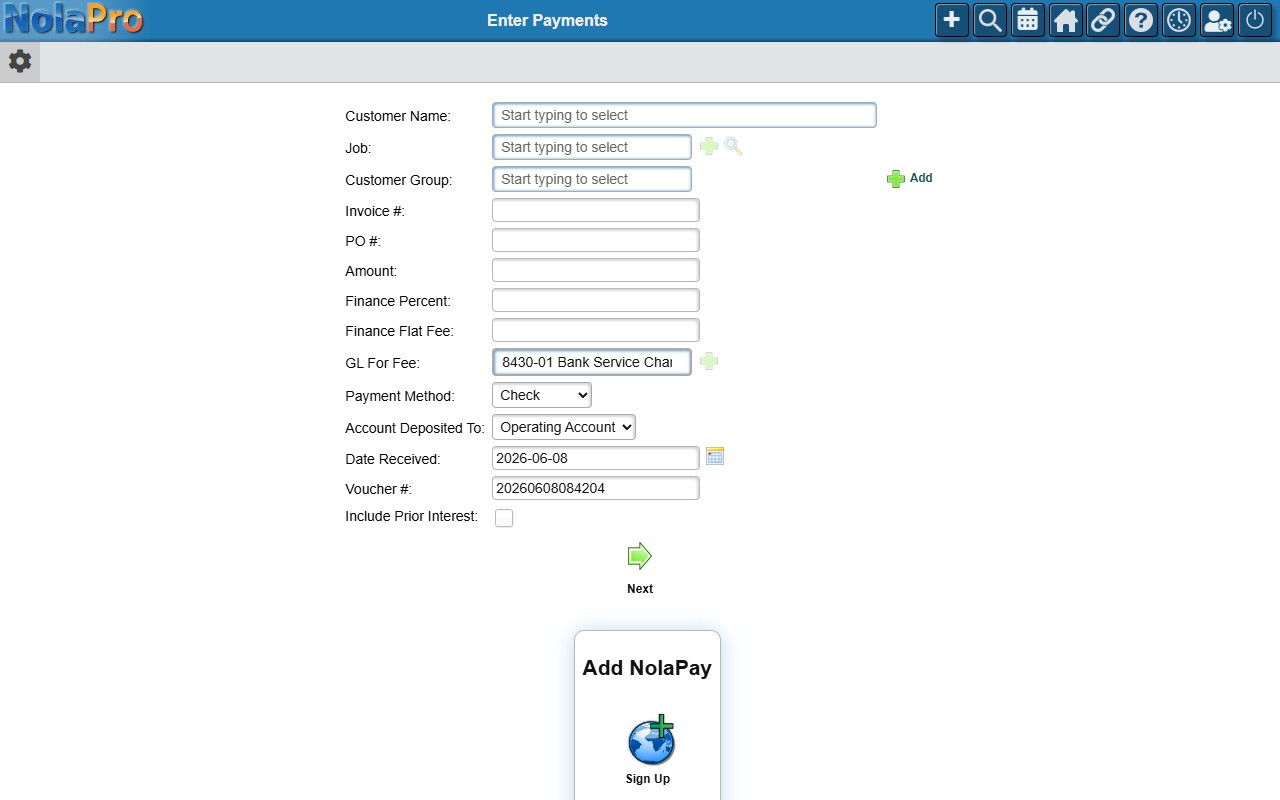
1) Select the Customer. Their credit balance appears alongside their open invoices.
2) In the apply grid, distribute the available credit across the open invoices by entering an Amount to Pay on each, or use Auto-Apply.
3) Save to clear the credit against those invoices.
Step 3: Or Refund the Credit to the Customer
Where: Income -> Payments -> Refund Credit
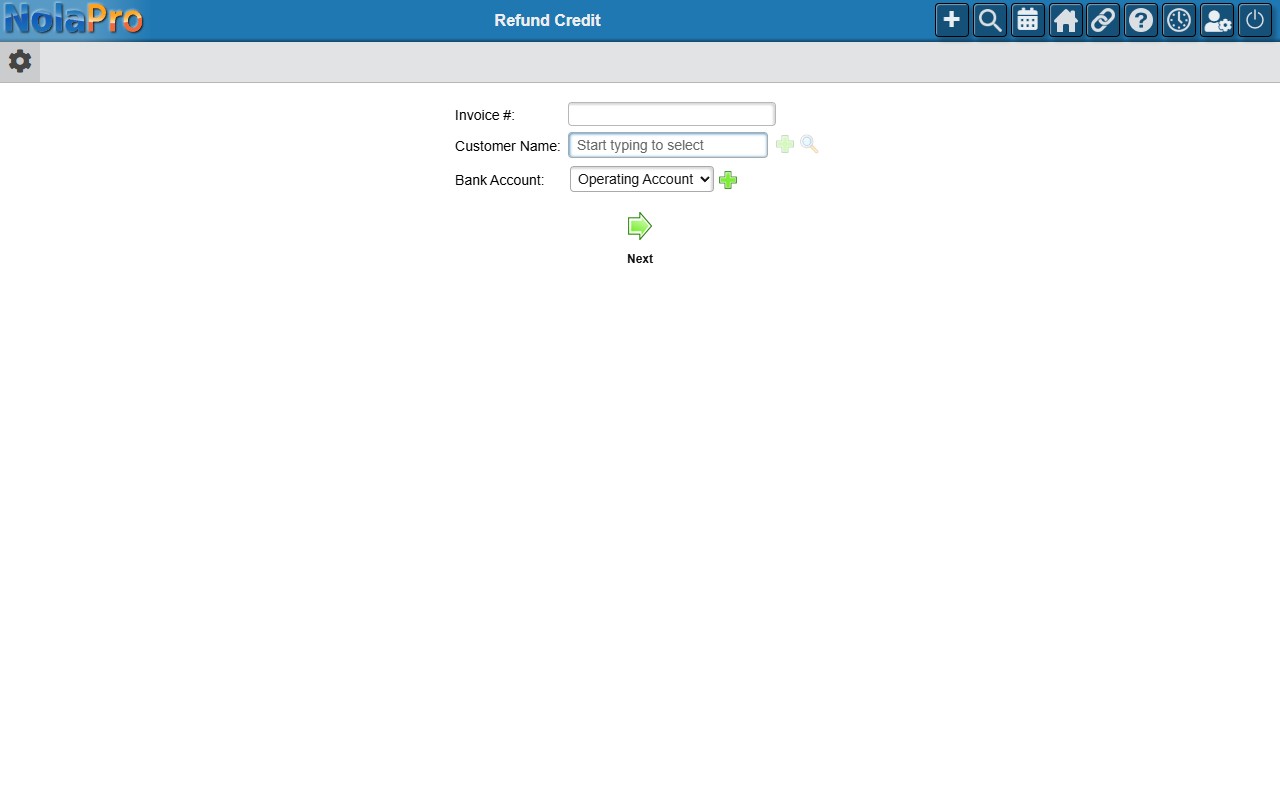
1) Identify the customer with Customer Name (and/or an Invoice #) and choose the Bank Account to refund from.
2) On the next page, every credit-balance invoice is listed. Check Include in Refund to auto-fill the full credit for that invoice, or type a smaller Amount To Refund.
3) Choose Pay How (Cash, Check, Credit Card, or ACH/EFT), set the Check Date, and confirm the Check # for check payments. When you choose Credit Card, a Refund To Card selection appears listing the original approved card transactions tied to the credits being refunded (card type, last 4 digits, original amount, date, and transaction ID). It defaults to Record Only, which just records the refund in NolaPro. Selecting one of the listed transactions sends the refund to the card processor and applies it back to that card.
4) Save to create the refund.
Notes
- The credit memo NolaPro creates through a return is itself a negative-quantity invoice tied to the original. Routing it through the return form — rather than hand-keying a negative invoice — is what reverses inventory, tax, and the GL correctly.
- Only a posted invoice can be credited through Create Return. For an unpaid invoice you simply want to undo, edit and unpost it instead of issuing a credit.
- The refund amount per invoice cannot exceed that invoice's current credit balance; the running total updates as you select rows.
- If the full credit balance of an invoice is refunded, that invoice is marked paid.
- A duplicate check number on the chosen bank account blocks the save.
- ACH/EFT choices on the Refund Credit screen are recorded for reference only. A Credit Card refund can either be recorded for reference only (Record Only) or processed live back to the original card by choosing a transaction in Refund To Card.
- Refund To Card appears only when NolaPro can find an original approved card transaction for those credits. It is not offered for the Manual or PSiGate processors, so use Record Only for those.
- The card is refunded before the refund is recorded. If the processor declines, a Refund Failed message is shown and nothing is recorded, so you can correct the amount and try again.
- On success, a confirmation showing the refunded amount and the transaction ID is displayed alongside the usual refund-created message.
- In the rare case the card refund succeeds but the refund cannot be recorded, NolaPro says so and tells you to re-enter the refund using Record Only, so the card is not refunded twice.
- Saving a refund posts a GL voucher that reverses the credit balance and (for check/card/ACH) a check-register entry.
- Applying credit on Enter Payments is the right choice when the customer wants the money kept on account against future or current invoices; Refund Credit is for paying the money back.