
How to Enter a Customer Payment
Entering a payment is a two-step process. On the first page you identify the customer and describe the payment itself: the amount, how it was paid, which deposit account it lands in, and the date received. On the second page the system lists that customer's open invoices and lets you distribute the payment across them, either automatically (oldest first) or by typing an amount against each invoice. Saving updates each invoice balance, the customer ledger, and the general ledger.
Requirements
Optional features (Calculate Interest On Invoices, Finance Charge For Payments, Rebate/Discounts Applied At Payment, Split Single Payment Between Multiple Customers, Cost Codes for AR/AP) simply add extra columns or fields to the entry screens. The core payment flow works without them.
Step 1: Enter the Payment
Where: Income -> Payments -> Enter Payments
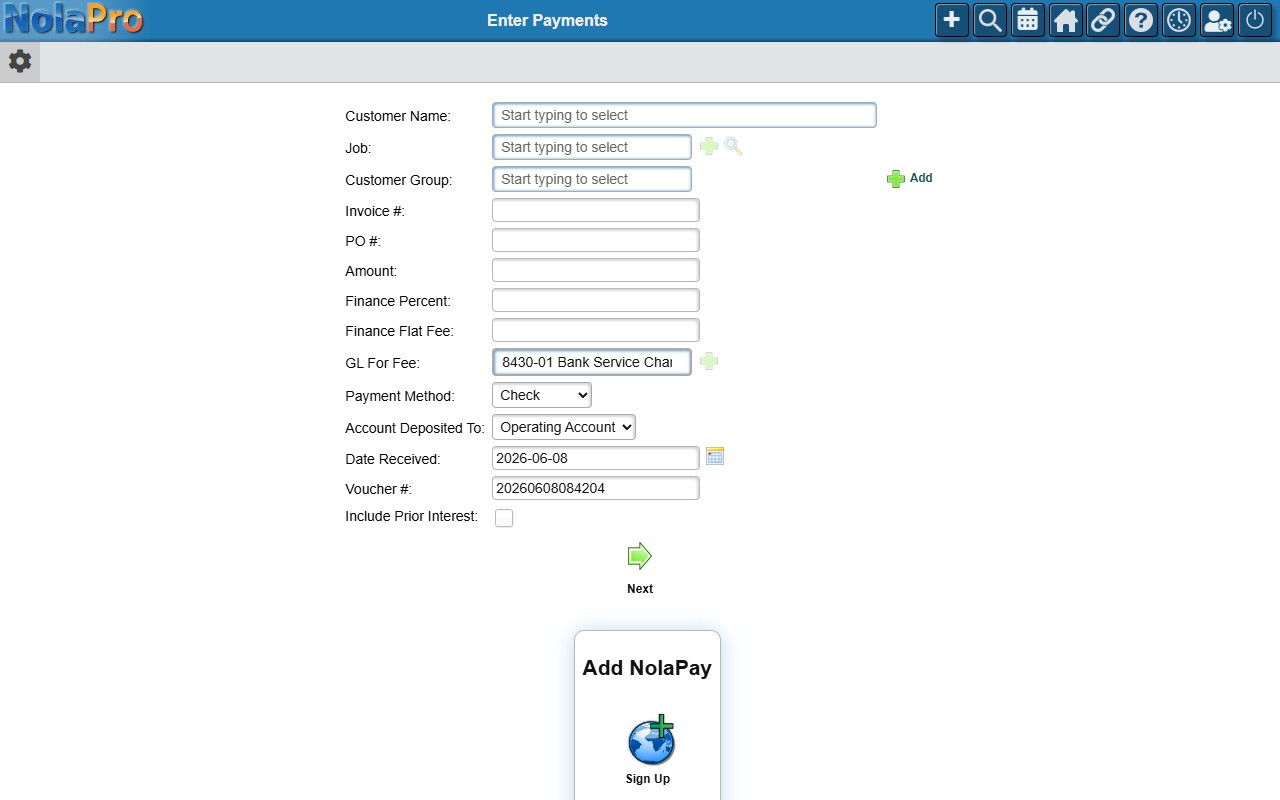
1) Choose the Customer. (If the Split Single Payment Between Multiple Customers feature is on, you can instead pick a Customer Group to pay invoices for several customers at once.)
2) Enter the Amount, choose the Payment Method, the Account Deposited To the money goes into, and the Date Received.
3) Optionally type an Invoice Number or PO Number to narrow which invoices appear on the next page.
4) Enter a Voucher Number if your company does not auto-generate them.
5) Click to continue to the apply step.
Step 2: Apply the Payment to Invoices
Where: Income -> Payments -> Enter Payments — Apply step
1) The grid lists the customer's open invoices. Check Apply Payment To Oldest Invoices to distribute the amount automatically starting with the oldest invoice, or type an Amount to Pay against each invoice manually.
2) Adjust the per-invoice Discount or Interest columns if those options are enabled.
3) If the payment is larger than the invoices selected, enter a Payment Description to label the overpayment/credit.
4) Save to post the payment.
Notes
- The form will not advance until Payment Method, Date Received, and Account Deposited To are all set.
- The Apply Payment To Oldest Invoices checkbox distributes to the oldest invoices first unless the Do Not Auto Apply Payments To Oldest Invoices company option is turned on, in which case you enter every amount by hand.
- An overpayment is retained as a credit on the account, labeled with the Payment Description you entered.
- When the credit-card method is selected and a card processor is configured, the page runs the authorization before saving.
- If the Receipts feature is on, you are prompted to print a receipt after saving.
- Payments post general-ledger entries to the chosen deposit account automatically.
- To apply one payment across more than one customer, see the related "Applying a Single Payment Across Multiple Customers" workflow.