
How to Record a Customer Deposit and Apply It to an Order
A deposit is money a customer pays toward an order before the goods ship and the invoice is created. NolaPro records the deposit against the order, posts the cash to a deposit account in the general ledger, and remembers it. When the order is later converted to an invoice, the deposit is applied automatically so the invoice opens with the correct remaining balance instead of double-counting the cash. Deposits are entered from a popup launched on the order's edit screen.
Requirements
To add a finance charge to a deposit, the Finance Charge For Payments feature must be enabled.
Step 1: Open the Order
Where: Income -> Orders
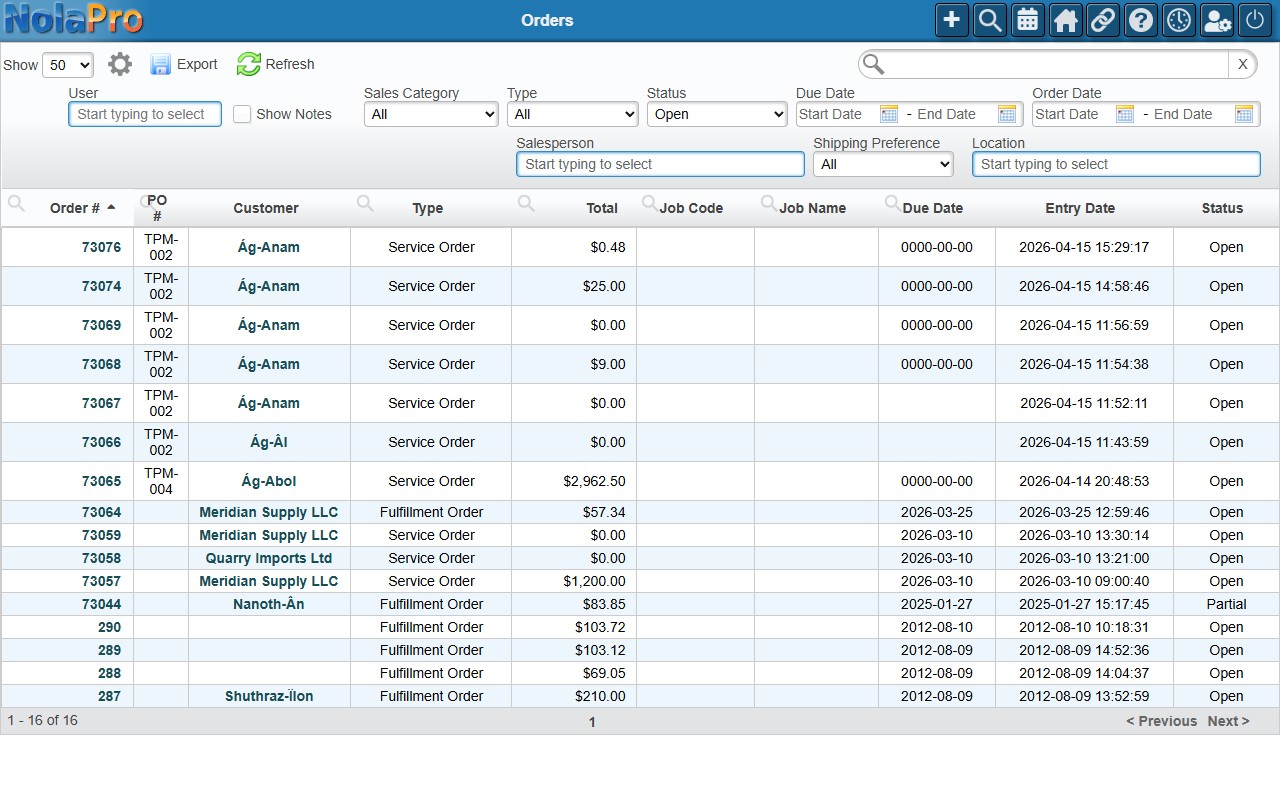
1) Locate the order in the Orders list and open it for editing.
2) From the order's edit screen, launch the Add Deposit action.
Step 2: Record the Deposit
Where: Add Deposit (Order) popup
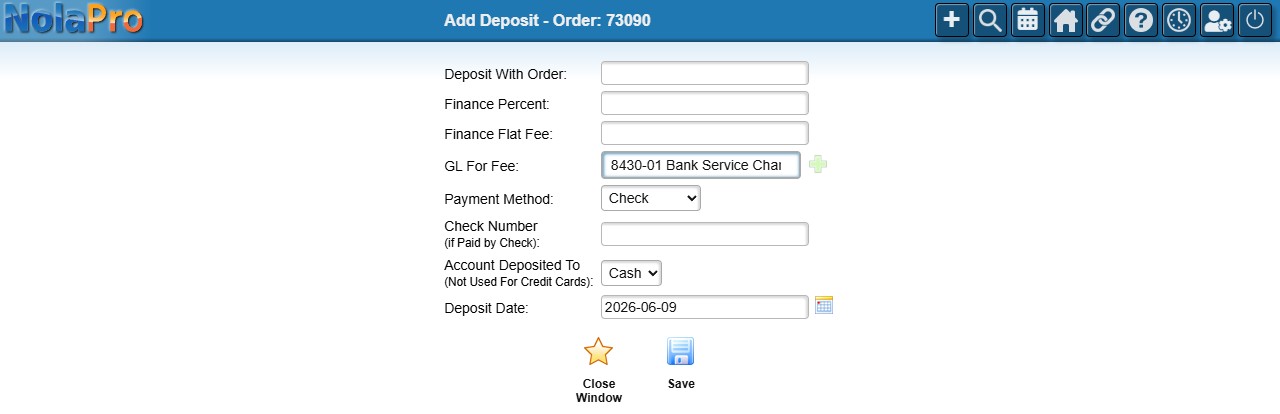
1) Enter the Deposit With Order amount.
2) Choose the Payment Method (Check, Cash, Credit Card, or Other, limited to the methods you are allowed to take).
3) For a check, enter the Check Number. Choose the Account Deposited To for the cash (only accounts matching the order's currency are listed).
4) Set the Deposit Date (defaults to today; can be back-dated).
5) Optionally add a Finance Percent or Finance Flat Fee and the GL For Fee when finance charges are enabled.
6) Save. For a credit-card deposit, the live charge runs first and the deposit is recorded only after the charge clears.
Step 3: Apply It When Invoicing
Where: Income -> Orders -> Fulfillment Order -> Orders to Invoices
1) When the order is converted to an invoice, any recorded deposit is applied automatically in the same transaction, so the invoice's open balance already reflects the deposit.
Notes
- The deposit popup described above is the standard flow for regular orders (the Orders list / arorder edit screen). Orders entered through NolaPro's Fulfillment Order mode use a separate full-page payment screen when you click Add Deposit — the field labels and layout differ, but the deposit is applied to the resulting invoice the same way.
- Taking a credit-card deposit requires a credit-card processor to be configured for the company; the Save button is replaced with a Process Credit Card button while in card mode to signal the deposit isn't saved until the charge succeeds.
- A failed card charge keeps the form open with the processor's error message and records nothing.
- Cash deposits post to the company's configured Cash GL account; check/other deposits post to the selected deposit account.
- A back-dated deposit earlier than the current AR period triggers the standard back-date confirmation.
- Cancelled orders cannot accept new deposits.
- The recorded deposit shows on the order's screen as part of its deposit total.