
How to Record a Bank Deposit
A bank deposit groups one or more recorded payments together so the total matches what actually lands in the bank, which makes later bank reconciliation straightforward. NolaPro keeps a searchable list of every deposit, and for credit card processing it can build deposit records automatically: you upload the NolaPay batch settlement file and the system matches each settled transaction back to the payment already on file, groups the matches by checking account, and creates one deposit per account with the General Ledger entries posted for you.
Requirements
Filtering deposits by cost code requires the Cost Codes for AR/AP feature.
Step 1: Record a New Bank Deposit
Where: Income -> Bank Deposits, then New Bank Deposit
1) Choose the Deposit To Bank Account — the checking account where the money will land.
2) Set the Deposit Date and enter a Deposit Description.
3) Optionally enter a Deposit from Petty Cash amount (cash collected in the drawer) or a Cash Withdrawal amount (cash kept back from the deposit).
4) Review the undeposited payments listed below the header. The list is split into three sections — Invoice Payments, Non-Invoice Payments, and Customer Deposits — each showing the date, customer, amount, and payment method. Check the rows you want to include in this deposit.
5) Save. NolaPro creates the deposit record and posts the matching General Ledger entries. A link to the new deposit appears for review.
Step 2: Review Existing Bank Deposits
Where: Income -> Bank Deposits
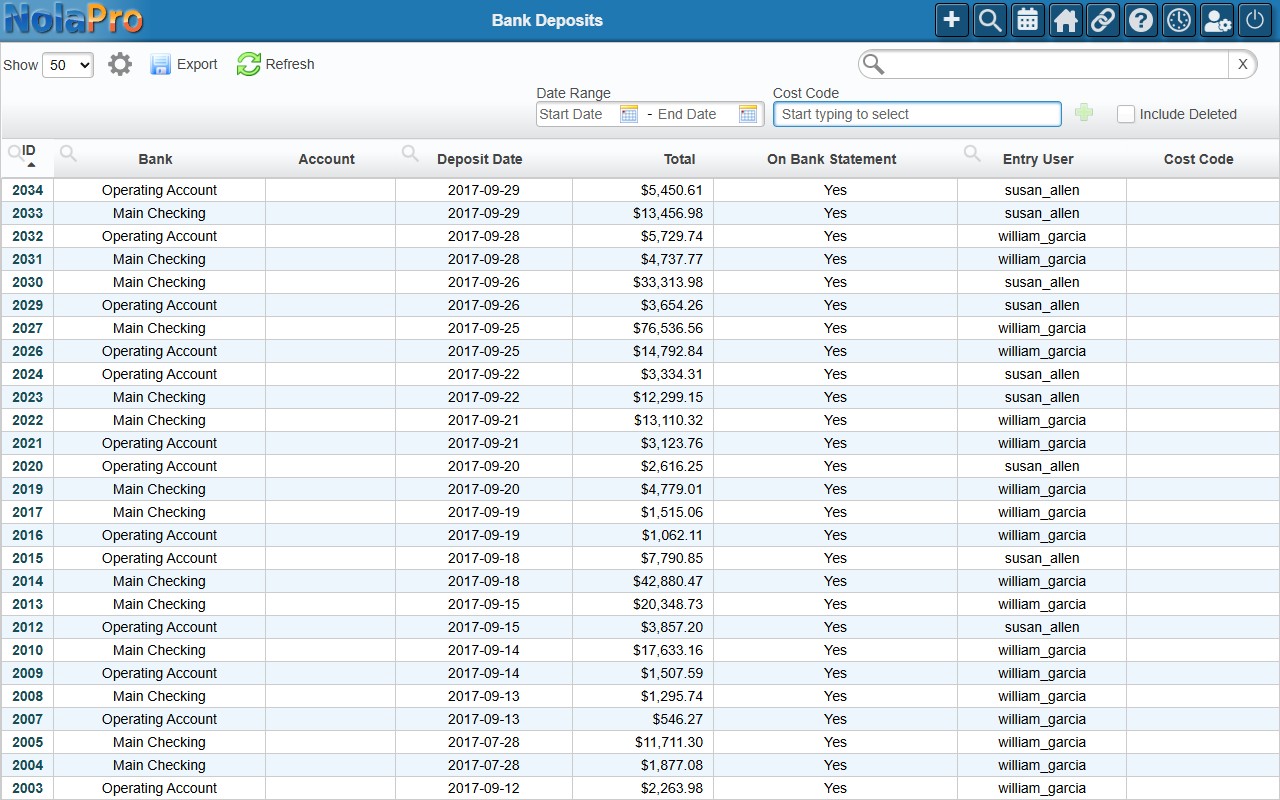
1) This list shows every deposit recorded in the system. Each row shows the deposit ID (a link to the deposit detail), the bank name, the last four digits of the account, the deposit date, the total, whether it appears on the bank statement, and who entered it.
2) Tick Include Deleted to show deposits that have been removed; leave it unchecked to see active deposits only.
3) Filter by Date Range to limit the list to deposits within a span of dates.
4) Filter by Cost Code to show only deposits tied to a specific cost code.
Step 3: Import a Credit Card Batch as Deposits (optional)
Where: Tools -> Import -> Import NolaPay Batch CC Deposit
1) Use this when you process credit cards through NolaPay and want NolaPro to build the deposit records from the settlement report. Enter the Deposit Date to apply to every deposit created by this import.
2) Choose the NolaPay batch settlement export for the Upload File field (CSV or tab-delimited).
3) Submit the file. The system reads each row, matches it to an existing invoice payment or order deposit by transaction ID and amount, groups the matches by checking account, creates one deposit per account, and posts the General Ledger entries.
4) After processing, links to the new deposit(s) appear. Any rows that could not be matched are listed in an "Entries Not Found In System" table showing the cardholder, date, amount, last four digits of the card, invoice reference, and transaction ID.
Notes
- The upload file cannot be empty; an empty file produces an error and creates no deposits.
- If every entry in the file is already linked to an existing deposit, no new deposit is created and a message says so. If only some entries are already deposited, a warning appears and the remaining undeposited entries are still processed into a new deposit.
- Only rows marked settled in the file are processed; all other rows are ignored.
- Entries whose terminal cannot be resolved to a checking account are skipped and appear in the "Entries Not Found In System" list.