
Inactive Customers (Bulk Cancel)
The Inactive Customers page lists customers who have not been invoiced since a date you choose and lets you cancel the ones you no longer do business with, all at once. Cancelling is a soft delete: the customer disappears from lookups and lists, but every invoice, order and payment stays on file.
To close or put a single customer on hold instead, use the customer's own record; see Make Customer Inactive.
Requirements
The Accounts Receivable module and Setup rights for Billing or Contacts (or the page granted under Advanced User Rights).
Listing and cancelling inactive customers
Where: Income -> Reports -> Billing -> Inactive Customers

1) Set No Invoices Since; customers with any invoice on or after this date are left out. It defaults to three months ago.
2) Leave the Ignore If Balance Due switch on (the default) to list only customers whose balance is zero, so nobody who still owes money, or who has a credit on account, can be cancelled by accident. A customer is listed only when their balance is zero in every currency; fully paid customers whose last invoice is older than the No Invoices Since date are included. Switch it off to include customers with a balance, which is then shown in a Balance Due column (one line per currency; empty for a zero balance).
3) Click Next. The list appears under the form with the heading Customers with No Invoices After and the date, and the button becomes Refresh, so you can change the date or the switch and rebuild the list in place. On a company with many customers the list can run to hundreds of rows and take a while to build; scroll down to see it. A PDF of the list is offered in the taskbar.
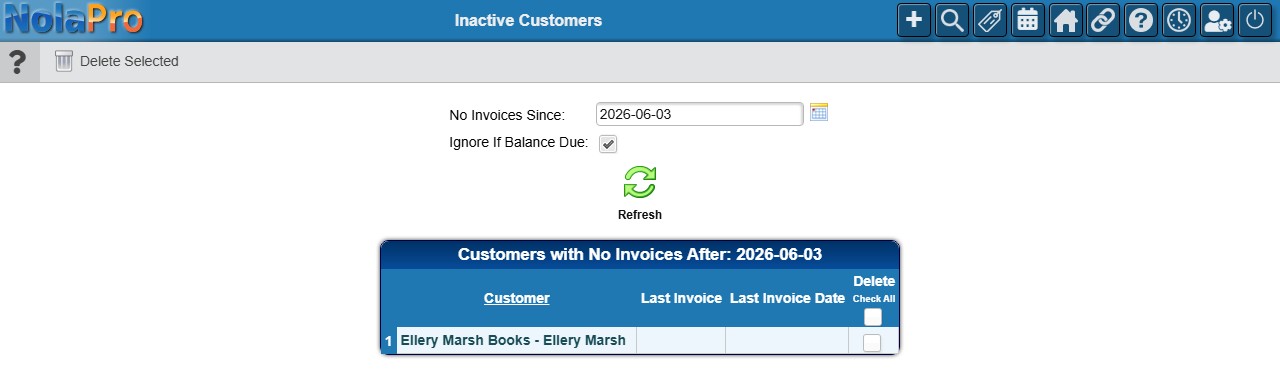
4) Each numbered row shows the customer (a link that opens Edit Customer in a new tab), their Last Invoice number (a link to the invoice) and Last Invoice Date, the balance due when shown, and a Delete checkbox. A customer that has never been invoiced shows no invoice number or date. Use Check All in the Delete column heading to select every row.
5) Review the selection, click Delete Selected, and confirm "Are you sure you want to delete the selected customers?". The page shows "Customers Deleted Successfully" (or "Error Deleting Customer Records") and returns to the empty filter form; enter the date again and click Next to see that the cancelled customers are gone.
Notes
- Customers with an open order are never listed, so they cannot be selected. Close or invoice their orders first.
- Only customers set up for receivables (with invoice terms) are considered.
- The list is sorted by company name, then last and first name; click the Customer heading to re-sort.
- Cancelling records the date and user, writes the activity log, and raises the customer-cancelled event used by custom code hooks and API webhooks.