
Forms: Form Manager, Form Requests and Form Reports
Forms let you build your own questionnaires inside NolaPro and send them to customers, vendors or employees to fill in online: a new-customer information sheet, a satisfaction survey after an invoice, a delivery check on an order, or an employee update form. Responses are stored against the related record and can be reviewed and summarized in Form Reports. This article covers building a form, sending it, tracking requests and reading the results.
Requirements
The Form Manager feature. In the current release the Form Manager and Generate A URL screens open only for a Company Supervisor (they cannot be granted under Advanced User Rights); sending customer, order or invoice forms needs customer edit rights, vendor forms vendor edit rights, and employee forms Payroll rights, and Form Requests only lists the request types you are allowed to edit.
Building a form
Where: Tools -> Forms -> Form Manager

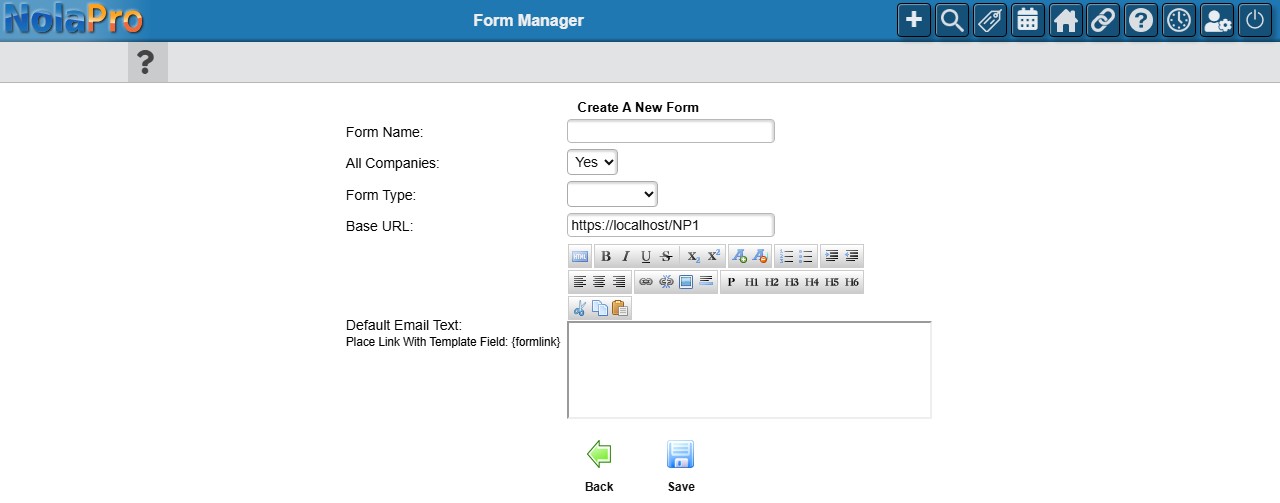
1) Click Add (beside Add New Form) to open Create A New Form. Enter the Form Name (shown at the top of the form; "You must enter a name for the form" otherwise), set All Companies (Yes by default) to No if only this company should use it, choose the Form Type (Customer, Order, Invoice, Vendor or Employee; a form left without a type offers every recipient picker later), and keep the Base URL (the address of your NolaPro site that form links are built on) unless respondents reach your site through a different address. The Default Email Text (a rich-text box) is the message body used when the form is emailed; the placeholder {formlink} is replaced with the respondent's link. Click Save; "Form Added Successfully" appears and the form's settings page opens below the Form Manager header.
2) To come back to a form later, pick it in Add/Update Questions For Form on the Form Manager and click Next. The form settings show the same name, companies, type, base URL and email text fields plus Active (Yes by default) and Days Till Expiration (blank on a new form; enter how many days a unique link should stay usable), and two upload sections for a form header graphic and a form email attachment. The buttons are Save, Add Field, Preview, Generate A URL, View Results (opens Form Reports for this form in a new tab) and Delete (removes the whole form after "Are you sure you want to delete this form?").
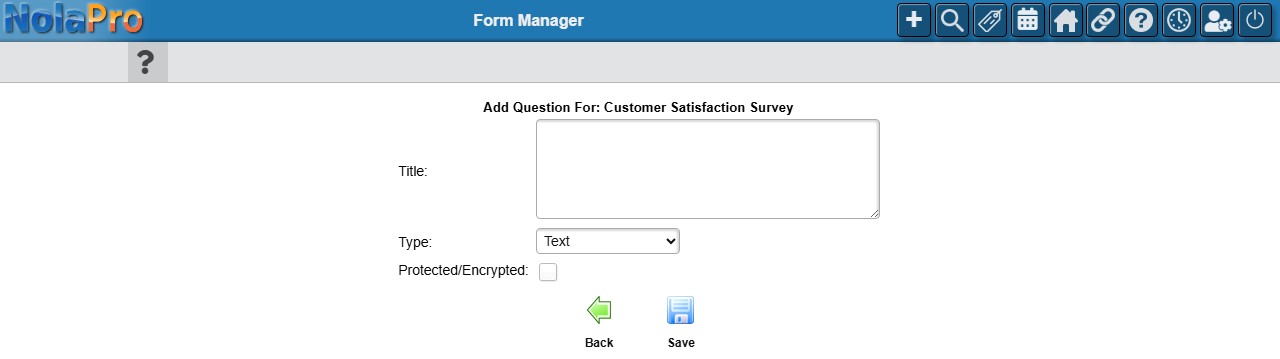
3) Click Add Field. Give the question a Title ("Must Have a Field Title" otherwise) and choose its Type: Text, Text Area, Checkbox, Select, Radio, Date, Numeric - Integer, Numeric - Decimal, Photo Upload, File Upload, Heading Only or Instructions. Text, Text Area and Date questions can be marked Protected/Encrypted. For Select and Radio questions, click Add Option for each choice and enter its sort order, display text and stored value. On a Customer form, Link To Customer Field maps the answer to a field of the customer record. Click Save; "Field Saved Successfully" is shown and the empty Add Question form stays open for the next question. Click Back when you are done.
4) In the questions table on the settings page you can drag rows (or edit the Sort Order number) to reorder them, mark a question Required, set a Default answer, adjust the Size of a text box, or check Display With Row Above to place two short questions side by side. Click Save to keep those changes (no message is shown), and Preview to open the form as a respondent will see it in a new tab. Deleting a question asks "Are You Sure You Want To Delete This" first.
Sending a form
1) From the form settings, click Generate A URL. Under Pick A Form Recipient Below Or Leave Blank, optionally pick the Customer, Order, Invoice, Vendor or Employee the form is for (only the picker matching the form's type is shown), so the answers are filed against that record. Make Link Unique is Yes by default: the link can be submitted only once, expires after the form's Days Till Expiration and is tracked under Form Requests. A non-unique link can be used repeatedly, never expires and is not tracked. Click Create URL; "URL Generated Successfully" appears with the link in a Form URL box (a short address such as .../l/T3ynJ5) to copy into an email or message.
2) The customer, vendor, order, invoice and employee screens also have an Email Form box: choose the form and click Next to email a unique link straight from the record using the form's default email text.
3) For employees, Payroll -> Forms -> Add Form Requests creates requests for several employees at once. The Create Form Requests panel offers the employee-type forms in Form, a Send Email Notifications switch (on by default; switch it off to create the requests without emailing anyone) and the employee list with a Create Request switch per row (the switch in the column heading selects everyone). Click the Save icon under the list; "Form Requests Added Successfully" confirms and the panel reopens empty. Employees without an email address get a request but no message.
4) Tools -> Forms -> Form Requests lists the unique-link requests sent from the company for the form types you may edit. Filter by entry date, type, status, the user who sent it or the form (inactive forms carry an "[Inactive]" suffix); the columns are Form, Type, Name, Entry Date, Status, Completion Date and User, and the list can be saved as CSV, PDF or HTML. Status is Open (not yet filled in; hovering shows "Expires" and the date, and clicking opens the form's short link in a new tab), Expired (the expiration window passed) or Completed (click to view the answers). An open request can be deleted from the record's Forms page; completed requests cannot be deleted.
5) When a respondent opens the link they see the form header, the record's name, the questions (required ones marked with an asterisk, and "* Required Fields" above the button) and a Submit button; a unique link also says "This form can only be submitted one time." Submit asks them to confirm ("Confirm Form Submission") and then shows "Thank you! You May Now Close This Page".
Reading the results
Where: Tools -> Forms -> Form Reports
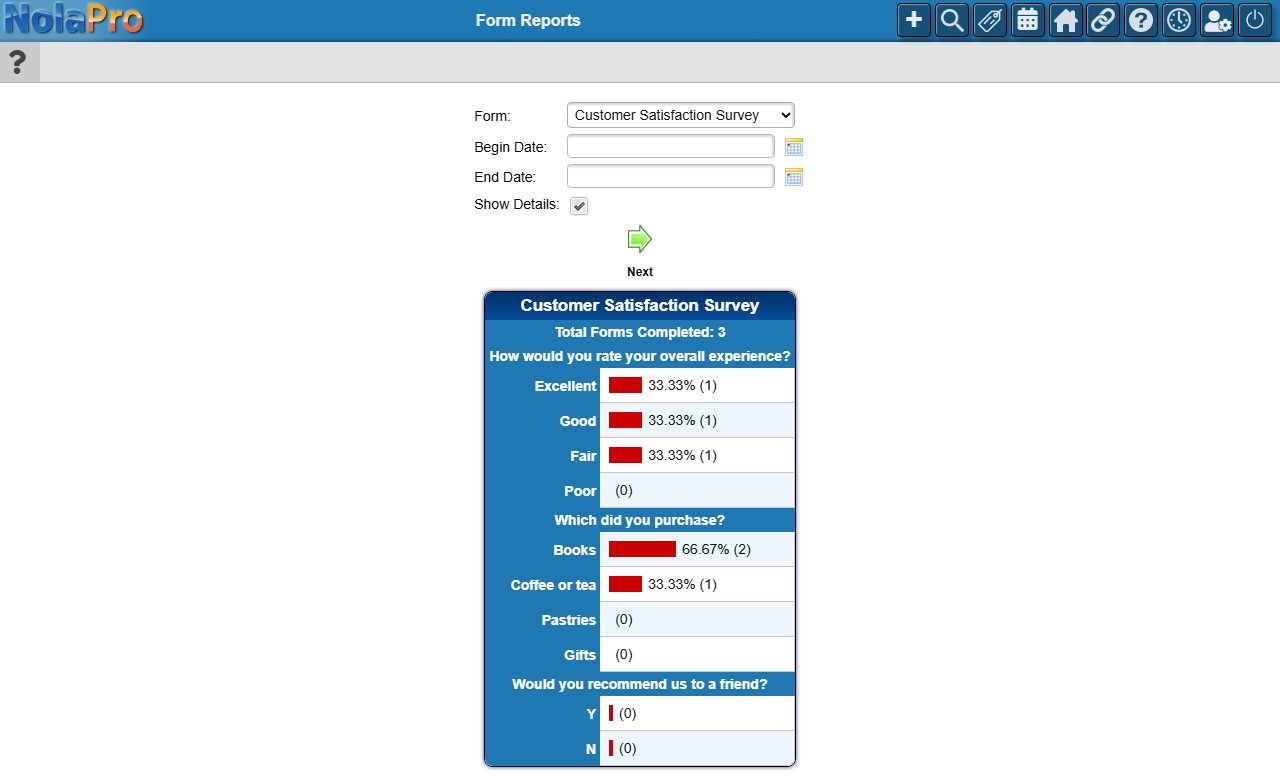
1) Choose the Form (or leave it blank for all forms, each shown under its own heading), a Begin Date and End Date of completion, and switch on Show Details to list individual submissions. Click Next. When nothing was completed in the range the filter form simply redisplays.
2) The summary shows Total Forms Completed and, for every Select, Radio and Checkbox question, each answer's percentage and count with a bar, for example "100.00% (1)" (answers nobody chose show "(0)"). Free-text and date questions are not summarized.
3) With details on, each submission is listed with its Completion ID, Date Completed, Type, Type ID (a link to the related record), Name (with the customer code) and IP. Click the Completion ID to view the whole submitted form.
Notes
- Setting a form to Inactive removes it from the Email Form pickers on the record screens (and lists it last, marked "(Inactive)", in Form Manager and Form Reports); links that were already sent still work. To stop submissions on an existing unique link, delete its request.
- Deleting a question removes it from the form; deleting a form hides it from every list but keeps the answers already collected. Questions tied to system fields cannot be deleted.
- A respondent who opens a used link sees "This form has already been completed"; an expired link says "This document expired on" the date and to request a new link; a deleted request says "This document is no longer available".