
Item Page Customizer
The Item Page Customizer tailors the New Item and Edit Item screens to the way your company works: hide the fields nobody uses and make the fields your staff must always fill in required. Each company keeps its own settings, and a change applies the next time anyone opens the item screens.
Requirements
The Inventory Page Customizer add-on and Setup rights for the Inventory module (or the page granted under Advanced User Rights).
Customizing the item screens
Where: Admin -> Inventory -> Item Page Customizer
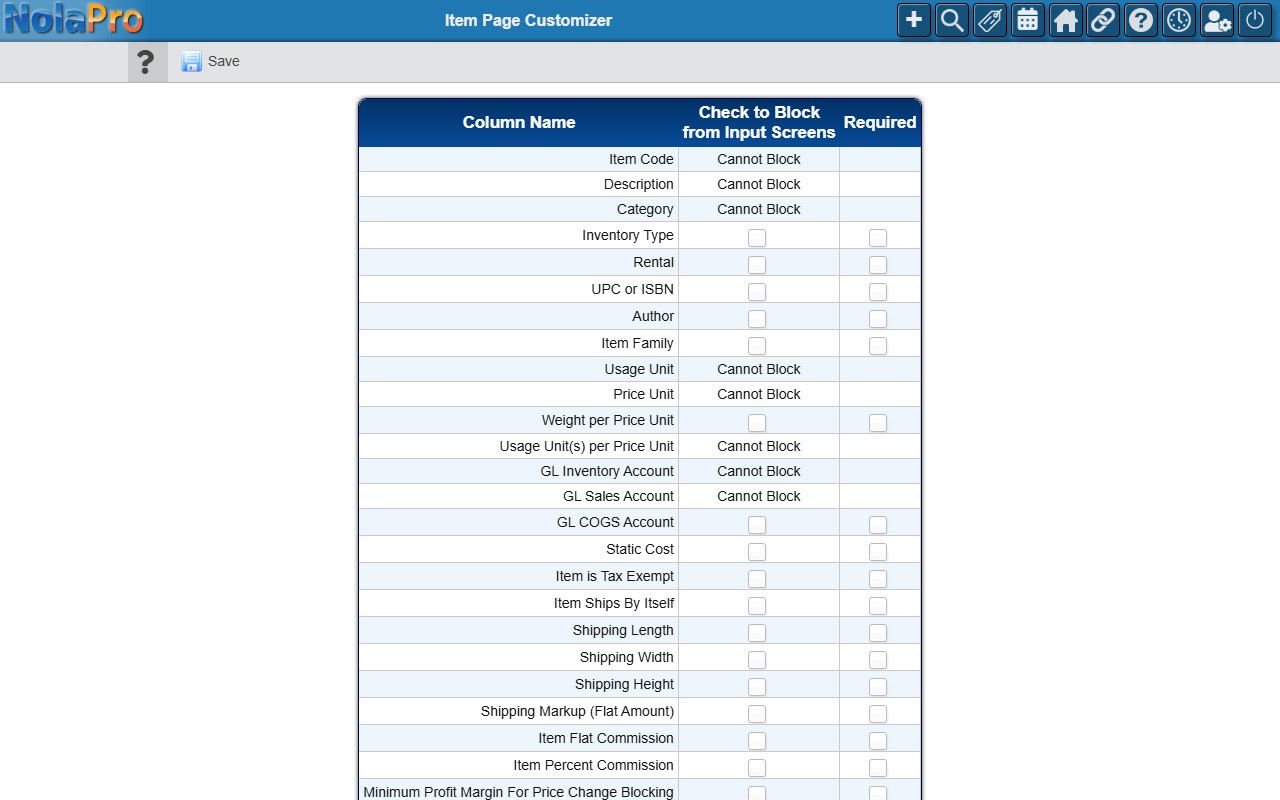
1) The page lists the fields of the item record in a table with the columns Column Name, Check to Block from Input Screens and Required. Switch on Check to Block from Input Screens to hide a field from the New Item and Edit Item screens, or Required to make it mandatory before an item can be saved. A field can be one or the other, not both: switching one on turns the other off.
2) The fields an item cannot exist without are marked Cannot Block and have no switches: Item Code, Description, Category, Usage Unit, Price Unit, Usage Unit(s) per Price Unit, GL Inventory Account and GL Sales Account. Other fields the item screens always show, such as GL COGS Account, are also marked Cannot Block but can still be made Required. Internal fields are not listed at all. Inventory Type is listed once: it is the Inventory Type field your item screens actually use.
3) Click Save. All rows are saved together and the page reports "Updated Successfully!" and redisplays the table; if the save could not be completed, "Update Failed!" is shown and nothing changes.
4) Open New Item to check the result: a blocked field (for example Weight per Price Unit) is simply gone from the form. A required field looks no different on the form; the check happens when you click Save. If it is empty a message "Please Complete Required Field" names the field, the cursor moves to it, and the item is not saved until it is filled in.
Notes
- Start small: block one or two fields, open the item screen to check the result, then come back for the rest.
- Blocking a field only hides it from the item screens; existing values in that field are kept and still appear on reports.
- Settings are per company, so a multi-company install can show different item fields in each company.
- Required fields are enforced on the New and Edit Item screens only (and only for fields that appear on those screens); imports and integrations are not affected.
- The customer and vendor screens have their own customizers; see Customer Page Customizer and Vendor Page Customizer.