
Payroll Direct Deposit: Authorization Form and ACH Report
Paying employees by direct deposit in NolaPro has a paper side and a file side. The Direct Deposit Authorization form is what an employee signs to give you their bank details and consent, and the Direct Deposits report is where you find, review and re-download the ACH files that payroll created for the bank. This article covers both pages. Entering an employee's bank details and producing the files is part of running payroll; see How to Run Payroll and Print Paychecks and Add Bank Account for those steps.
Requirements
The Payroll module must be enabled and you need Payroll rights (or the two pages granted under Advanced User Rights); downloading a file again needs Payroll write rights (without them the report shows only the download-history count, no download icon). Direct deposit files require a company bank account set up for payroll under Admin, Ledger, Bank Accounts.
Direct Deposit Authorization form
Where: Admin -> Payroll -> Direct Deposit Authorization

1) Under Employee Selection, pick the employee in Name, or leave Blank Form (the default) for an empty form the employee fills in by hand. Inactive employees are marked - Inactive in the list; terminated employees are not listed.
2) Click Print. The form opens in a new browser tab ready to print; nothing is saved in NolaPro.
3) The form carries your company's name and address, the instructions, a Transaction Type choice (New Setup, Changes or Cancellation) and a Payroll Office Use Only box for the dates received and effective. For a named employee, Section 1 (Employee Information) is pre-filled from the employee record: name, Social Security number, date of birth and the first address line, city, state and ZIP held on the employee's linked customer record (each left blank when the record has none). The employee completes Section 2 (bank or credit union, routing and account numbers, checking or savings), attaching a voided check as the form instructs, and signs Section 3 (Employee Consent and Authorization).
4) Enter the details from the signed form on the employee's record (Payroll, Employees, edit the employee, then Bank Information in the Payroll section) so the next payroll run can include them in the direct deposit file.
Direct Deposits report
Where: Payroll -> Reports -> Direct Deposits
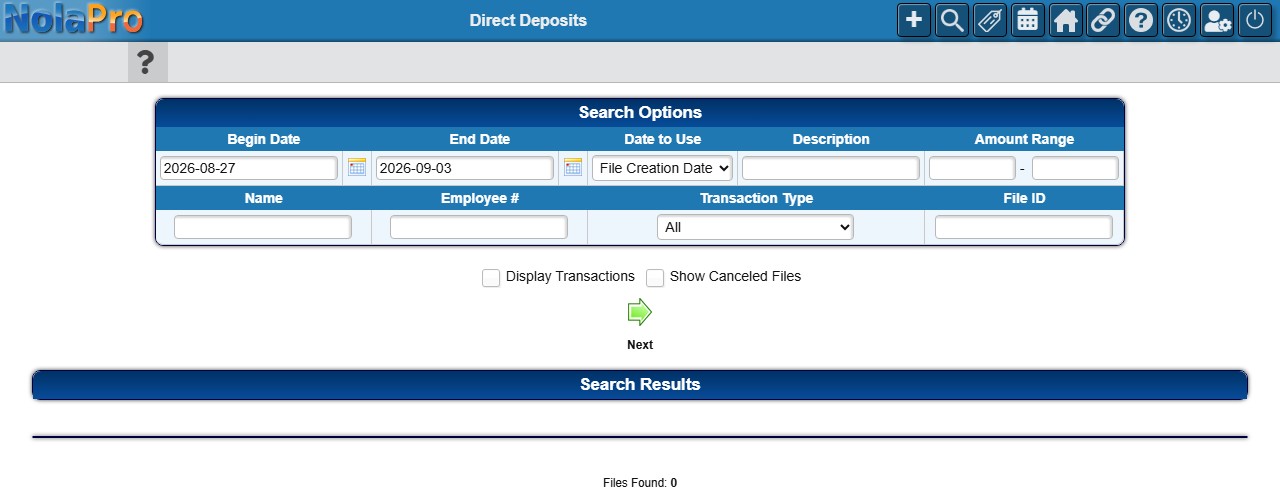
Every direct deposit (ACH) file created by payroll is listed here with its totals, so you can confirm what was sent to the bank, download a file again, or trace a single employee's deposit.
1) The page runs at once for the last seven days by File Creation Date and shows Files Found under the results. Change the Begin Date and End Date, or switch Date to Use to Effective Date (the date the deposits settle). Enter a File ID to jump straight to one file regardless of dates, or part of the file's Description. Click Next to run the search.
2) To find one employee's deposits, enter part of their Name or their exact Employee # (a partial number finds nothing), an Amount Range (enter one amount in either box to search for that exact amount), or a Transaction Type (DDA means a checking account: DDA or Savings, Credit (Deposit) or Debit (Withdrawal), and the matching prenotes). Switch on Display Transactions so each file expands to its individual employee lines with the employee number and name, amount, transaction type, routing and account numbers, bank and trace number.
3) Switch on Show Canceled Files to include files that were cancelled; they appear in red with Canceled in place of the download icon, and hovering over that cell shows who cancelled the file and when. Cancelled individual deposits inside an active file are also red when transactions are displayed, with the reason on hover.
4) Each result row shows the file ID, description, file creation and effective dates, total records, total debits and credits, the bank account and who created the file. Click the File Creation Date to open the parsed contents of the ACH file in a new tab (headed File Contents with the file ID; a file with nothing stored shows only the heading and a Close Window button), the download icon to download the file again (saved as a text file named with the file ID and the download time), and the number in parentheses beside it to see the download history (who downloaded the file and when; "No Records Found" until someone has). Files that were cancelled cannot be downloaded. The taskbar also offers Export (Excel) and Export (PDF) for the results.
Notes
- Both pages are read-only: the form only prints, and the report never changes a file. Voiding a deposit is done from the payroll check screens.
- The printed authorization form contains the employee's Social Security number; handle and store signed forms as confidential payroll records.
- Click a column heading on the report to sort; the filters are kept. The PDF version includes the results only, not the search form.