
How to Run Payroll and Print Paychecks
Running payroll is a two-stage process. First you calculate taxes for a pay period, which computes federal, state, local, and other withholding for every employee who has logged but uncalculated hours and records the results. Once the calculation succeeds, you write the checks, which produces the printable check and pay stub documents. Calculation must happen before checks can be written, and only periods that have uncalculated hours appear for selection.
Requirements
The Payroll System feature must be enabled; the Combine With Other Period option additionally requires the Combine Payrolls for Taxes feature.
Step 1: Calculate Payroll Taxes for the Period
Where: Payroll -> Time Clock -> Calculate
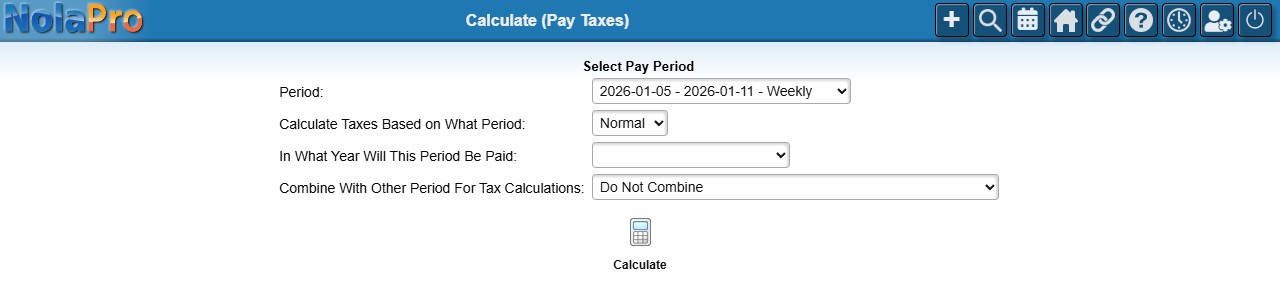
1) Choose the Period to process. Only periods that have employees with uncalculated hours are listed.
2) Leave Calculate Taxes Based on What Period on its default (Normal) unless you are running a special month, quarter, or year calculation.
3) Confirm the year in In What Year Will This Period Be Paid. Years that have no tax data set up are disabled; if the current year has no tax data, a warning with a link to start a new tax year is shown.
4) If you need to combine this period with a previously paid period for tax purposes, choose it under Combine With Other Period For Tax Calculations.
5) Click Calculate to run the computation for all employees in the period.
6) After a successful run, a confirmation appears with buttons to go Back, View Summary, or Write Checks. Click Write Checks to continue.
Step 2: Generate and Print the Checks
Where: Payroll -> Time Clock -> Calculate (Write Checks)
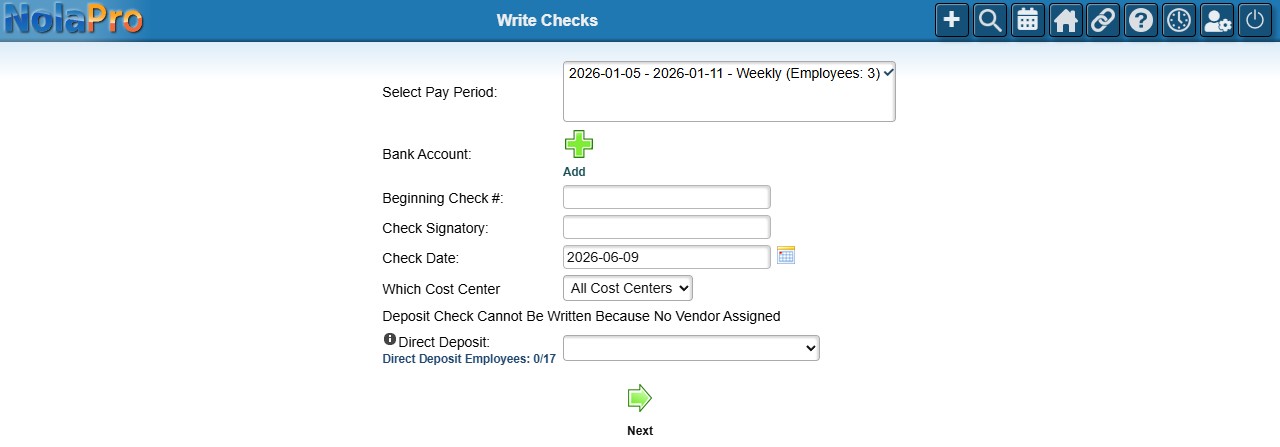
1) On the Write Checks page, pick the calculated Pay Period, the Bank Account to draw from, the Beginning Check #, an optional Check Signatory, the Check Date, and a Cost Center filter; then run it to generate the check PDF.
2) The PDF opens for viewing, printing, or download. Physical checks and direct deposit stubs are produced separately and are never combined in the same PDF; direct deposit entries print as non-negotiable stubs.
3) To reprint or look up a single check later, open this page and enter the check's ID to regenerate its PDF.
Notes
- If no employees have uncalculated hours for any period, the calculation page shows an error and only a Back button, so there is nothing to calculate until hours are logged.
- Selecting a paid year that has no tax data blocks the calculation; an alert is shown and nothing is processed.
- When the Round Federal Withholding to Nearest Whole Number setting is enabled, all federal income tax amounts are rounded to the nearest dollar during calculation.
- The Combine With Other Period option only appears when the Combine Payrolls for Taxes feature is enabled and previously paid periods exist.
- Generated check PDFs are saved as internal file attachments and then served to the browser.
- The Hide SSN, Hide Accrued Vacation & Sick Hours, and Scale Hours payroll settings affect what prints on the check stub.
- Employees can download their own pay stubs from the timecard portal when the company's pay stub download setting is enabled.