
How to Set Up a New Employee for Payroll
Adding a new employee for payroll is a three-step wizard on a single page. The first step captures general information (name, address, pay rate, and contact details), the second step records federal, state, local, and city tax withholding elections, and the third step assigns deduction groups and benefit plans. The employee record is created when you finish the first step, and the remaining steps add tax and deduction details to that same record. Once complete, the employee is available for time entry, pay calculation, and check printing.
Requirements
The Payroll System feature must be enabled.
Step 1: Enter General and Pay Information
Where: Payroll -> Employees -> Add Employee
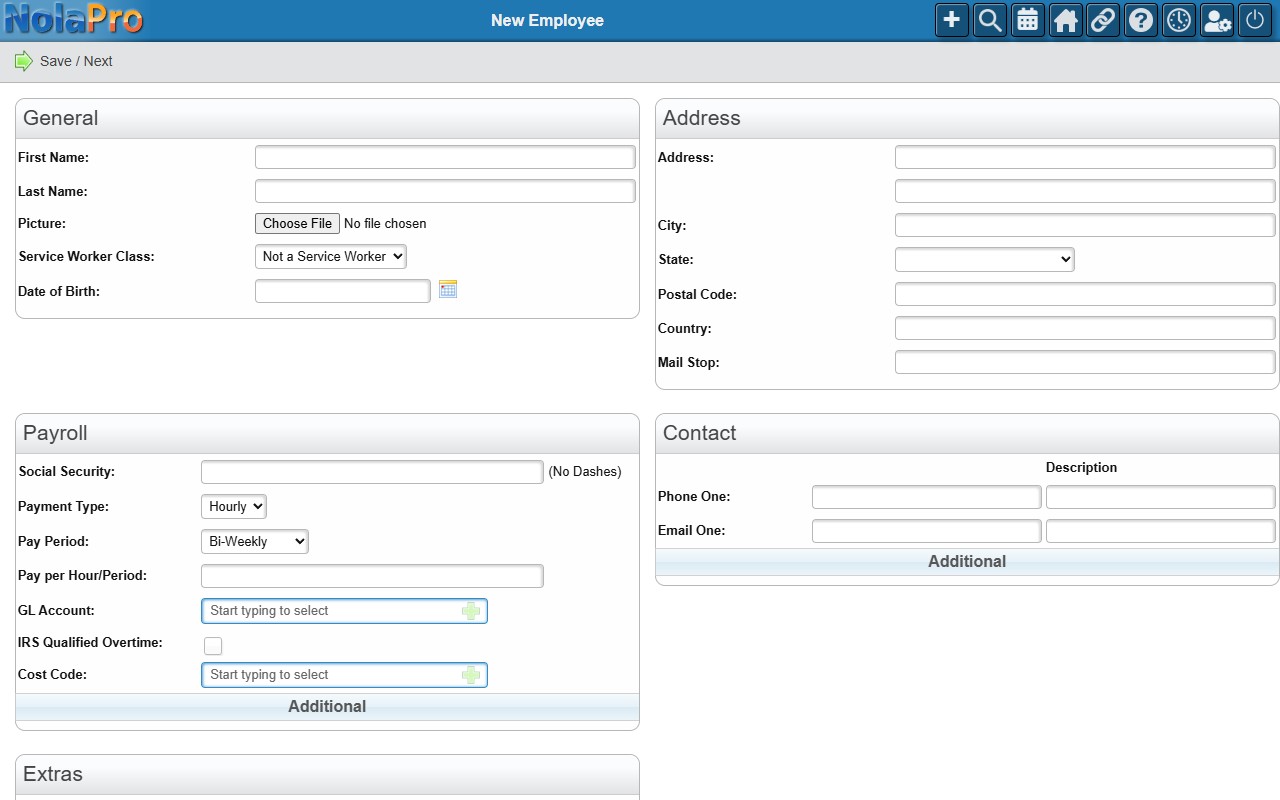
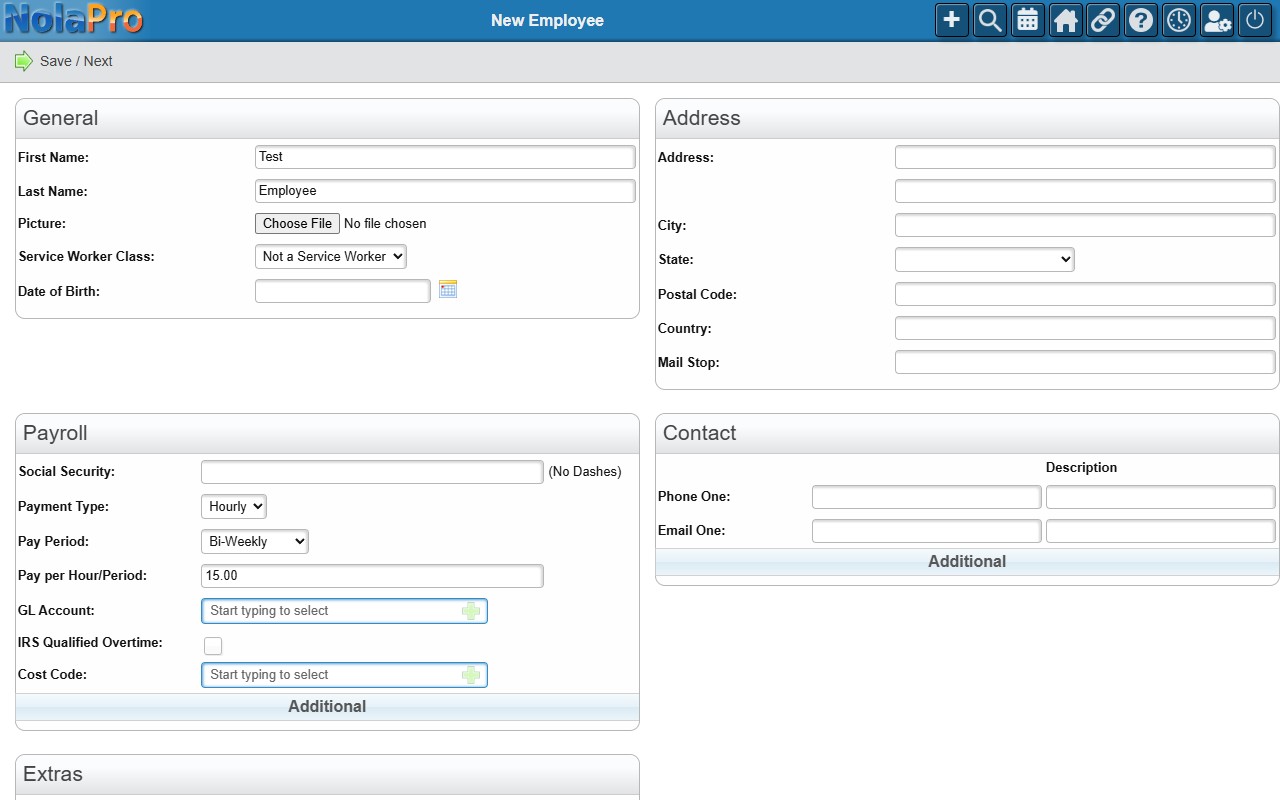
1) Enter the required First Name, Last Name, Payment Type (Hourly or Salary), Pay Period, Pay per Hour / Period, and GL Account.
2) Optionally add address, Date of Birth, Hire Date (defaults to today), an Employee Photo, and phone/email contact details.
3) If your company requires it, enter the Social Security Number / Government ID; it is checked against existing employees for duplicates.
4) Assign a Department (and Department Percent when splitting across more than one), Workers' Comp Code, Time Clock Shift, and starting Vacation Hours Accrued / Sick Hours Accrued if those apply. The Department selector appears only when departments have been set up (see the note below).
5) Save to create the employee and advance to the tax step.
Step 2: Record Tax Withholding
Where: Payroll -> Employees -> Add Employee (Tax Info step)
1) Choose the Federal Marital Status (required).
2) Fill in the federal withholding fields that match your W4 form version. The older form uses Federal Exemptions; the newer form uses the W4 Step 2c, Step 3, and Step 4 fields. Both versions share Extra Withholding Per Period and Extra Withholding Based On.
3) Set the exemption checkboxes (No Federal Taxes, No Social Security or Medicare Taxes, No Federal Unemployment Insurance) only if they apply.
4) Select the employee's State, Local Tax, and City Tax records and enter the marital status, exemptions, and any extra withholding for each.
5) Save to advance to the deductions step.
Step 3: Assign Deductions and Benefit Plans
Where: Payroll -> Employees -> Add Employee (Deductions step)
1) Enter the Workers Comp Rate if used.
2) Check each Deduction Group the employee should belong to.
3) Add up to five Benefit Plan rows, each with a deduction amount and a base (fixed dollar amount or percentage of pay).
4) If employee-specific GL accounts are in use, optionally set the Social Security, Medicare, Federal Unemployment, and State Unemployment expense accounts to override the company defaults.
5) Save to finish creating the employee.
Notes
- The employee record is created at the end of Step 1; Steps 2 and 3 update that same record, so the new hire exists in the system even if you stop after the first step.
- If you enter a postal code but leave City and State blank, the system attempts to fill them from a ZIP code lookup.
- Duplicate Social Security Numbers are blocked. The system checks the entered number against all active employees before saving.
- Starting vacation, sick, and comp time hours are recorded as an initial accrual log entry so the opening balance shows in the accrual history.
- A Department is an optional grouping you create under Admin -> Ledger -> Departments and use to allocate an employee's payroll cost. The Department selector on this page only appears once at least one department exists; no feature beyond Payroll is required to use departments. You can split a single employee's cost across several departments by adding department lines and giving each a Department Percent.
- When more than one department is assigned, the percentages must total 100; if they do not, the system distributes them evenly.
- A pay change record is created automatically on save using the starting pay rate and hire date, beginning the employee's pay history.
- The employee-specific expense GL account fields only appear when that feature is enabled. Left blank, payroll uses the company-wide GL defaults.