
How to Generate W-2s and File Them Electronically
At year end you generate W-2 statements from the recorded payroll checks for a given year. From a single options screen you can print the W-2 forms, file them electronically through the e-filing partner, or check the status of a filing you already submitted. Printing and electronic filing are handled by separate behind-the-scenes steps that the options screen launches; you only need to pick the year (and optionally a single employee) and choose an action.
Requirements
The Payroll System feature must be enabled, and electronic filing requires the server's PHP SOAP and OpenSSL extensions.
Step 1: Select the W-2 Options
Where: Payroll -> Reports -> W-2s
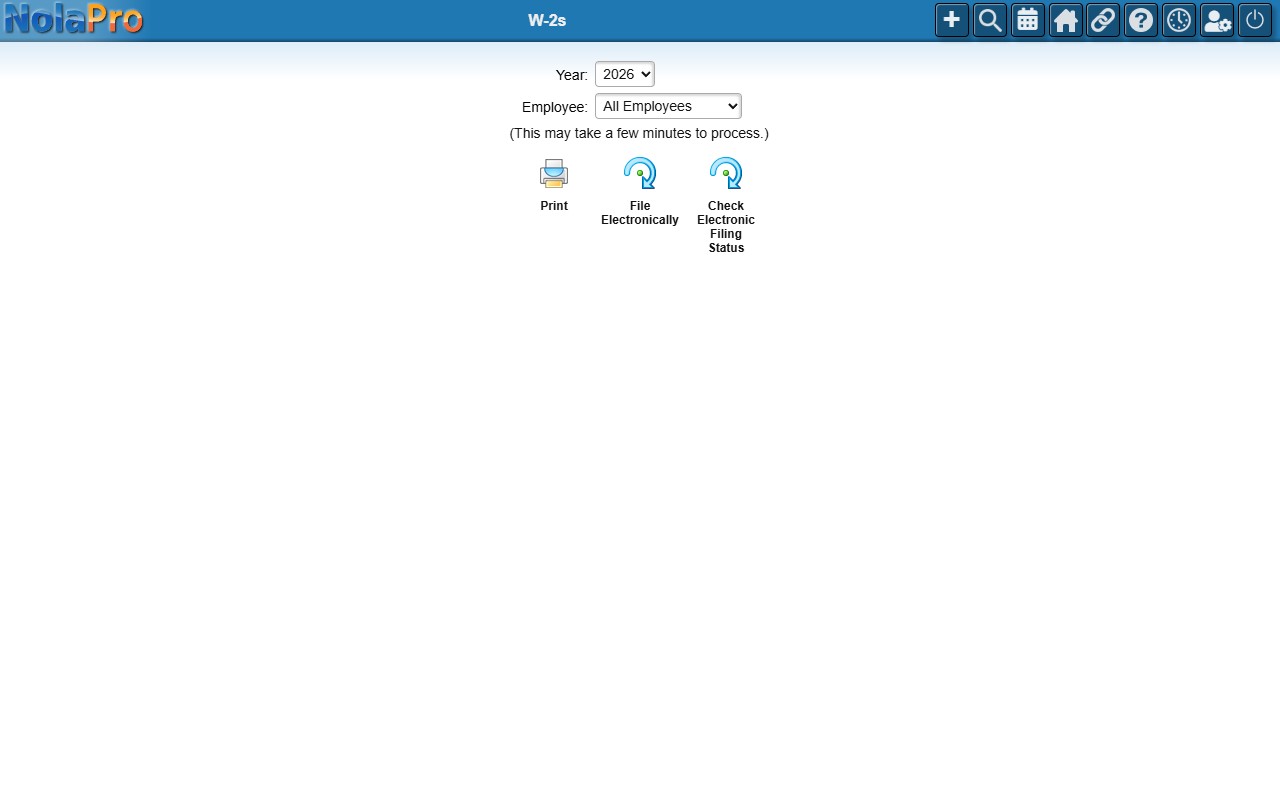
1) Choose the Year to report. The dropdown lists only years that have payroll checks on record and defaults to the current year.
2) Leave Employee on All Employees to produce W-2s for everyone, or select a single employee to generate just one statement.
3) Choose an action: Print opens a PDF of the W-2 form(s) in a new tab; File Electronically submits the data for electronic filing after a confirmation prompt; Check Electronic Filing Status looks up the status of a filing you submitted earlier.
Step 2: Transmit or Check the Filing
Where: Payroll -> Reports -> W-2s (File Electronically)
1) When you choose File Electronically, the system gathers all wage, tax, pension, and deduction data for the selected year and employee, assembles it into the required format, and transmits it to the e-filing partner. On success you are redirected to the partner's portal to complete the submission.
2) When you choose Check Electronic Filing Status, you are taken directly to the partner portal's dashboard to review the filing.
Notes
- If no payroll checks exist for the company, the options screen shows an error and no form is displayed.
- Processing W-2s for all employees can take several minutes.
- Electronic filing requires the server's PHP SOAP and OpenSSL extensions; if they are missing, an error is shown and no data is sent.
- An error message is displayed if the transmission fails or the filing service returns an error code.