
Note Categories and Links (Admin, System)
Two small setup lists under Admin, System help you organize day-to-day work: Note Categories classify the notes you attach to customers, orders, invoices, vendors, bills, employees and other records, and Links add your own shortcuts to outside web sites or in-house pages to the NolaPro top bar.
Requirements
Note Categories is a Company Supervisor page unless it is granted to a user under Advanced User Rights (Admin, Setup - Admin, Note Categories). Links needs Ledger Setup rights, a Company Supervisor login, or the Advanced User Rights entry Admin, Setup - Admin, Links.
Note Categories
Where: Admin -> System -> Note Categories

Note categories give the notes on a record a label you can filter and report on, for example "Collections", "Delivery instructions" or "Credit review". Each category is tied to one or more note types, so it is offered only where it makes sense.
1) The Current Note Categories list shows every category available to the company you are working in, with the note types it applies to. Click Add for a new category (the page is titled Edit Note Category with New Note Category on the add form), or Edit or Delete on an existing one (deleting asks "Are You Sure You Want To Delete This" and also removes the category's note type assignments).
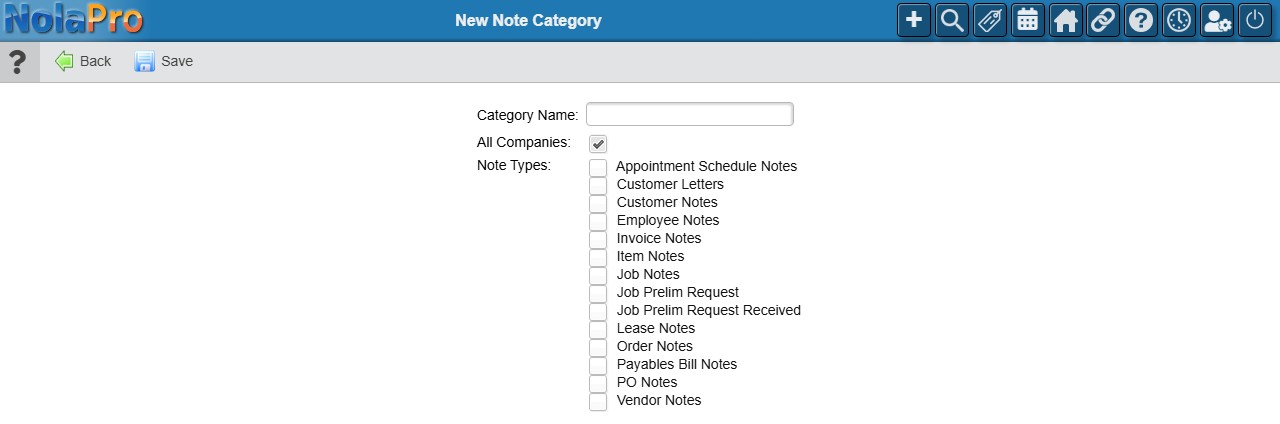
2) Enter the Category Name.
3) All Companies is on by default and makes the category available in every company on the install; turn it off to keep the category in the current company only (it is then offered only on that company's note forms, note-list filter and Notes Report).
4) Under Note Types, check each type the category should be offered for: Customer, Order, PO, Invoice, Vendor, Payables Bill, Employee, Item, Lease, Customer Letter, Job, Job Prelim Request, Job Prelim Request Received, and Appointment Schedule notes (listed alphabetically). A category saved with no types is kept but offered nowhere.
5) Click Save. "Note Category Saved Successfully" flashes for a moment and the list reloads with the category and its note types. From then on a Note Category dropdown is offered when adding or viewing notes of those types, the notes list on the record gains a Note Category filter (All, or one category), and the Notes Report can filter by it.
Links
Where: Admin -> System -> Link New/Edit

Links are shortcuts that appear in the Links pane of the NolaPro top bar (the chain icon), next to the built-in entries, so users can open a shipping carrier, a bank site, a company intranet page, or a report that lives inside your NolaPro folder without leaving NolaPro. Links belong to the company you are working in.
1) Existing links are listed in the Existing Links dropdown; pick one and click the arrow (or Edit) to open it. Click Add to create a new one. Until the first link exists the page just says "No Links Yet Inserted".

2) Enter the Name shown in the Links pane (up to 25 characters), choose the Internet URL type (http://, https://, or internal for a page inside your NolaPro folder, which then opens inside the NolaPro window with the menu around it; for an internal link type just the file name, for example arorderlist.php), type the rest of the address in the box beside it, and add an optional Description (up to 100 characters). Nothing is validated, so check the address before saving.
3) Click Save. The page confirms "Link added successfully" (the back arrow on this form reads Edit Another Link); the link is saved as active and shows up in each user's Links pane the next time they log in or switch company. When editing, turn off Active? to hide a link without deleting it, or click Delete (the "Delete Entry" icon on the edit form) to remove it after "Are you sure you want to delete this?". "Link saved successfully" and "Link deleted successfully" show for about a second before the page returns to the link picker.
Notes
- For users in an Advanced User Rights group, which links they can see is controlled per user under the Links section of their rights, so a link can be limited to the people who need it.
- A link with no name falls back to its description as the label; a link with neither is not shown.
- The Links pane also carries a Link New/Edit shortcut to this setup page for users who have rights to it.