
How to Set Up a New Company for Multi-Company Use
NolaPro can hold more than one company in a single installation, each with its own customers, vendors, ledger, and settings, while letting users switch between the companies they have access to. When you add a new company, NolaPro seeds it from your currently active company: it copies the chart of accounts, payroll tax tables, module settings, and your setup lists, creates a default check account, and grants you full supervisor access to the new company. You can optionally copy vendors, user rights, customers, and items too. After creation, you open the company's edit page to finish configuring contact details, branding, and behavior. This workflow covers both the create step and the follow-up edit step.
Requirements
The core create-and-edit workflow needs no add-ons. A few optional fields appear only when the matching add-on is enabled: the Company Time Zone field with Company Time Zones, the Base Currency field with the Multi-Currency Module, and the optional starter-login fields with Advanced User Rights.
Step 1: Create the New Company
Where: Admin -> System -> Company New/Edit, then Add
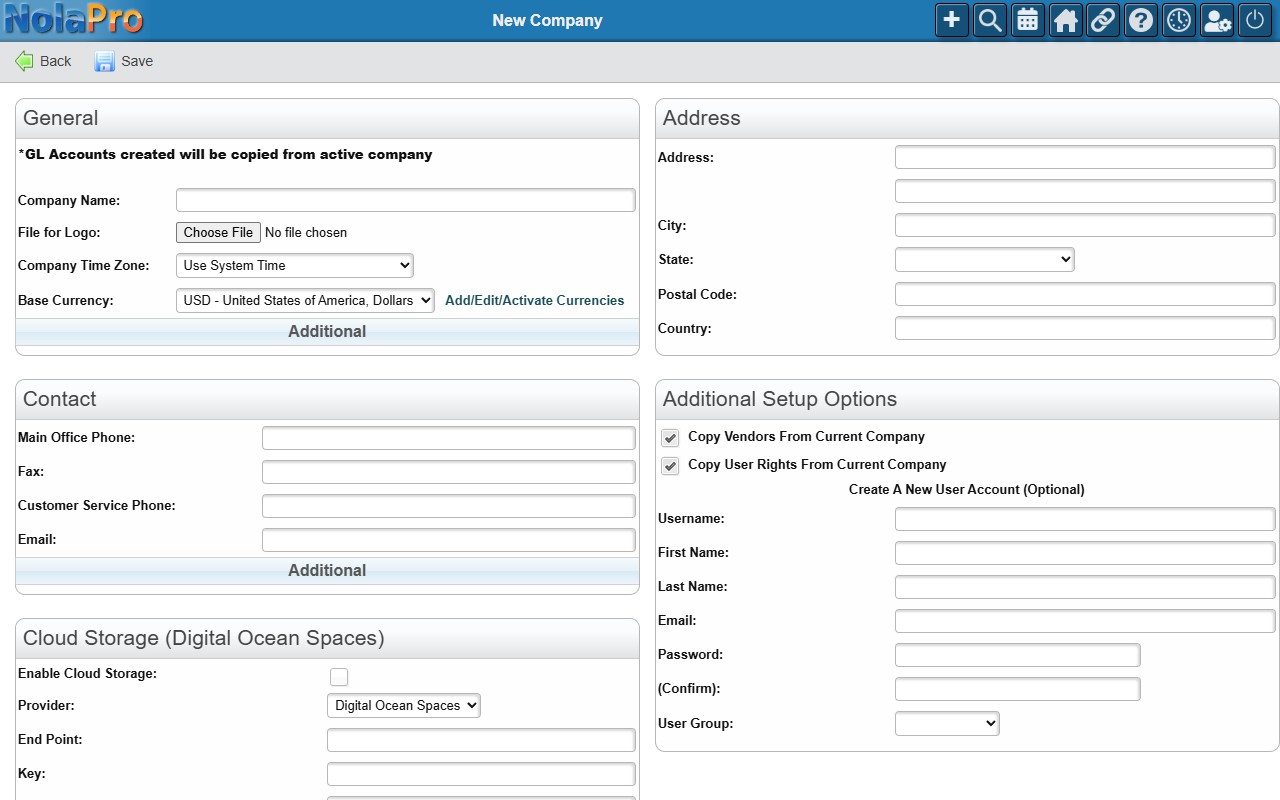
1) Enter a Company Name (required).
2) If enabled for your installation, set the Company Time Zone and Base Currency for the new company.
3) Set general behavior options as needed (for example, Short Ship To Screen, Show Auto Complete IDs, and the journal-entry display options).
4) Enter Contact details (phones, Email, AR Email, Order Email, AP Email, Web Address) and the Address.
5) Choose what to bring over under Additional Setup Options. Leave Copy Vendors From Current Company and Copy User Rights From Current Company checked to carry those over, or uncheck them to start clean. Tick Copy Customers From Current Company and/or Copy Items From Current Company if you also want the new company seeded with the current company's customer and item lists; unlike the first two, these two are off by default. The customer option is shown only on installations with the AR module, and the item option only with the Inventory module.
6) Optionally tick Create A New User Account to reveal the starter-login fields, then fill in Username, Password/Confirm, and User Group, plus the optional First Name, Last Name, and Email. No user is created unless you tick the box, and clearing it hides the fields again and empties anything you had typed.
7) Save. NolaPro creates the company and opens its edit page so you can finish configuring it.
Step 2: Finish Configuring the Company
Where: Admin -> System -> Company New/Edit
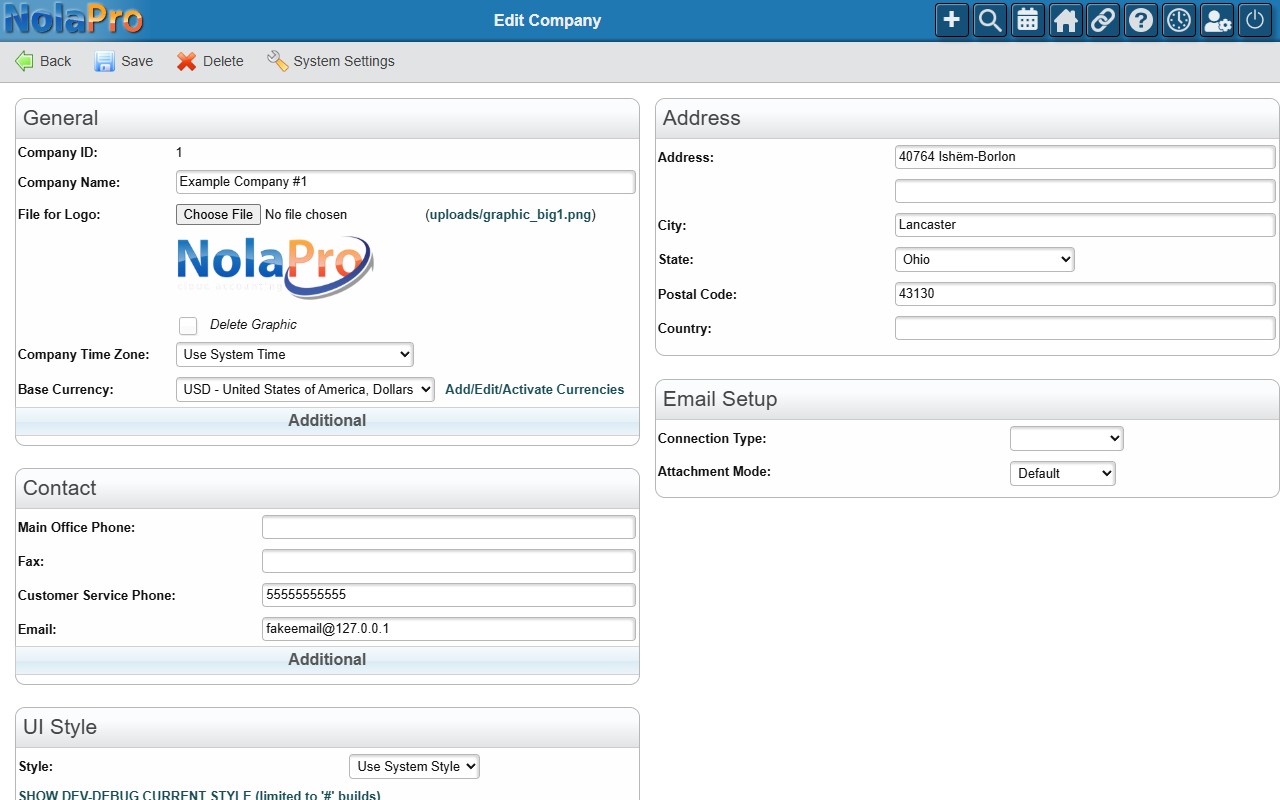
1) The new company's edit form opens automatically when you save it. To come back to it later, select the company on the Company New/Edit page.
2) Review and complete the General, Contact, and Address sections.
3) Upload a File for Logo to brand the company (this is also copied to the B2B portal).
4) Configure the Email Setup section for this company's outbound mail.
5) Use the User Access (View All) table below the form to confirm which users can access this company, and remove access where needed.
6) Save your changes.
Notes
- The Add New Company form is hidden if you have reached your licensed company limit; an upgrade prompt appears instead.
- On save, the chart of accounts (including its summary-account hierarchy), payroll tax tables, and AR/AP/Inventory module settings are copied from your current company, GL account links are remapped, and a default check account is created and linked to the new company's checking GL account.
- Along with the chart of accounts and module settings, the new company is seeded with your current company's setup lists, including price levels, inventory locations (plus their zones and bins), units of measure, sales tax codes and tax groups, item categories, sales categories, departments, cost codes, sales personnel, discounts, asset categories, GL categories and cost centers, email templates, barcode labels, work types, and status options. References between them are remapped to the new company's own records. Two exceptions are worth knowing: an inventory location's default check account and its related cash-drawer and deposit links are cleared rather than copied, because the new company's check account does not exist yet; and a copied GL account whose parent summary account was inactive arrives with no parent.
- The user creating the company is automatically granted full supervisor access to it.
- Copy Vendors duplicates all active vendors, with each vendor's default GL account remapped to the matching account in the new company's chart; Copy User Rights duplicates access permissions for all active users into the new company.
- Copy Customers duplicates the customer list, carrying over each customer's sales GL account, salesperson, sales category, and group links, remapped to the new company's own records; Copy Items duplicates the item list with its category and inventory/sales GL account links remapped the same way.
- The optional new-user section appears only when Advanced User Rights is enabled and at least one user rights group exists; otherwise a link to set up a rights group is shown.
- Deleting a company from the edit page is a soft delete that marks it inactive; if no other active company remains, you are logged out.
- You cannot remove your own access to the company you are currently logged into.