
How to Configure Advanced User Access Rights for a New User
NolaPro controls access at two levels. First, each user account carries broad module permissions, granted per company as Read, Write, and Setup for areas like Accounts Receivable, Accounts Payable, General Ledger, Payroll, and Inventory, plus a Company Supervisor flag that grants everything. You set these when you create the user. Second, Advanced User Access Rights let you go beyond the module level and turn individual pages and functions on or off, so a user can be allowed into a module but blocked from specific actions within it. This workflow creates the user with their base permissions, then opens the detailed rights editor to refine them.
Step 1: Create the User and Set Base Permissions
Where: Admin -> System -> Users, then Add
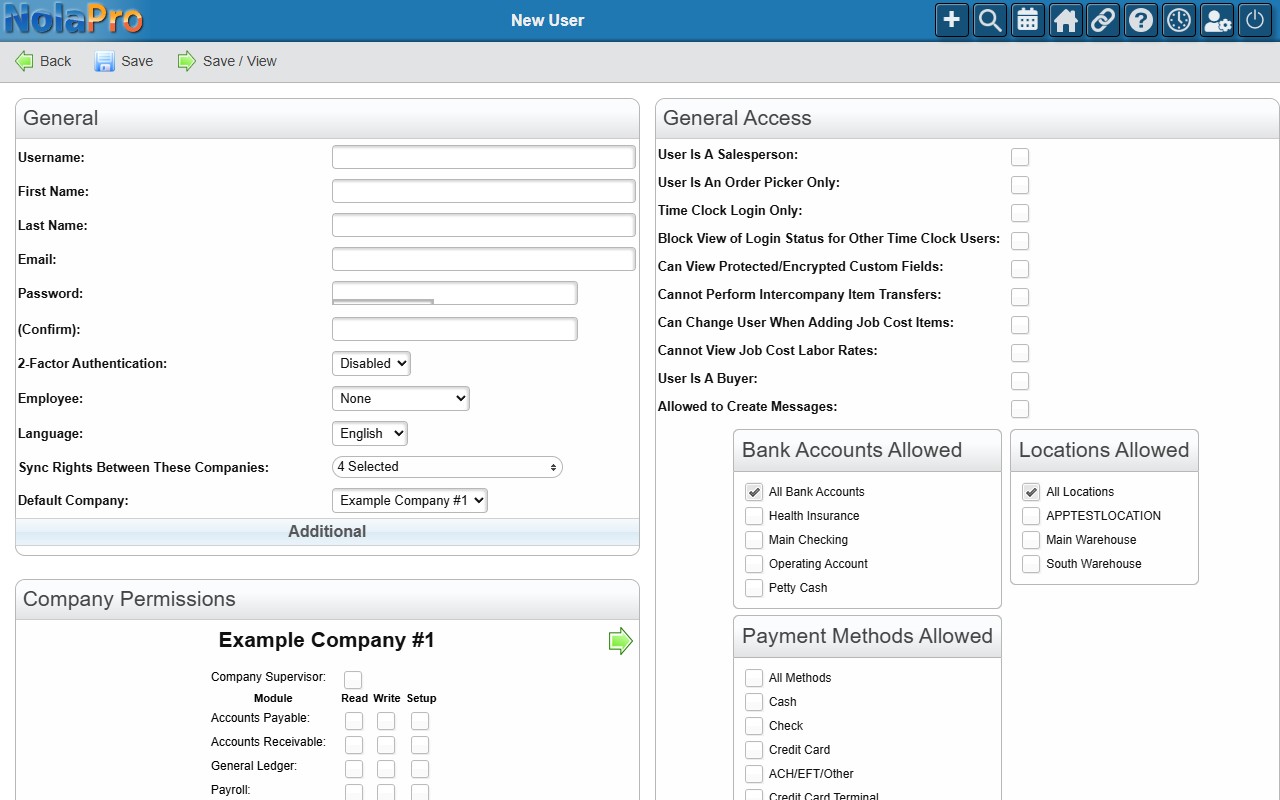
1) Enter a Username (must be unique) and a Password with matching Confirm Password. The password must reach at least 2 of 5 on the strength meter and be 7 characters or longer.
2) Optionally set First Name, Last Name, Email, and a 2-Factor Authentication method.
3) In the Company Permissions section, grant the user Read, Write, and/or Setup access per module for each company. Checking Company Supervisor for a company grants full access to every module there. Granting Write automatically grants Read.
4) Use Special Access Rights and General Access to narrow what the user can do (for example, blocking cost visibility or limiting bank accounts, locations, and payment methods).
5) If you run multiple companies, use Sync Rights Between These Companies to copy these permissions to other companies, and set a Default Company.
6) Save the user. (Use Save / View to land directly on the new user's edit page.)
Step 2: Refine the Detailed Access Rights
Where: Admin -> System -> Advanced User Rights
1) Open the detailed Advanced User Access Rights editor for the user, where you can enable or disable access to specific pages and functions beyond the broad module permissions set in Step 1.
2) Adjust the individual rights as needed and Save.
Notes
- A user needs access at both levels to reach a page. The module permission from Step 1 (Read/Write/Setup on the relevant module, or Company Supervisor) is the base gate; the Advanced User Access Rights from Step 2 then refine it page by page. Granting only an advanced page right to a user whose modules are all turned off will not let them in — without the underlying module permission the page is still denied. If a user has advanced rights configured but unexpectedly cannot open a page, check that they also hold the module-level permission for that area.
- The Add New User form is not shown if you have reached your licensed user limit; an upgrade prompt appears instead.
- Granting Company Supervisor gives full Read, Write, and Setup across all modules for that company, so use it only for trusted administrators.
- When Sync Rights Between These Companies is used, the current company's permissions are copied to every selected company on save; the current company is always included.
- Marking a user as a salesperson limits them to their own customers and orders and cannot be combined with order-picker-only access.
- If bank account, location, or payment method restrictions are all left unchecked, the user has access to all of them by default.
- The User Rights page is reached per user; open it after the account exists to tune page-level and function-level access.