
How to Receive Items Without a Purchase Order
When goods arrive without a purchase order, NolaPro has a dedicated Receive Without PO screen so you do not have to create a PO first. It takes in the stock against a vendor, updates on-hand quantities and cost history, and (when GL integration is on) posts the journal entry for the receipt automatically. If you only need to correct stock counts and do not want any vendor/cost trail, an inventory adjustment is the alternative.
Requirements
This workflow uses the Inventory & Ordering System feature.
Step 1: Choose the Vendor
Where: Expenses -> PO Receipts -> Receive Without PO

1) Enter the Vendor Name the goods came from and click Next. (If you have only one vendor, this step is skipped automatically.)
Step 2: Choose the Item and Receiving Details
Where: Receive Without PO — item selection
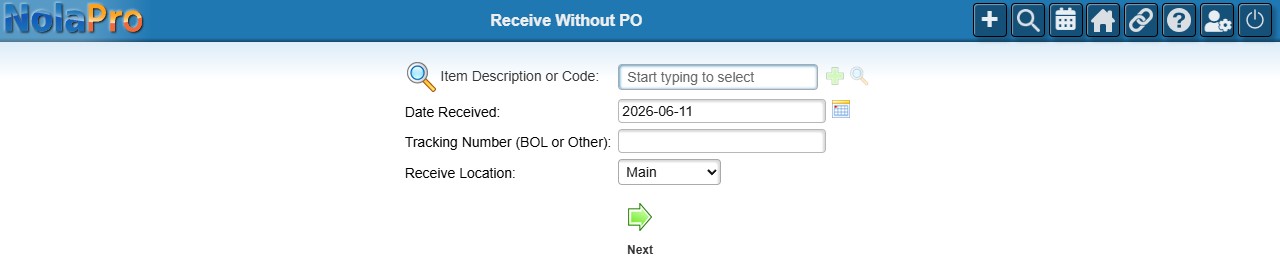
1) Look up the Item Description or Code for what arrived.
2) Set the Date Received, an optional Tracking Number (BOL or other), and the Receive Location if you have more than one inventory location.
3) Click Next.
Step 3: Enter the Quantity and Cost, then Save
Where: Receive Without PO — receipt entry
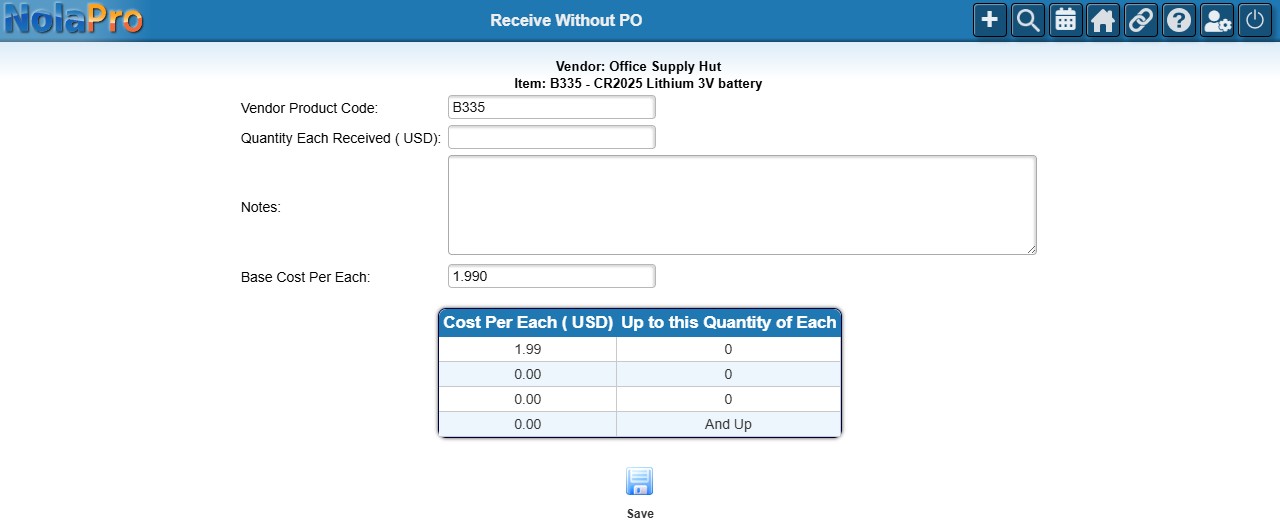
1) Enter the Quantity Received and confirm the Base Cost Per unit (NolaPro pre-fills the cost from the vendor's pricing, or the last cost if your company is set to use it). Add an optional Vendor Product Code and Notes.
2) If this vendor is not yet set up as a supplier for the item, the screen lets you enter the vendor's quantity-break pricing at the same time.
3) Click Save. On-hand quantity, cost history, and (when enabled) the GL entry for the receipt are recorded. After saving you can use New Item Same Vendor or New Vendor to keep receiving, and print barcode labels if a default label is configured.
Notes
- This screen receives stock without any purchase order; it does not create a vendor bill. If you owe the vendor and want a payables record, enter a vendor bill separately, or use the regular PO receive flow instead.
- If you do not need a vendor or cost trail at all (for example, correcting a miscount or entering found stock), use an inventory adjustment instead (see the "Adjusting Item On-Hand Quantity and Cost" article).
- If you run the Multi-Currency module, this screen only handles vendors that use your base currency (and shows a reminder to that effect); use the PO process for foreign-currency vendors.
- When the Item Identifiers & Tracking (Serial Numbers) feature is on, you can record serial or lot numbers for the received quantity.