
Order Status Reports: Open, Completed, Shipped Not Billed, Billed Not Paid, Open Items
NolaPro has a family of order status reports that answer the everyday questions about customer orders: what is still open, what has been completed, what has shipped but has not been billed yet, what has been billed but not paid, and which individual items are still waiting to ship. This article covers each report, where to find it, and what it includes.
These reports are read-only; they never create or change records. For creating and editing orders see How to Create a Quote and Convert It to an Order, Then to an Invoice; for shipments see Shipped Orders (Find / View / Void Shipments).
Requirements
The Inventory & Ordering System feature and Billing (Accounts Receivable) rights. When Block Salespeople From Seeing Orders, Invoices, Customers Other Than Own is turned on (Admin, Billing, Company Options) and your user is tied to a salesperson, every report below only shows orders for that salesperson's customers. Users limited to certain inventory locations only see orders for those locations on Orders Open, Orders Completed and Open Items on Orders.
Orders Open
Where: Income -> Reports -> Orders -> Orders Open
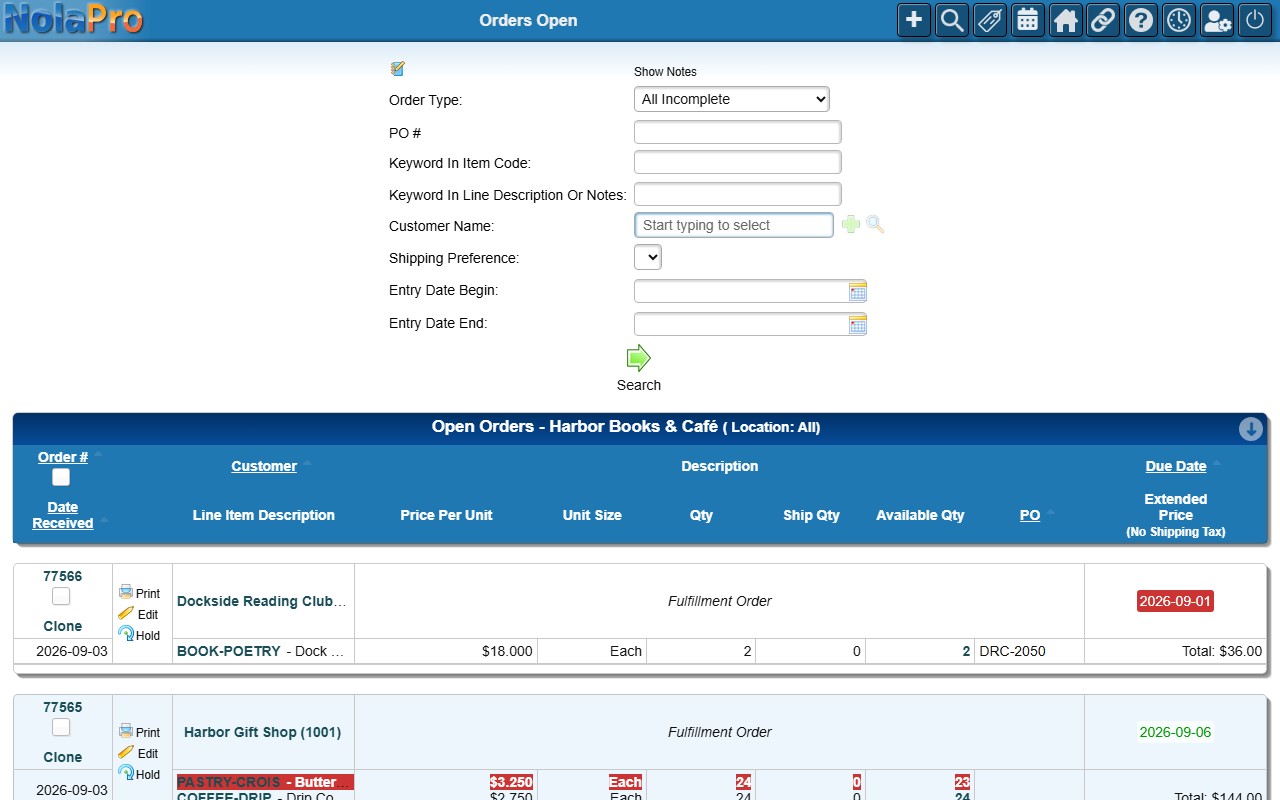
The working list of open orders that have not shipped anything yet, headed Open Orders with the company and location. The search form at the top narrows the list by inventory location and sales category (each dropdown appears only when the company has more than one; the category list also offers All - Sort By Category), the customer's PO number (an exact match, so enter the whole PO), keywords, customer, Shipping Preference (carrier), and entry date range, and has a Show Notes toggle. The Order Type choice (All Incomplete, Fulfillment Order, Service Order - All, Service Order - Incomplete, Service Order - Complete, Rental Order) shows or hides order types on the list you already have. The keyword box matches item codes and the second keyword box matches line descriptions and notes; an order matching either is kept.
1) Each order is shown as a block with its line items (the first four, then a More Lines link), quantities still to ship, due date and an order total; a grand total closes the list. Late orders show their due date in red, orders due today in green. A line whose remaining quantity is more than what is on hand shows the available quantity in red; the item code opens the item and the available quantity opens the stock detail. Click the Order #, Customer, Due Date, Date Received or PO heading to sort (sorting resets the search filters, so sort first and then search).
2) The order number opens the pick ticket in a new tab. Use the row actions to Print the pick ticket, Edit the order, put it on Hold (the change is saved immediately without a confirmation, the button becomes Undo, and the order leaves the list on the next load; Undo takes it straight off hold again), expand its Notes (shown only on orders that have notes), or Clone it (fulfillment orders, when the Clone Quotes & Orders feature is on; you are asked to confirm). Fulfillment and rental orders also have a checkbox so the buttons at the bottom (Print Selected Pick List, Print Selected Consolidated Pick List, Print Selected Confirmation, and Print Customer Inventory On Order when one customer is filtered) can act on several orders at once.
3) Cancelled orders, orders flagged as final and any order that already has a shipment (even a partial one) are excluded; partially shipped orders still appear on the Summary, on Shipped But Not Billed and on Open Items. The list stops at 1,000 orders and warns you to narrow the filters when more match; "No open orders found" is shown when nothing matches. A PDF download link is available.
Orders Open - Summary
Where: Income -> Reports -> Orders -> Open Order Summary
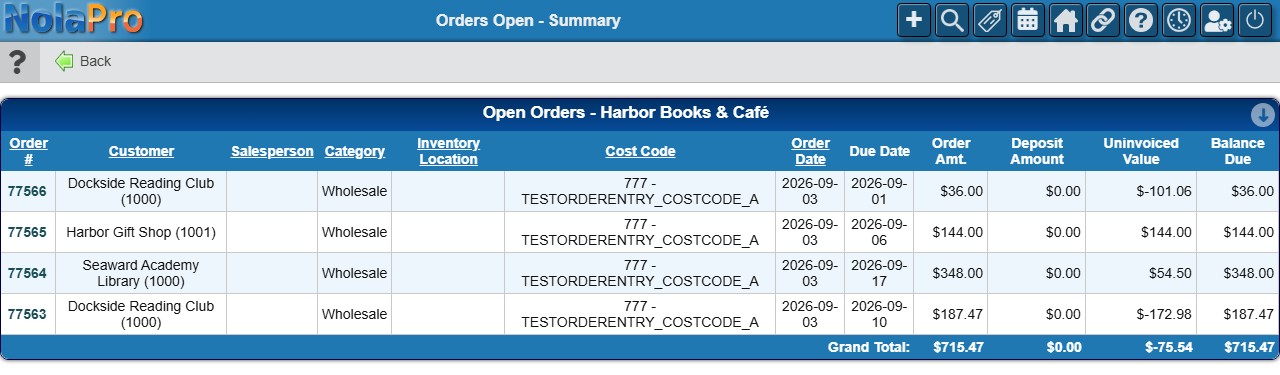
A one-line-per-order view of open orders (including partially shipped ones), headed Open Orders, with the columns Order #, Customer, Salesperson, Category, Inventory Location, Cost Code, Order Date, Due Date, Order Amt., Deposit Amount, Uninvoiced Value and Balance Due, with subtotals by category and salesperson and a grand total.
1) Set the entry date range (leave both blank for all dates), then choose Which Orders (All Open, or Past Due Only to keep only orders whose due date is before today; orders with no due date are left out), the Order Type, the inventory location and the Sort Order (by salesperson, by category then salesperson, by inventory location, or by cost code when Cost Codes are enabled). Total for Category rows appear only with the category sort, and the inventory location sort shows no subtotal or grand total rows.
2) Check Show Line Item Detail to add one row per line (description and quantity) under each order, or Do not show subtotals to keep only the grand total. Order Deposits limits the list to orders with no deposit, any deposit, or a full deposit (a deposit at least equal to the order amount), and the keyword box matches line descriptions and line notes. The filters combine, so for example Past Due Only with Full Deposit and a keyword lists just the late, fully paid-up orders carrying that item.
3) Click Next (its hover text reads "Continue"). Order numbers link to the order and the column headings sort. Orders in other currencies are listed in their own currency, and the grand total row shows one figure per currency. Orders without a salesperson are subtotalled under a row labelled "Total for Salesperson: 0". "No open orders found" and a Back button appear when nothing matches.
Orders Open - Weight View
Where: Income -> Reports -> Orders -> Orders Open - Weight View
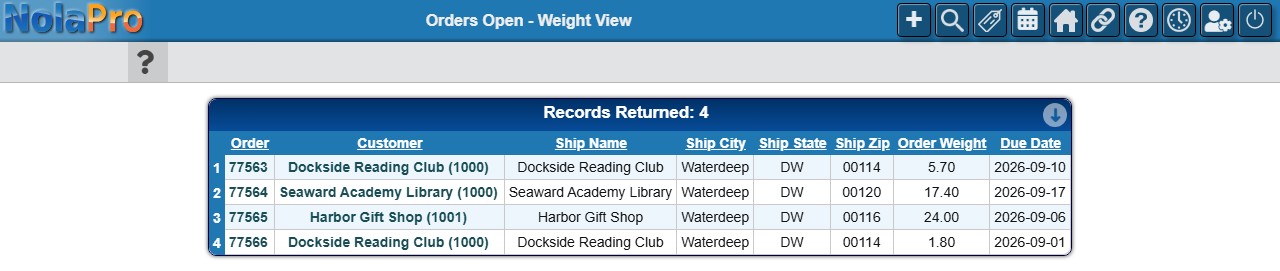
One numbered row per open fulfillment or rental order with the customer, the ship-to name, city, state and ZIP, the recorded order weight and the due date, headed by Records Returned. There is no filter form; the page lists every open and partially shipped order, including orders flagged final.
1) Click any column heading to sort. Sorting by ship ZIP or city helps plan delivery routes (orders with no ship-to ZIP sort to the top); sorting by weight helps plan loads. A PDF download link is available.
2) The order number opens the order's pick ticket and the customer name opens the customer record. The order weight is whatever was saved on the order, so correct it on the order if it is wrong.
Orders Completed
Where: Income -> Reports -> Orders -> Orders Completed
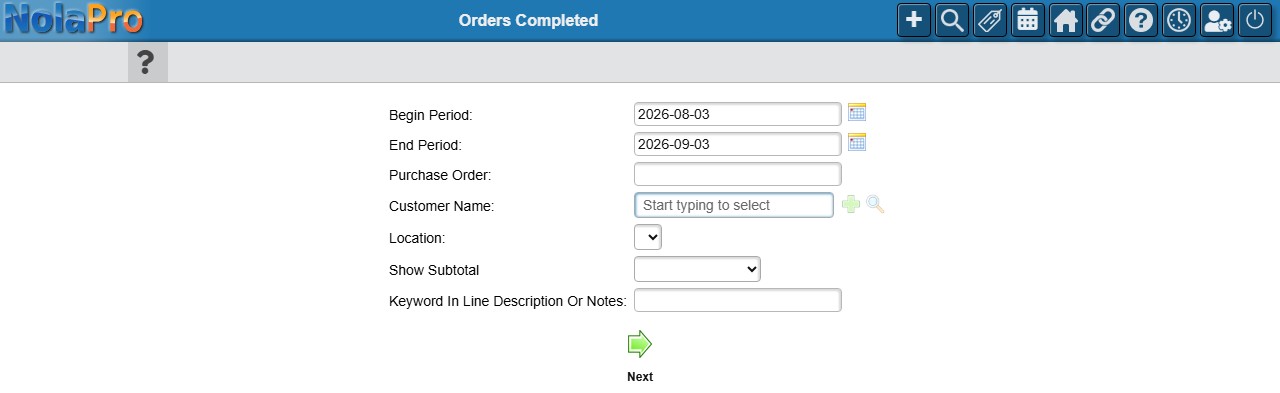
Orders finished in a date range: fulfillment and rental orders whose status is shipped or complete and whose shipment falls in the period (a partial shipment on a still-open order does not count), and service orders that have reached a completed status or whose finished date falls in the period.
1) Enter the Begin Period (defaults to one month ago) and End Period (defaults to today). Optionally narrow by part of a PO number, a customer, an inventory location (the box may open pre-set to your default location; choose the blank entry for all locations), or a keyword in line descriptions or notes, and choose Show Subtotal - By Salesperson to group the result (orders without a salesperson are simply totalled). Click Next (hover text "Continue").
2) The report is headed Completed Order List For the company, period and location. Each order shows a header row with the order number (with any invoice numbers or "No Invoices Found", and a Clone button for fulfillment orders), the Print and Notes actions, the customer, order type and salesperson, and the ship date; the lines beneath show the date received, PO number, quantity, ship quantity, unit, item code and description (line notes are shown with the description), price and extended price, then the order total. Grand totals per currency appear at the bottom.
3) The order number opens the printable pick ticket or service ticket, Print prints it and Notes shows or hides the order's note. An Order Type dropdown (Both, Fulfillment Order or Service Order) and, when more than one sales category exists, a Sales Category dropdown (with All - Sort By Category) re-filter the report in place. The report stops at 1,000 orders; when nothing matches only a Back button is shown.
Shipped But Not Billed
Where: Income -> Reports -> Orders -> Shipped But Not Billed

A live snapshot of the billing queue: fulfillment orders that have shipped something that has not been invoiced yet, oldest order first. There are no filters.
1) Each row shows the order number (opens the order in a new tab), the customer's PO number, the customer (in a column headed Order) and a status: Partial Ship in green, or Final Ship in red so the orders ready for final billing stand out.
2) When nothing is waiting, the page shows "No Unbilled". Use the Orders Open or Orders Completed reports for a dated or historical view of the same orders.
Billed Not Paid
Where: Income -> Reports -> Orders -> Billed Not Paid
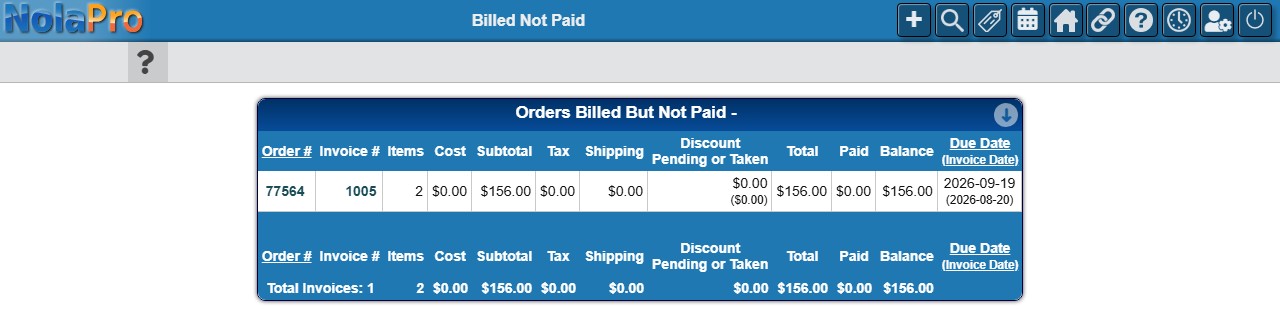
Every open, posted invoice that was created from an order (headed Orders Billed But Not Paid), so you can see who still owes money against orders. Manually entered invoices, unposted invoices, invoices on payment plans, and paid, written-off or cancelled invoices are not included.
1) Each row shows the order and invoice numbers (both open in a new tab), the number of items, cost (hidden for users who may not see costs), subtotal, tax, shipping, Discount / Pending or Taken (the discount taken with the pending discount in parentheses), the total, the amount paid, the balance, and the due date with the invoice date beneath it.
2) The Order # heading sorts by order number and flips between ascending and descending on each click. The Due Date heading sorts the list by due date, ascending or descending on each click. Read the footer for Total Invoices and the column totals (per currency when more than one is in use). "No matching invoices found" is shown when the list is empty.
Open Items on Orders
Where: Inventory -> Reports -> Open Items on Orders
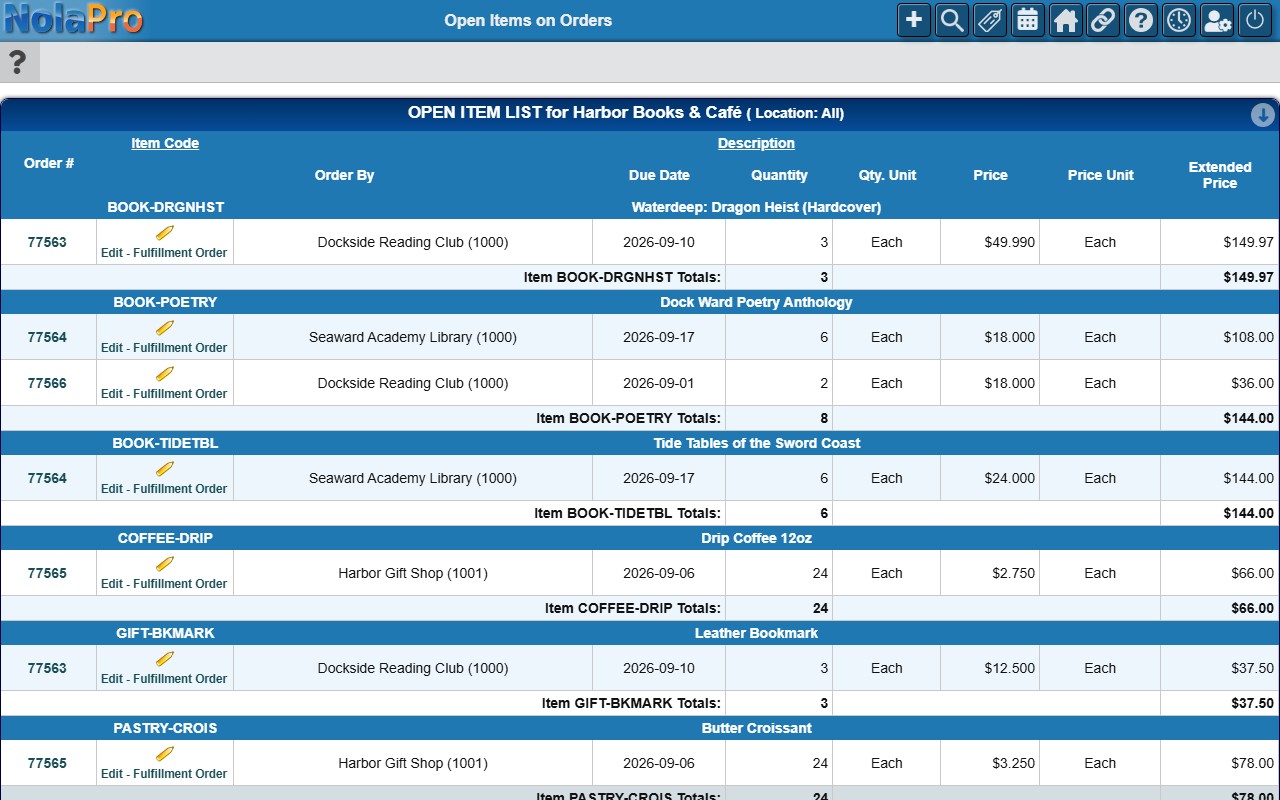
The same open orders seen item by item (headed Open Item List): one row per fulfillment or service order line that still has quantity to ship, with the order number, the customer (Order By), due date, remaining quantity and unit, price and extended price, grouped under each item's code and description. Item Totals follow each item and Totals the whole report, and orders flagged final are tagged Marked Final in red. Only lines tied to an inventory item are listed; free-text lines and web-store lines that were imported without a matching item code do not appear here even though they are open on the order.
1) When you can see more than one inventory location, pick a Location at the top to limit the list to one warehouse.
2) Click the Item Code or Description heading to sort. The order number opens the order's pick ticket or service ticket and the Edit link beside it opens the order. "No open items found" is shown when nothing is waiting, and a PDF download link is available.
Notes
- "Open" means the order is not cancelled and not fully shipped; Orders Open and its Summary also leave out orders flagged final. Quotes never appear on these reports.
- Sort choices and the Orders Completed filters are carried in the page address, so a particular view can be bookmarked or shared with a colleague who has the same access.