
Pick Tickets and Service Order Tickets
A pick ticket (on screen, the Inventory Pick List) is the warehouse copy of a fulfillment order: its lines grouped by inventory location, with barcodes for scanning and the quantity still to ship. A service order ticket (on screen and in print, the Work Order) is the technician's copy of a service order: the work requested, any prepaid time on the order, and the parts. Both are printable views of an order; nothing on them can be edited.
Requirements
Billing (Accounts Receivable), Inventory or Shopping Cart read rights with the Inventory & Ordering System feature, or an Advanced User Rights grant for the order type (for example Orders, Service Orders for service tickets; without it the service ticket page shows "You are Not Authorized to be Here"). Both tickets follow the user's access to orders; when Limit Salesperson Access is on, the lookup only finds the user's own customers and orders.
Opening a pick ticket
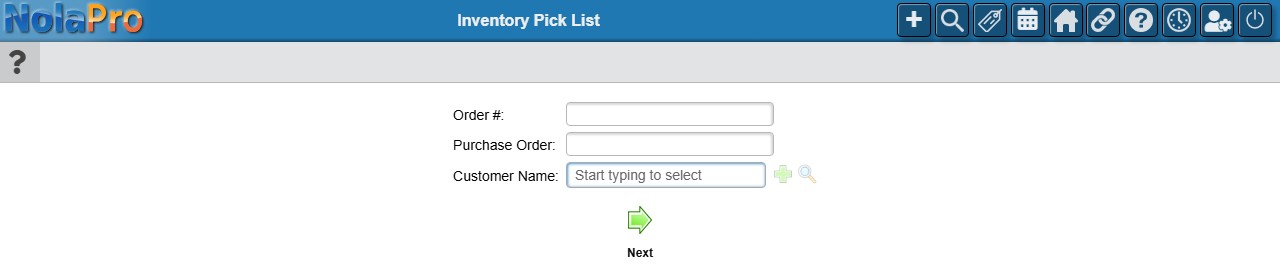
Pick tickets have no menu entry of their own; they open from the order:
1) Every open order list (Orders Open, Orders Open - Weight View, Open Items on Orders, Orders Completed) shows the order number as a link to the ticket, and the Orders Open row action Print prints it. With the Direct Pick Ticket PDF From Order Entry add-on, the last step of fulfillment order entry also offers the pick ticket PDF.
2) If you land on the pick ticket page without an order, a small lookup asks for the Order # (NolaPro's order number or the alternate order number), the Purchase Order number or the Customer Name. Click Next; an order or PO number goes straight to its ticket, a customer name lists every order of that customer (Order #, PO #, Order Company, Ship To Company) to pick from, and "not found" is shown when nothing matches.
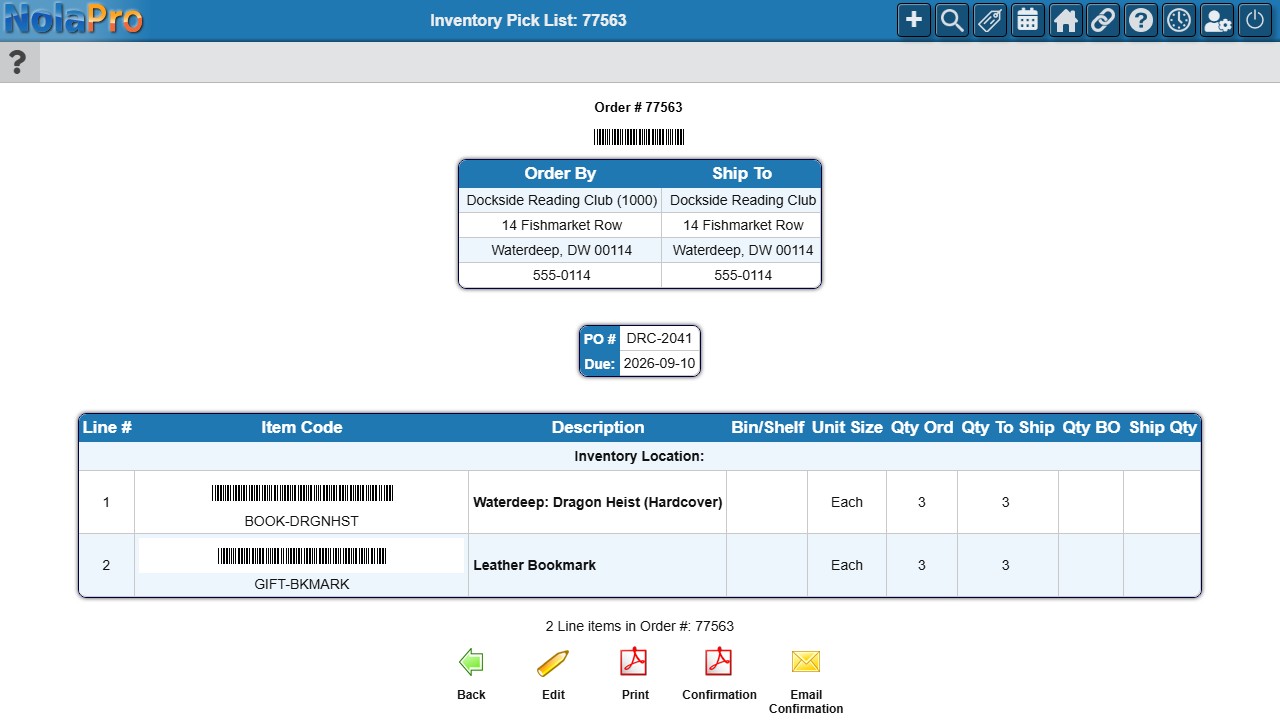
3) The ticket (headed with the order number and its barcode) shows the order-by and ship-to addresses, the PO number, due date and any order notes, then the lines grouped under a banner for each inventory location: line number, item code (with barcode) and picture, description with any line, item and pick-list notes, bin or shelf when bin locations are on, unit size, quantity ordered, quantity still to ship, and blank Qty BO and Ship Qty columns to write on, ending with the count of line items in the order. Opening the ticket marks the order as read.
4) The toolbar offers Back to Orders Open (or Close Window when opened from a list), Edit for the order, Print for the pick ticket PDF, the order Confirmation PDF and Email Confirmation. The PDF layout is chosen in Admin -> Billing -> Company Options under Invoicing & Ordering, Pick Ticket: Fulfillment Order Pick List Style Standard puts the quantity to ship on the right, Alternate Style 1 puts unit size and quantity to the left of the item code and description.
Opening a service order ticket
1) Service order tickets open from the order number on the order lists (Orders Open, Orders Completed and Open Items on Orders), automatically after a service order is saved, or through the same lookup form as the pick ticket.
2) The ticket (page title Work Order and the order number, with the order number and barcode above the addresses) shows the order-by and ship-to addresses (or Customer Pickup) with emails, the PO number and due date, Estimate Given For when an estimate was recorded, Deposit Paid with Order, the Service Needed notes, a Time Ordered table when the order carries prepaid time packages (work type, work class, hours ordered, rate, total, hours used and remaining, amount remaining, with a totals row; hours used beyond the package show as negative remaining hours and a negative amount remaining, both in red) and the parts with line number, item code, description, unit size and quantity ordered, ending with the count of line items.
3) Use the toolbar (List, Edit, Print, Email, Pro Forma Invoice): List returns to Orders Open, Edit opens the service order, Print gives the PDF, Email sends the ticket PDF (an address picker lets you choose or add the recipient), and Pro Forma Invoice appears with the Pro Forma Invoice For Service Orders add-on. The PDF adds the entry date and, when the company option Include Labor Time is on, the individual labor entries logged so far.
Notes
- The on-screen pick ticket lists every line with its remaining quantity (fully shipped lines show zero to ship). The PDF drops fully shipped lines when the company option Show What On Pick Tickets is set to show only items to be shipped.
- Each PDF print of a pick ticket is counted on the order. When Show Warning If Printed More Than Once is on, printing again shows "The Following Orders Have Been Printed Previously" with the times printed and last printed date and a Print Again button, so the same order is not picked twice.
- Bin and shelf locations appear on the pick ticket only when Show Bin Location is turned on for the company (see Bin/Shelf/Aisle Location).
- An order with no ship-to address prints blank address lines and no location banner, and an order whose ship-to record is missing shows "not found"; fix the ship-to address on the order first.