
How to Log Billable Project Time and Bill It Through a Service Order
Project time is logged against a project or one of its tasks, either by entering hours directly or by running a live timer. Each entry carries a billable flag, and its bill and cost rates are resolved from the work-class rate table using the worker and the task or project work type. Once you have unbilled billable hours, NolaPro can convert them into a Service Order for the project's customer in one step, marking those entries as billed so they are not billed again, and optionally invoicing the order immediately. This workflow covers logging the time and billing it through a Service Order.
Requirements
Requires the Team Project Management feature, and the Allow Service Orders setting must be on for the Generate Service Order action to be available (configure at Admin -> Billing -> Company Options, under Invoicing & Ordering → Service Orders → Allow Service Orders).
Step 1: Log Time Against the Project
Where: Reports → Projects → My Timesheet (under Projects -> Reports)
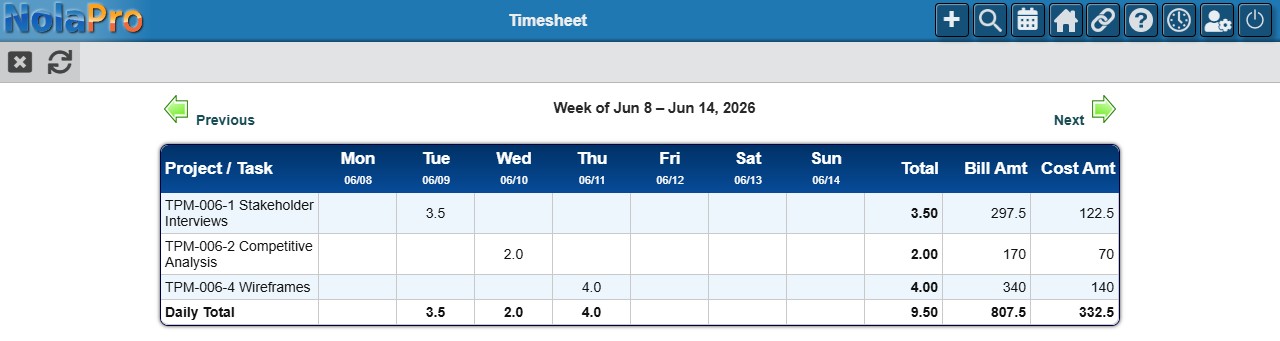
1) Time is normally logged against a task. Open the task and use its Time tab to add an entry: enter the Hours, pick the Work Type, add a description, and tick Billable if the time should be invoiced later. (You can also log time at the project level the same way when it is not tied to a specific task.)
2) Instead of typing hours, you can let NolaPro time the work for you with the timer (clock) widget: start the clock when you begin working on the task and stop it when you finish, and the elapsed time is saved as a time entry. Starting a new timer automatically stops any other timer you have running.
3) Review your week in the timesheet, and use the Time Report to check billable vs. non-billable totals by project, by user, or in detail. Each row shows the day-by-day hours plus the week's Total, Bill Amt, and Cost Amt.
Step 2: Generate a Service Order from the Billable Hours
Where: Project Dashboard → Generate Service Order
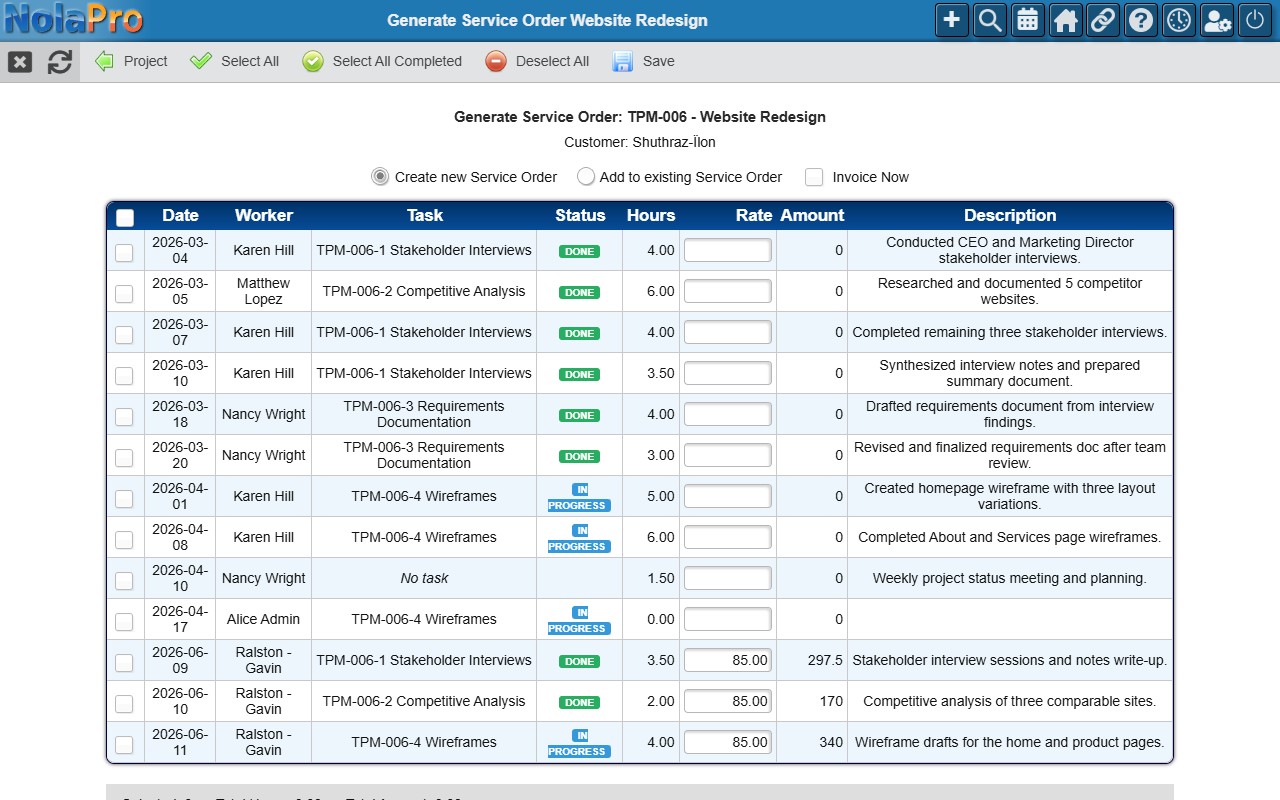
1) From the project dashboard, choose Generate Service Order.
2) If the project has no customer yet, pick one in the Customer prompt first.
3) In the selection table, check the unbilled billable entries to bill. Adjust the per-entry Rate if needed; the amount recalculates automatically.
4) Choose Create new Service Order, or Add to existing Service Order and pick an open order for that customer.
5) Optionally check Invoice Now to invoice the Service Order immediately after it is created.
6) Save. The confirmation shows the new Service Order number (and invoice number if you invoiced), with links to each.
Notes
- The Generate Service Order action only appears when Allow Service Orders is enabled and you have access to the Service Order module.
- Billing entries to an existing Service Order requires that order to belong to the same customer as the project and be in open status.
- Converting hours marks each selected entry as billed by linking it to the Service Order; billed entries drop off the unbilled selection list and show a Billed badge on the timesheet.
- If no matching work-class rate is found for a worker and work type, the rate defaults to zero (shown highlighted), so set up rates before billing.
- Running timers are excluded from the timesheet and reports until stopped; elapsed time is stored to four decimal places.