
Time Tracking
Time tracking lets you log hours against tasks and projects, run a live timer, review weekly timesheets, and turn billable hours into Service Orders. Enable it in Admin -> System -> Project Settings.
Logging time requires the Projects → Time → Edit access right (Admin -> System -> Advanced User Rights). Users without it do not see the Log Time and Start Timer buttons, the floating timer widget, or the edit/delete icons on their time entries, and cannot log time or run the timer.
Logging Time from a Task
Path: Edit any task → Time tab
The Time tab shows all hours logged against the task, from both TPM and Service Orders. Click Log Time to enter the date, hours, a description, and whether the time is billable. You can edit or delete your own entries; supervisors can delete any. Linked Service Order entries appear in a separate read-only table.
Service Labor Rates
When a time entry is saved, the system automatically looks up two rates and snapshots them on the entry (so history stays accurate even if rates change later):
- Bill Rate The customer-billable rate from the Service Labor Rates matrix (work type + employee's work class) — the same system Service Orders use.
- Cost Rate The employee's hourly cost rate from their payroll record.
Work Type can be set at three levels, each inheriting from the level above: Project (Budget section of the project form), Task (Dates & Effort section of the task form), and Time Entry (resolved automatically when logging). Reports show Bill Amount, Cost Amount, and Margin to help track profitability.
Logging Time from a Project
Path: Edit any project → Time tab
The project-level Time tab works the same way but includes a Task dropdown so you can assign logged time to a specific task or leave it project-level. A budget progress bar shows hours logged vs the project's budget hours.
Timer
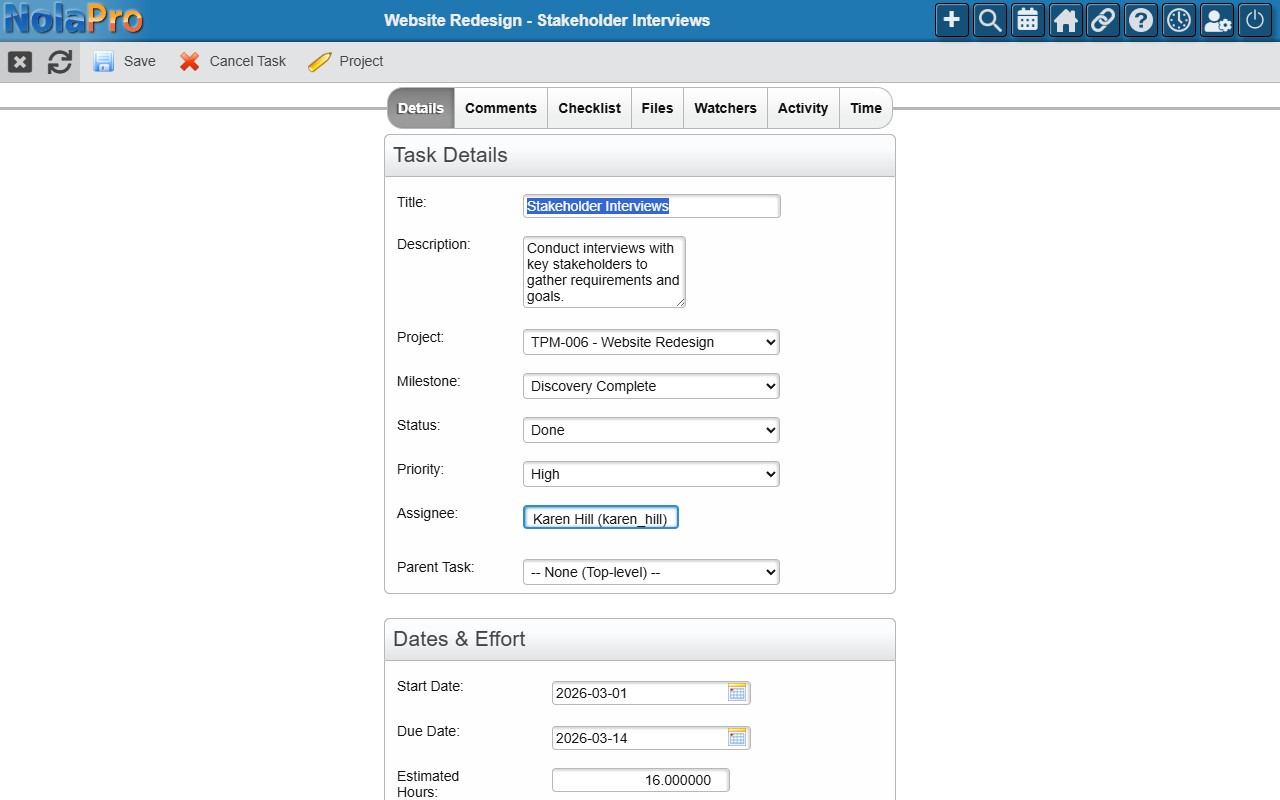
Start a live timer from any task or project Time tab with Start Timer.
- Only one timer runs at a time — starting a new one stops and saves the previous.
- A floating widget appears in the bottom-right of every page showing elapsed time, the project/task name, and a Stop button.
- Clicking Stop saves the elapsed time as a time log entry; clicking the task name navigates to it.
- If a task is cancelled (deleted) while a timer is running on it, the timer is stopped and the elapsed time is saved onto its time entry, the same as clicking Stop, so the hours already worked are not lost.
Timesheet
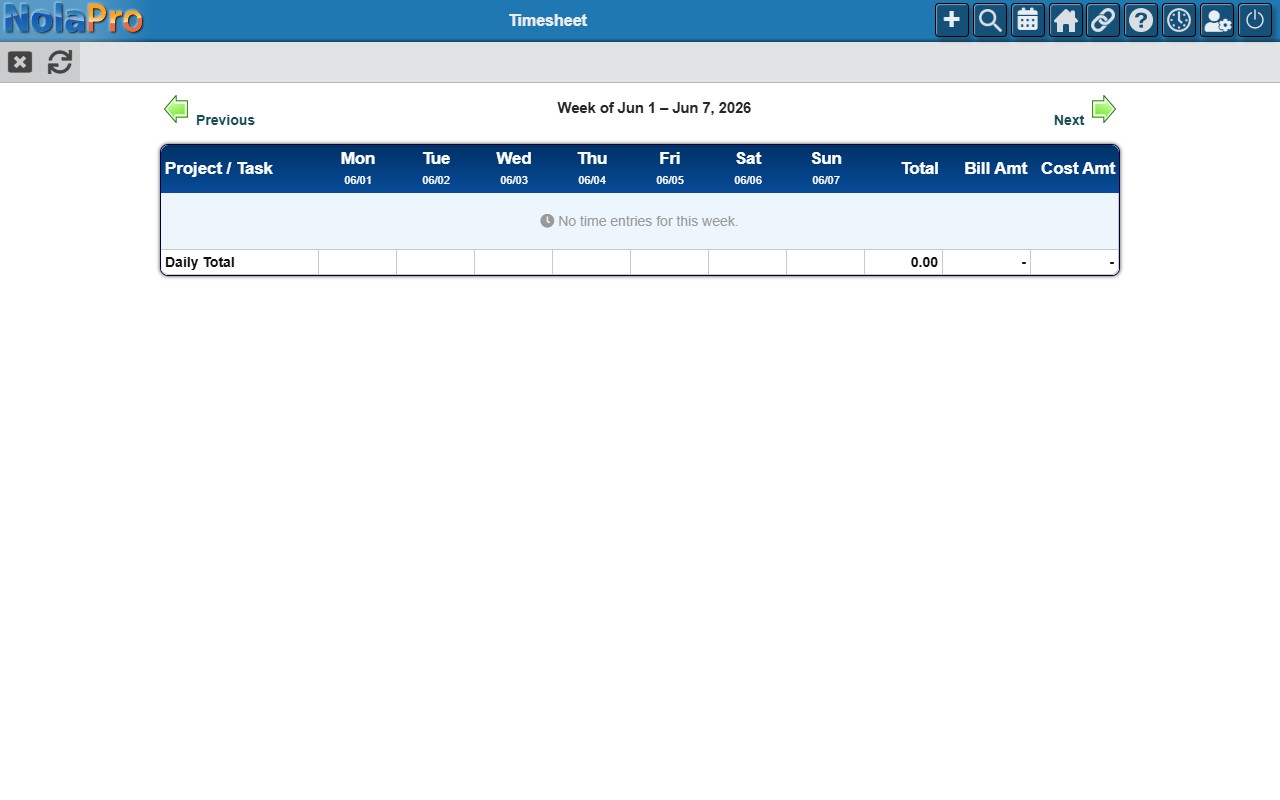
Path: Projects -> Tasks → Timesheet (taskbar)
A weekly grid of your logged hours across all projects and tasks. Rows are grouped by project and task; columns are the seven days of the week. Bill Amount and Cost Amount columns show financial totals, Service Order hours appear as read-only rows with an SO badge, and Previous/Next navigate between weeks with daily and grand totals at the bottom.
Time Report
Path: Projects -> Reports → Time Report
Three report types are available, all filterable by project and date range:
- By Project: TPM hours, SO hours, total, bill amount, cost amount, margin, budget hours, and percentage used per project (negative margins in red).
- By User: TPM hours, SO hours, total, billable, and non-billable hours per team member.
- Detail: Every individual time entry (TPM and SO) with date, project, task, user, hours, rates, bill amount, and description.
Service Order Integration
When Team Project Management is enabled, the Service Order time entry forms show optional TPM Project and Task dropdowns. Select a project to link the SO time entry, pick a task or use + New Task to create one on the fly, and clear the project dropdown to remove the link. Linked SO entries appear in the read-only Service Order Time sections on task and project Time tabs.
Generating a Service Order from Project Hours
You can convert billable TPM time entries into a Service Order for invoicing.
Prerequisites:
- The project must have a linked customer (set in the project's Details tab).
- Service Orders must be enabled for your company (AR module setting).
- You must have access rights to create Service Orders.
- Click Generate Service Order in the taskbar (on the Project Edit page, Project Dashboard, or Home tab when a project is selected).
- A selection page lists all unbilled, billable time entries. Use the checkboxes (with Select All / Select Completed / Deselect All helpers) to choose entries; a summary bar shows count, hours, and billable amount.
- Choose Create New Service Order (a new SO linked to the project's customer, using the project code as PO number) or Add to Existing Service Order (append to an open SO for the same customer).
- Optionally check Auto-Invoice to immediately convert the SO into an AR Invoice.
- Click Generate Service Order to complete.
Each selected entry is copied to a Service Order time entry (preserving hours, rates, work type, work class, and notes), the TPM entries are marked billed, and the SO total is recalculated. If auto-invoice was checked, the SO is converted to an AR Invoice.