
Project Dashboard
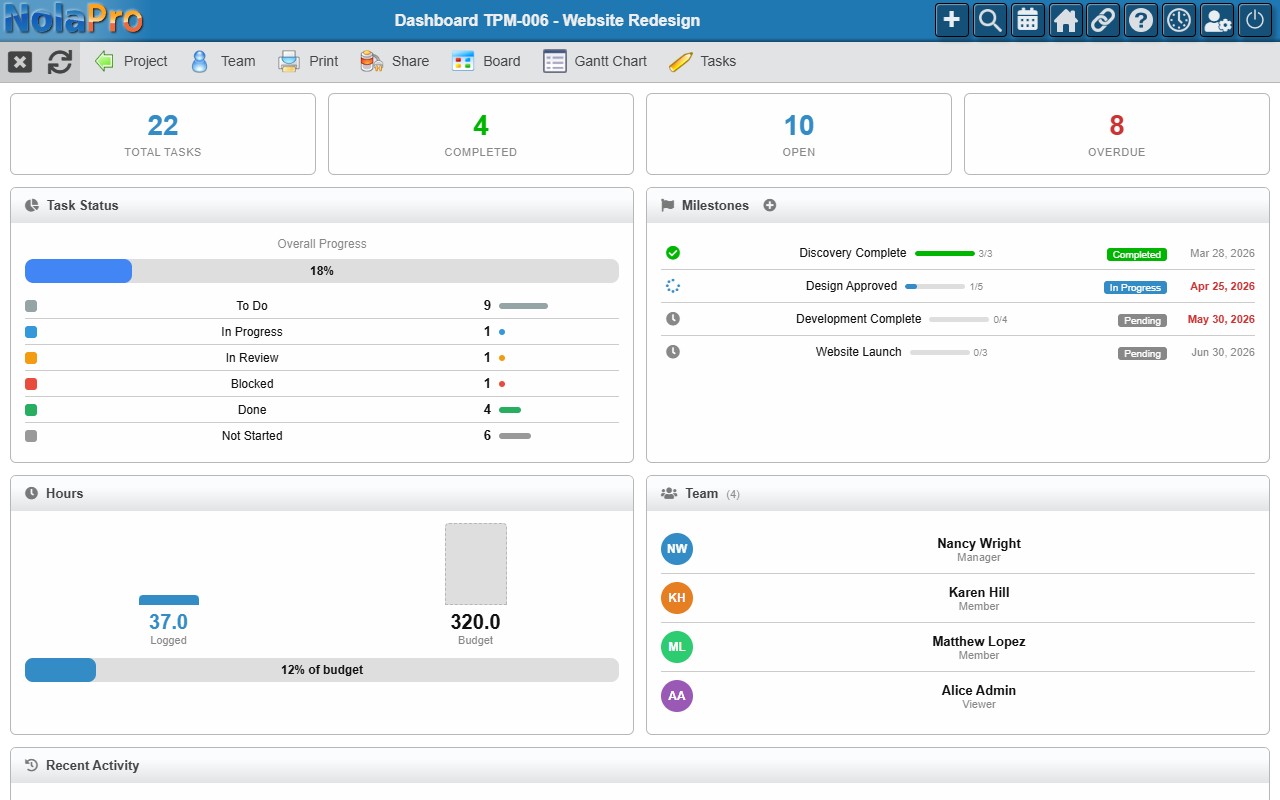
Path: Home → select a project from the sidebar
The project dashboard is the central hub for monitoring a project's health. It is the first thing you see when you open Team Project Management and is designed for day-to-day task management without leaving the page.
Homepage Layout
- Left sidebar A searchable list of all your active projects. Each entry shows a color bar, name, code, status, and completion percentage. Projects with overdue or due-today tasks show a red or yellow badge. Hover to reveal a quick Log Time icon.
- Right panel The dashboard for the currently selected project. Click any project in the sidebar to load it.
Use the Filter projects search box at the top of the sidebar to quickly locate a project by name or code.
Stat Boxes
Four clickable summary boxes appear at the top of every project dashboard. Clicking a box opens the task list filtered accordingly.
| Box | Description |
|---|---|
| Total Tasks | Total number of tasks in the project. |
| Completed | Tasks in a "complete" status. |
| Open | Incomplete, non-overdue tasks. |
| Overdue | Tasks past their due date. |
Dashboard Cards
- My Tasks Due Today: Your assigned tasks due today or earlier that are not complete. Overdue tasks are highlighted; inline-edit Status/Priority/Assignee/Due Date, and use the Checklist, Comments, and Log Time quick actions.
- Task Status: Overall progress bar plus a per-status breakdown with counts and proportional bars.
- Milestones: All milestones with status badge and due date (overdue dates highlighted).
- Hours: A bar chart of Logged vs Budget hours (including linked Service Order hours); the bar turns red when over budget. Shows a Generate Service Order link when the project has a linked customer.
- Team: All project members with avatar initials, name, and role.
- Recent Activity: A timeline of the last 15 changes, newest first, with clickable task links.
Task List (Open Tasks)
At the bottom of the dashboard, a full task list shows all incomplete tasks grouped by milestone.
- Milestone headers: Each milestone group shows its name, task count, status badge, and due date. Click the + icon on a milestone header to add a task directly to it.
- Show Open / Show All in the card header switches between open-only and all tasks.
- Subtasks appear indented; inline-edit Status, Priority, Assignee, Due Date, and milestone fields; each row has Checklist, Comments, and Log Time quick actions; drag by the grip handle to reorder.
Auto-Refresh & Navigation
The dashboard automatically refreshes when tasks, milestones, time logs, team members, statuses, comments, or checklists change — keeping the view current without a manual reload. The taskbar provides quick links to Project (edit), Team, Print, Share, Board, Gantt, and Tasks, plus Generate Service Order when the project has a linked customer.