
Kanban Board
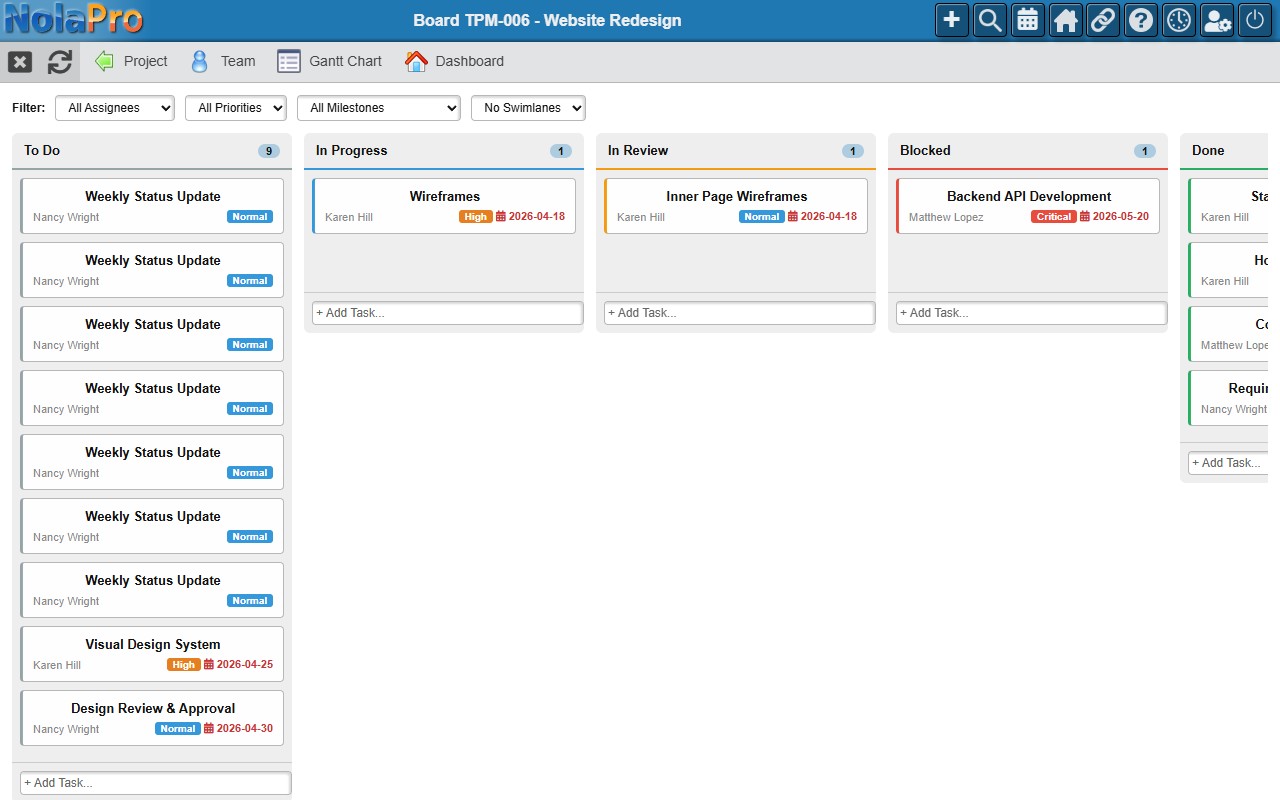
Path: Projects -> Projects → select a project → Board (taskbar)
The Kanban board displays tasks as draggable cards organized into columns by task status.
Board Layout
- Each column represents a task status marked as "Show on Board" in settings. The header shows the status name and task count.
- Task cards display the title (clickable), assignee names, a color-coded priority badge, and due date (overdue dates are highlighted).
- Dependency-blocked tasks show a lock icon and "Blocked by dependency" label.
Interactions
- Drag & drop: Drag cards between columns to change task status. The order within a column is also saved.
- Quick-add: Type a task title in the input at the bottom of any column and press Enter to create a task in that status.
- Double-click: Double-click a card to open the full task editor.
Filters & Swimlanes
Filter cards by Assignee, Priority, or Milestone using the dropdowns above the board; filters apply instantly. Swimlanes group cards within columns by a second dimension — By Milestone, By Assignee, or By Priority.
Swimlane headers are draggable — drag a header to reorder the entire group within the column. Individual cards can still be dragged between groups and across columns.