
Tasks
Task List
Path: Projects -> Tasks
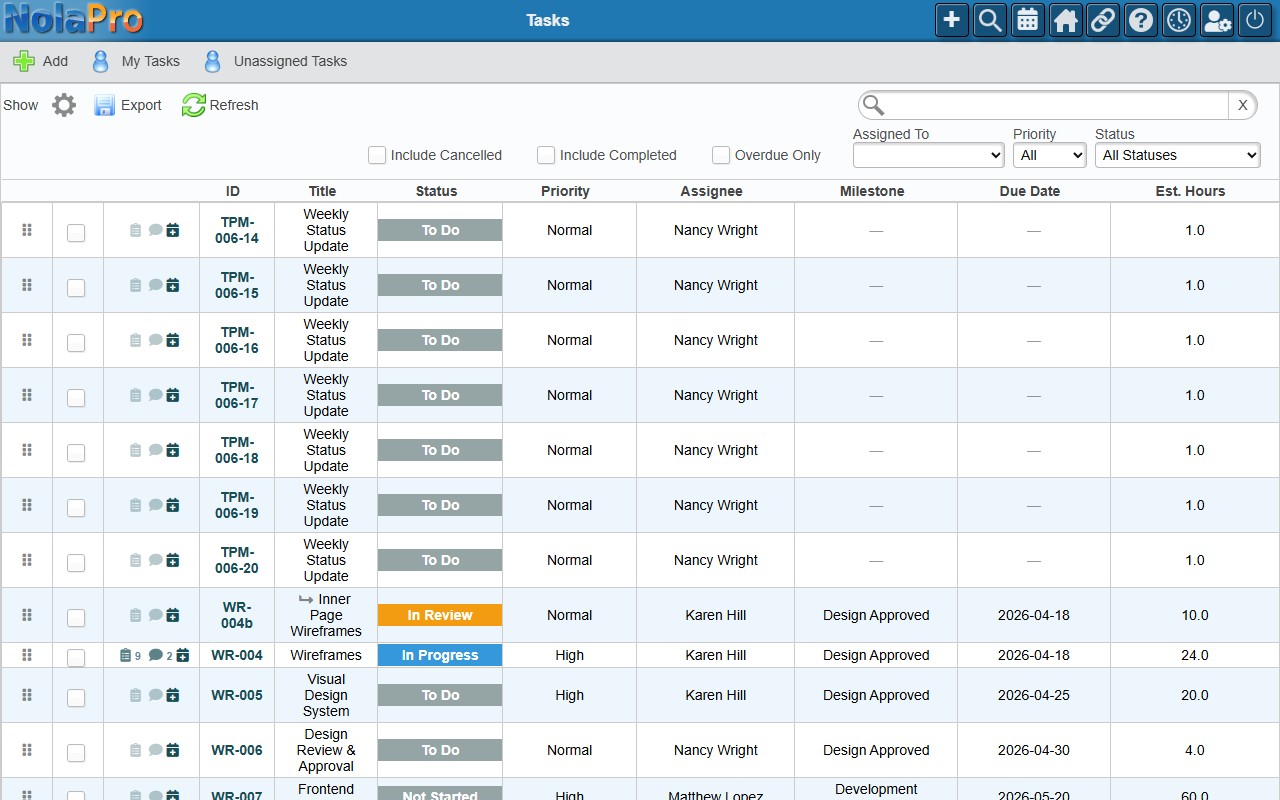
Shows all tasks across all projects.
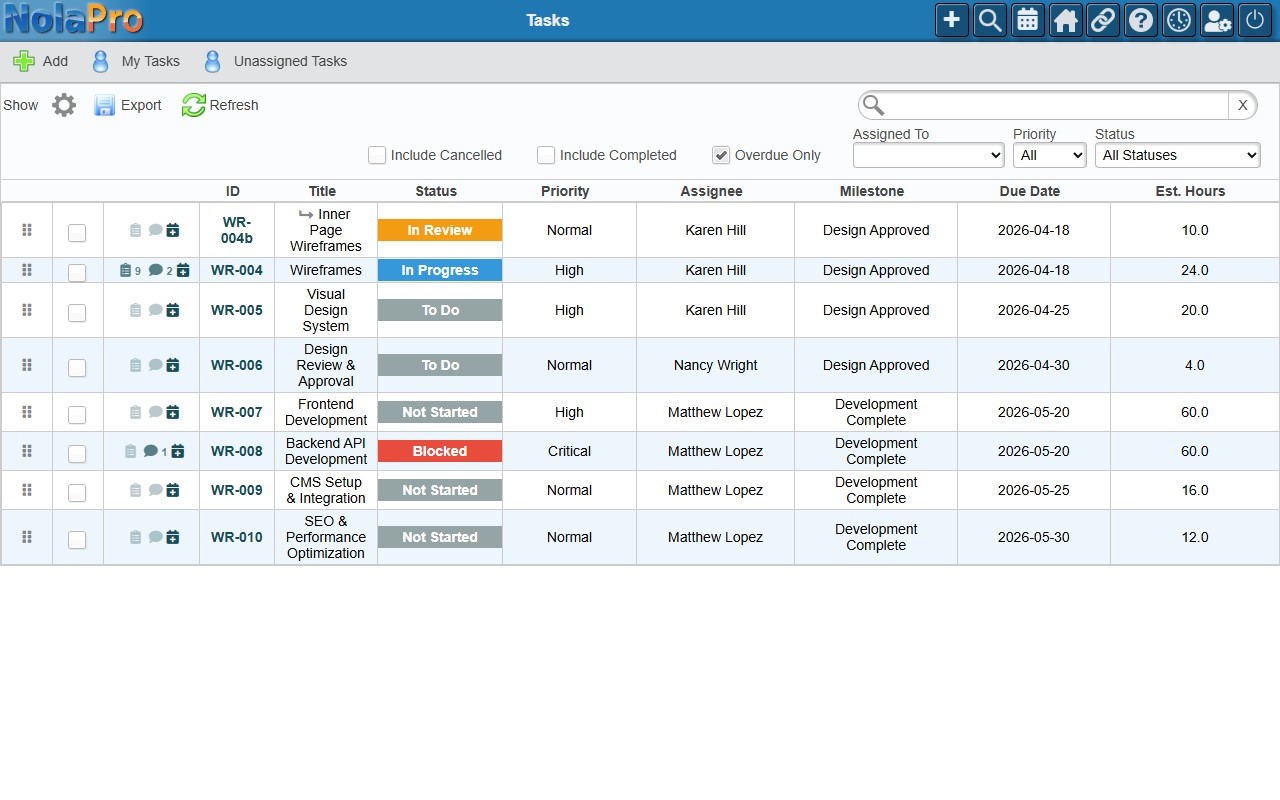
| Column | Description |
|---|---|
| ID | Display ID in the format TPM-001-3 (project code + task sequence). Click to open. |
| Title | Task title. Subtasks show an indent icon. |
| Project | Project code the task belongs to. |
| Status | Color-coded badge from your custom task statuses. |
| Priority | Low, Normal, High, or Critical. |
| Assignee | The user assigned to the task. |
| Milestone | Milestone name (if assigned). |
| Due Date / Est. Hours | Due date and estimated effort in hours. |
Inline editing: Click any Status, Priority, Assignee, or Due Date value to edit it in place. Changes save immediately.
Filters: Project, Status, Priority, Assigned To (with Unassigned and Unassigned / your name special options), Overdue Only, Include Completed, and Include Cancelled.
My Tasks & Unassigned Tasks
Path: Projects -> Tasks → My Tasks / Unassigned Tasks (taskbar)
Click My Tasks in the taskbar to set the Assigned To filter to your name. Click Unassigned Tasks to set it to Unassigned (tasks with no assignee) — useful for finding work to pick up or delegate. Clear the dropdown to return to the full list.
Creating a Task
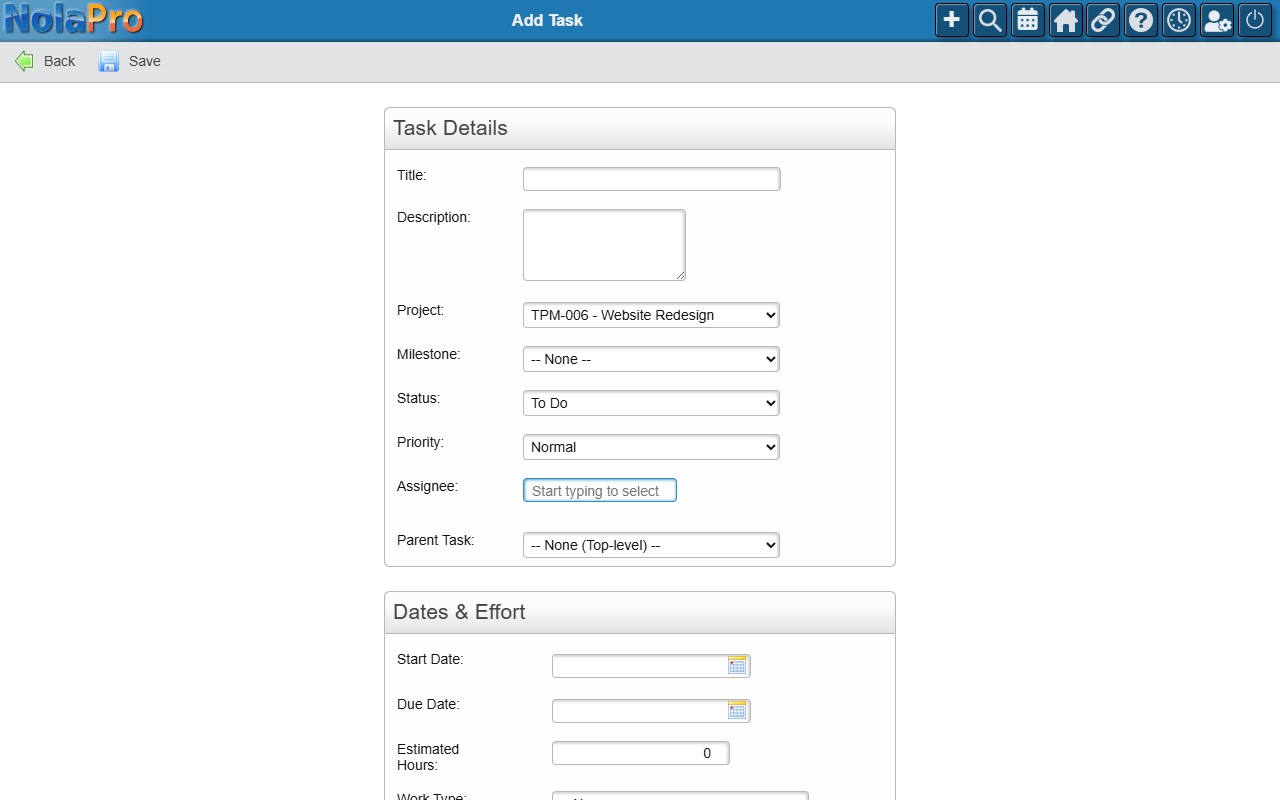
- From the task list, click Add.
- Fill in the Task Details group: Title (required), Description, Project (required), Milestone (filtered by project), Status, Priority, Assignee, and Parent Task (one level deep).
- Fill in the Dates & Effort group: Start Date, Due Date, Estimated Hours.
- Click Save.
A sequential task number is assigned automatically within the project.
Editing a Task
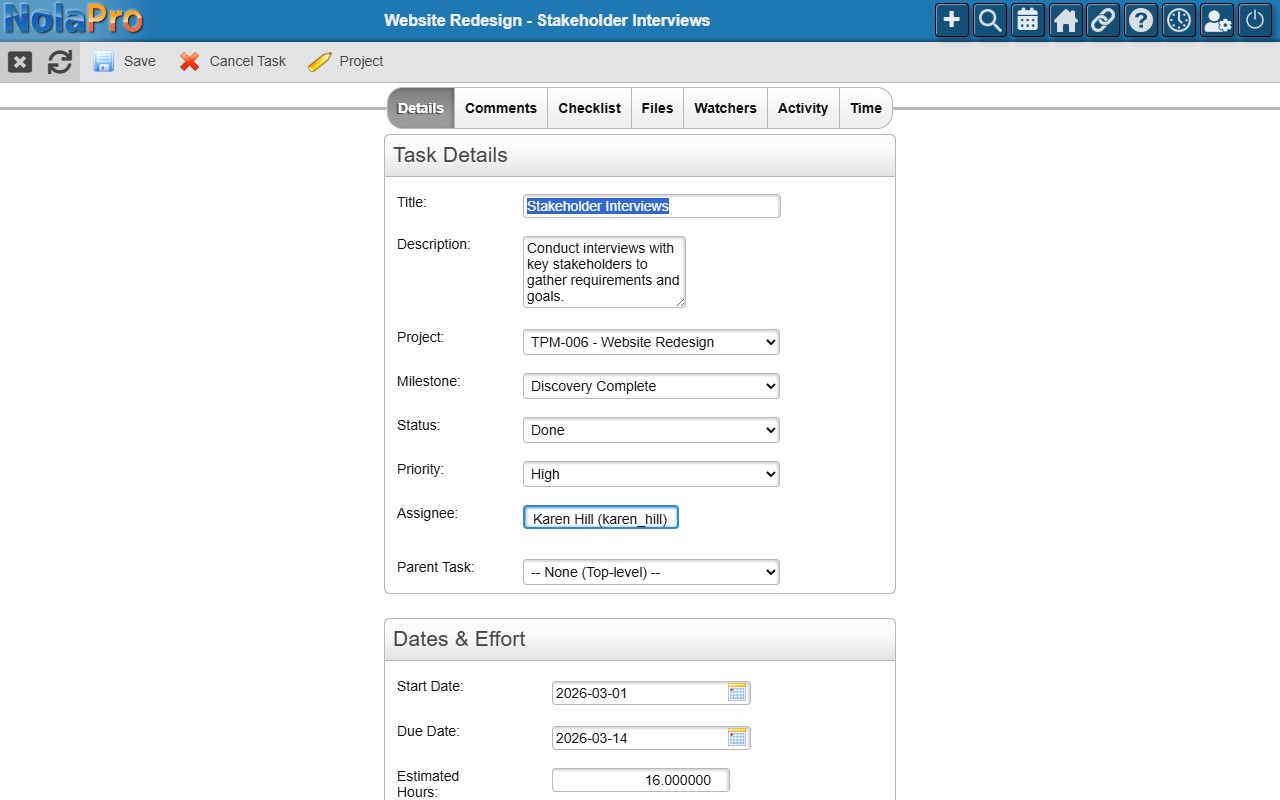
Click a task ID in the list to open it. The edit page is organized into tabs.
Details Tab
The same form as Add, with current values filled in. The taskbar also includes Cancel Task (soft-deletes the task, cancels subtasks, stops timers) and a Project quick link.
Comments Tab
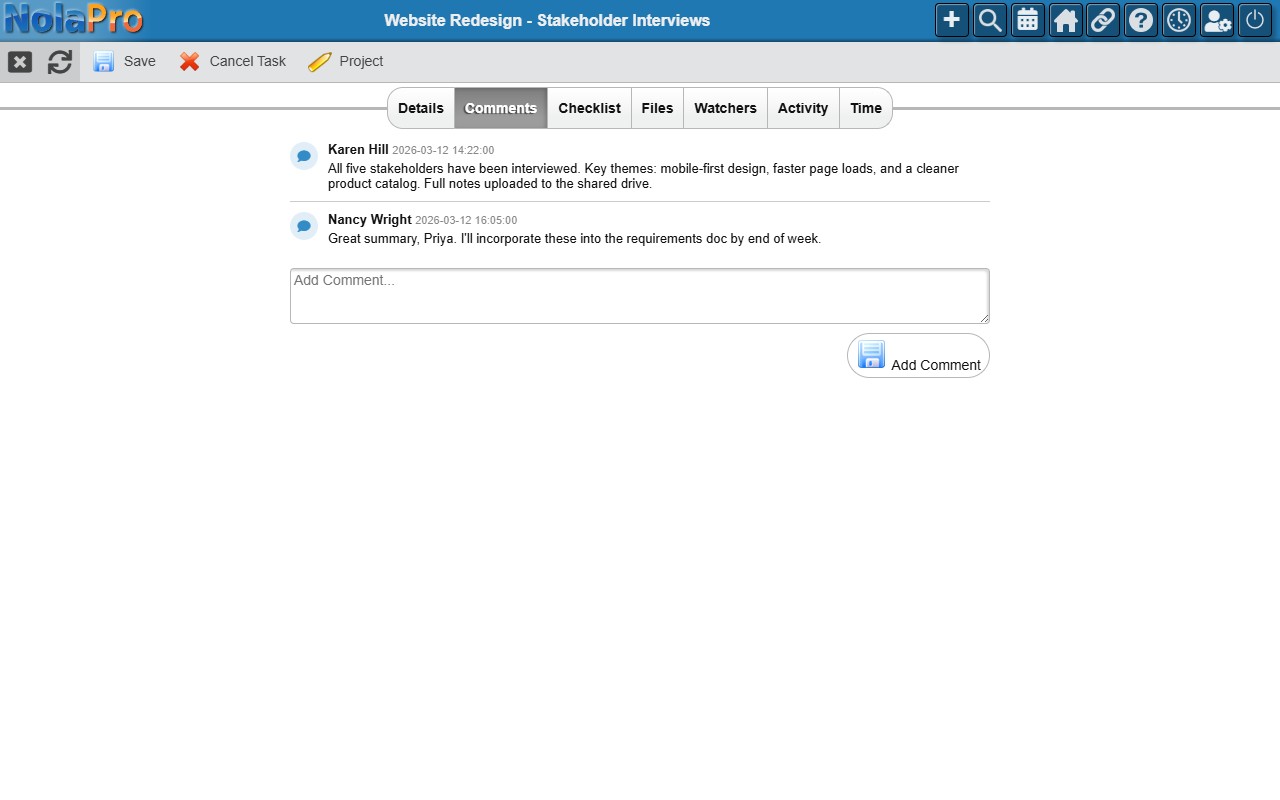
A threaded comment feed for team discussion. Type in the text area and click Add Comment. Only the comment author can delete their own comments. Each comment shows the author name and timestamp.
Checklist Tab
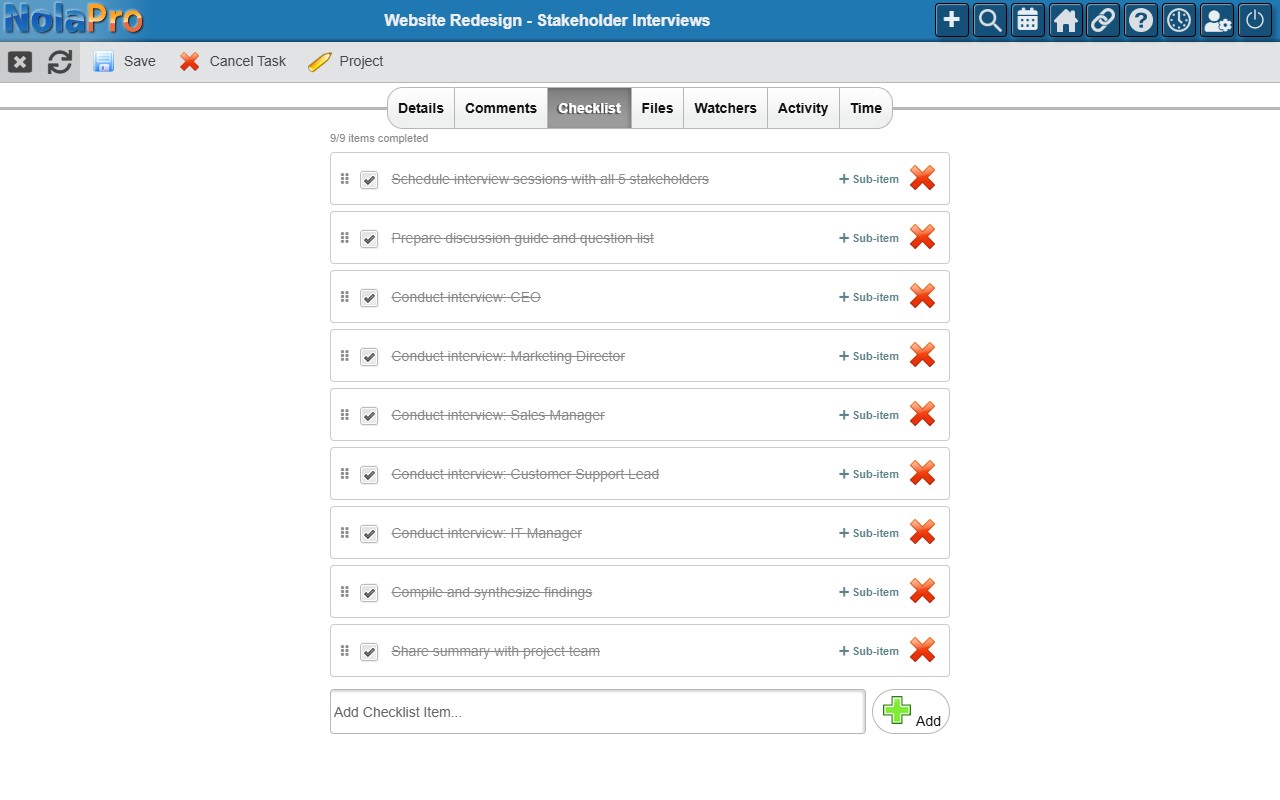
A sortable to-do list within the task, useful for breaking a task into smaller steps.
- Add an item: Type in the text field and press Enter or click Add.
- Complete: Check the checkbox; the text gets a strikethrough.
- Reorder: Drag by the grip handle.
- Sub-items: Each item can have nested sub-items (one level deep) with their own checkboxes.
A completion progress indicator shows how many items are checked.
Files Tab
Attach files to the task using NolaPro's file management system. Upload, view/download by clicking a file name, or delete. Files support all configured storage backends (Database, Disk, DigitalOcean Spaces).
Watchers Tab
Watch a task to receive notifications about changes without being the assignee. Click Watch to start (the button changes to Unwatch).
Auto-watch: You automatically watch tasks you create or comment on. Watchers get the same notifications as assignees but do not count toward workload calculations.
Activity Tab
A read-only log of all changes to the task, newest first. Tracked events include task created, status change (old → new), priority change, assignment, comment added, and task cancelled. Each entry shows who made the change, the timestamp, and details.
Dependencies Tab
Shows predecessor and dependent relationships. Depends On (Predecessors) lists tasks that must complete first (a warning banner appears if any are incomplete); Blocks (Dependents) lists tasks waiting on this one. Add a dependency by selecting a task from the dropdown (same project only) and clicking Add. Circular dependencies are automatically prevented.
Bulk Actions
Select one or more tasks with the checkboxes to reveal the bulk action toolbar: Set Status, Set Priority, Set Milestone (within a single project), Watch / Unwatch, and Cancel. A Select All checkbox selects every task on the current page.
Drag & Drop Ordering
When viewing tasks within a single project, drag tasks by the grip handle in the first column to reorder them; the new order saves automatically. Drag & drop is also available for milestones, checklist items, and task statuses.