
Admin Settings
Path: Admin -> System -> Project Settings
The settings page is organized into four tabs.
Module Settings
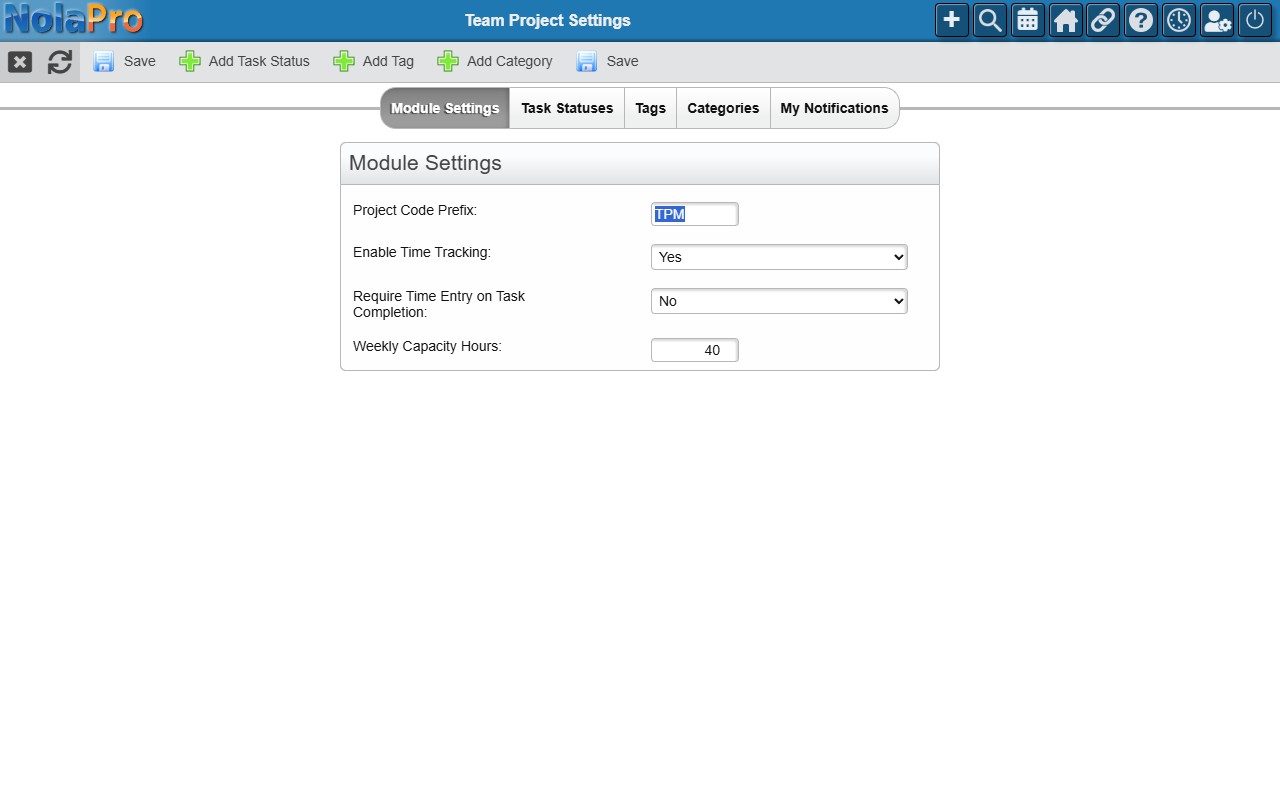
| Setting | Description |
|---|---|
| Project Code Prefix | Short prefix used when auto-generating project codes (e.g. TPM). Codes appear as TPM-001, TPM-002, etc. |
| Enable Time Tracking | Turn time-logging features on or off for the module. |
| Require Time Entry on Task Completion | When enabled, users must log time before a task can be marked complete. |
| Who Can Create Projects | Restrict project creation to Managers & Supervisors, or allow all users. |
| Weekly Capacity Hours | Default weekly hours per team member, used in the Workload view. |
Click Save after making changes.
Task Statuses
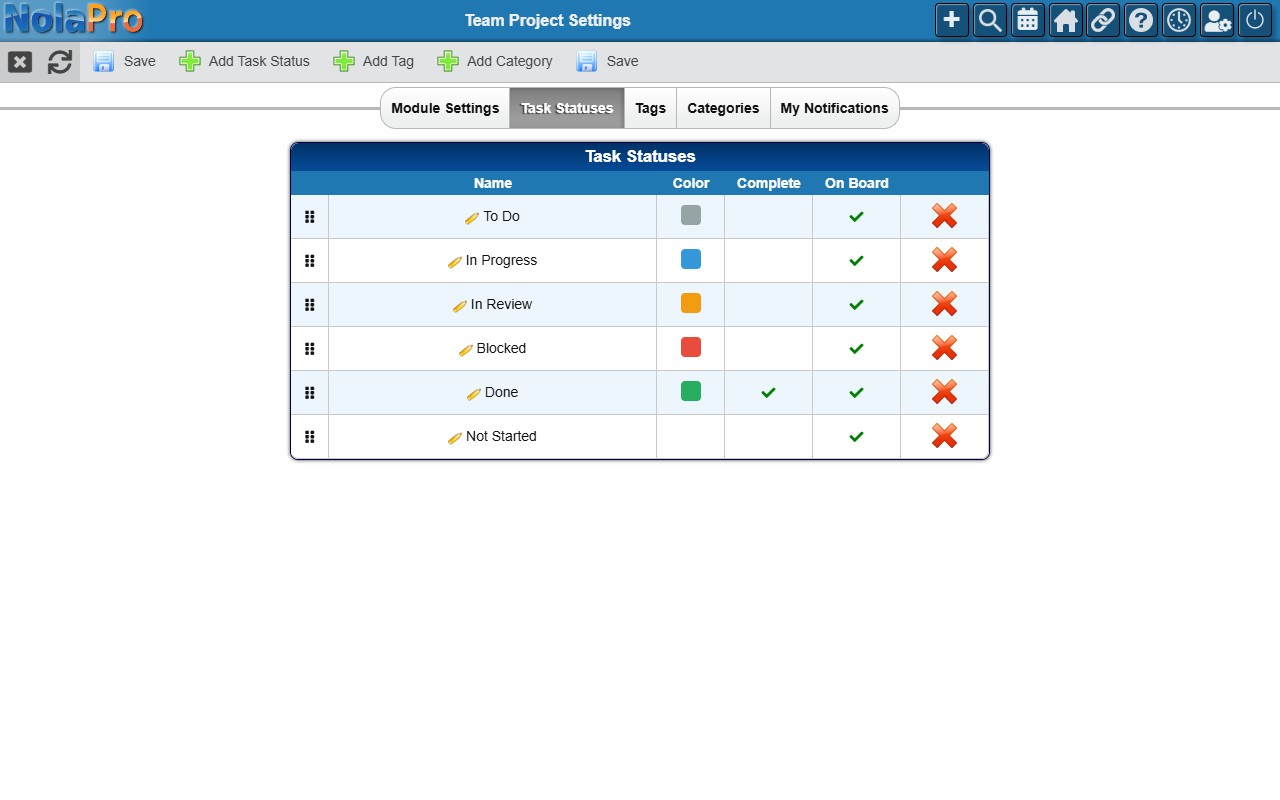
Define the workflow stages a task moves through. Five defaults are created automatically the first time you open settings:
| Status | Color | Marks Complete? | Show on Board? |
|---|---|---|---|
| To Do | Gray | Yes | |
| In Progress | Blue | Yes | |
| In Review | Orange | Yes | |
| Blocked | Red | Yes | |
| Done | Green | Yes | Yes |
Add / Edit a status: Click Add Status or the edit icon on an existing row. Each status has a Name (label), Color (badge background, hex picker), Marks as Complete (reaching this status finishes the task), and Show on Board (whether it appears as a Kanban column).
- Reorder: Drag rows by the grip handle to change the display order.
- Delete: Click the delete icon. A status cannot be deleted while any task is assigned to it.
Tags
Tags are colored labels you can attach to tasks for quick filtering and grouping.
- Add / Edit: Click Add Tag or the edit icon. Set a name and color.
- Delete: Deleting a tag also removes it from all tasks that use it.
Categories
Categories let you organize projects into groups (e.g. "Client Work", "Internal", "R&D").
- Add / Edit: Click Add Category or the edit icon. Set a name.
- Delete: Click the delete icon.