
How to Transfer a B2B Portal Order into Open Orders
When a customer uses the B2B portal, they assemble items into a cart and then check that cart out through a short multi-step order form. Completing that form is what "transfers" the cart into a real order: the order header, its line items, taxes, and stock commitments are all created at once, and the cart is emptied. B2B orders are saved in an unconfirmed state, so a staff member reviews and confirms each one first; once confirmed, it becomes an active, unbilled order in your Orders list, where you ship and invoice it like any other order.
This process has three stages: the customer (or a user logged in as that customer) completes the portal order, your staff confirms it, and then you manage it in your Orders list.
Requirements
The B2B System feature must be enabled. The Inventory module is also required, because the Orders Unconfirmed report used in Step 2 is part of Inventory. B2B Item Graphics is needed for item images in the portal.
Step 1: Complete the Portal Order
Where: B2B Order Entry (the customer-facing B2B portal)
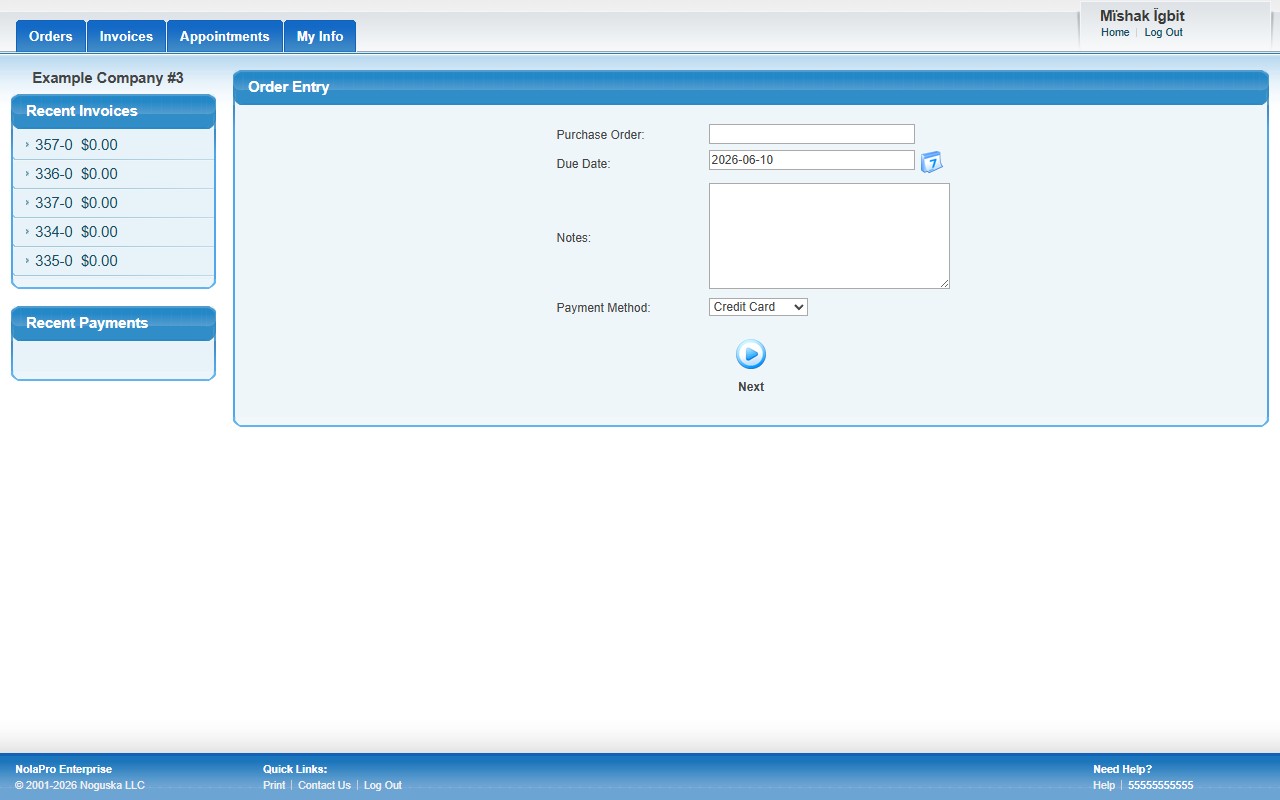
1) Order header — enter a PO # (required if your company requires PO numbers on B2B orders), an optional Due Date (defaults to today), any Notes, and a Payment Method, then continue.
2) Ship-To selection — choose the Ship To address. A link beside the field opens a popup to add a new ship-to address if the needed one is not listed.
3) Line items — review the items carried over from the customer's cart (item code, description, quantity, unit, price, taxable status, and total). Use the Edit button on a row to change a quantity or detail, or the Add button to include more items from the customer's available product group. Then click Review.
4) Review — a read-only summary opens. An Order Details table shows the Ship To address, plus the PO Number, Due Date, Payment Method and Notes when they are filled in. Below it are the line items and totals. Lines cannot be edited or added on this screen; click Back to return to the line-items screen with everything you entered kept.
5) Click Submit Order to place the order. This creates the order (as an unconfirmed order) and its line items, applies taxes, commits the stock, and clears the customer's cart.
Step 2: Confirm the B2B Order
Where: Income -> Reports -> Orders -> Orders Unconfirmed
1) Because B2B orders are placed in an unconfirmed state, they first appear on the Orders Unconfirmed report rather than directly in your open Orders list. Open this report to see the new B2B orders waiting for review.
2) Open the order to review the customer, ship-to, line items, and totals.
3) Confirm the order. Confirming promotes it from unconfirmed to an active, open order.
Step 3: Manage the Order in Open Orders
Where: Income -> Orders
1) Once confirmed, the order appears in your Orders list as an active, unbilled order alongside every other open order.
2) From there you move it through the normal flow — pick, ship, and convert it to an invoice — just like an order entered internally.
Notes
- On themed B2B portals, a step indicator runs Details > Ship To > Items > Review, and all four steps show as done after the order is submitted.
- Whether sales tax is based on the ship-to address or the customer's billing address, and whether freight is taxed, depend on your company's sales-tax settings; these are applied automatically when the order is placed.
- If the customer is limited to items from their assigned group, only those group items appear in the portal line-item list.
- Choosing credit card as the payment method sends the customer to a credit card entry page after the order is submitted.
- A notification email is sent to the company after a B2B order is placed, so staff know a new order is waiting to be confirmed.
- If the customer record has no currency assigned, the order uses the default company currency.