
How to Create a Quote and Convert It to an Order, Then to an Invoice
A quote is a proposed sale that has not yet been committed. Once a customer accepts it, the quote becomes an order, which reserves inventory and tracks shipment. When the order ships, you bill it by converting it to an invoice, which posts to the customer's ledger and the general ledger — normally a step you run yourself (see Step 3), although a per-customer setting can do it automatically the moment a shipment is recorded. NolaPro keeps quotes and orders together in one list (filtered by status), so the same screens manage both stages.
This article walks the full path: review and accept the quote, manage the resulting order, then run the bulk Orders-to-Invoices conversion.
Requirements
To type an exact invoice number during conversion, the Invoice Number Override feature must be enabled.
Step 1: Find and Accept the Quote
Where: Income -> Quotes
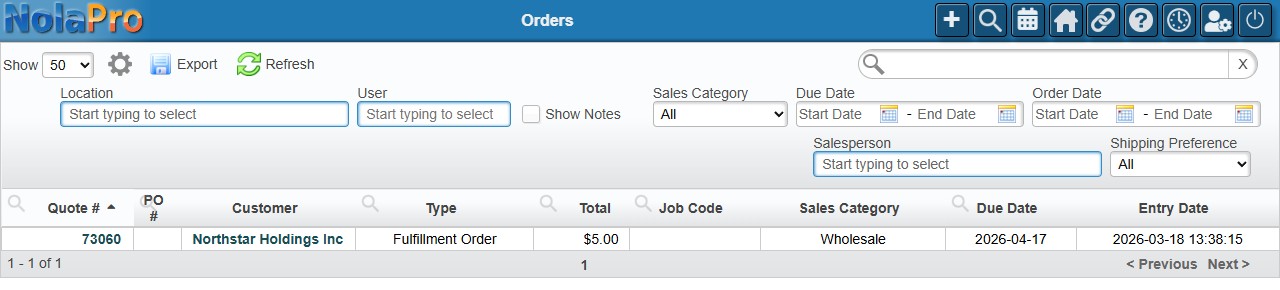
1) Open the list in Quotes mode to see pending estimates that have not yet been accepted.
2) Use the Entry Date filters or the User filter to locate the quote.
3) Click the quote number to open it for editing. Click Convert to Order to accept it (a confirmation dialog appears); the quote then appears in the list in Orders mode.
Step 2: Manage the Order
Where: Income -> Orders
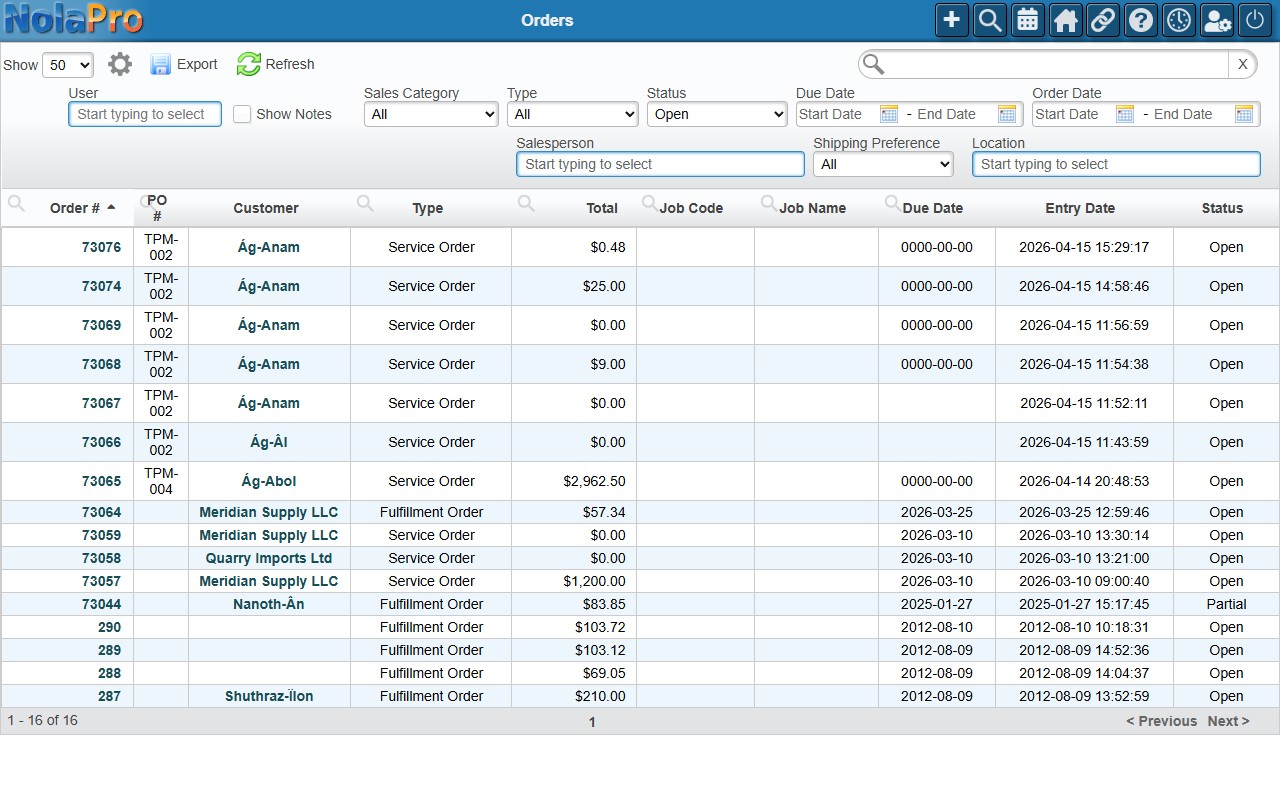
1) Switch to the Orders list to see accepted orders and their status (Open, Partial, Complete).
2) Open the order to confirm line items, ship-to, quantities, and shipping details before billing.
3) Orders can also be created directly here or via Tools -> Import -> Import Orders (CSV) when you are not starting from a quote.
Step 3: Convert the Order to an Invoice
Where: Income -> Orders -> Fulfillment Order -> Orders to Invoices
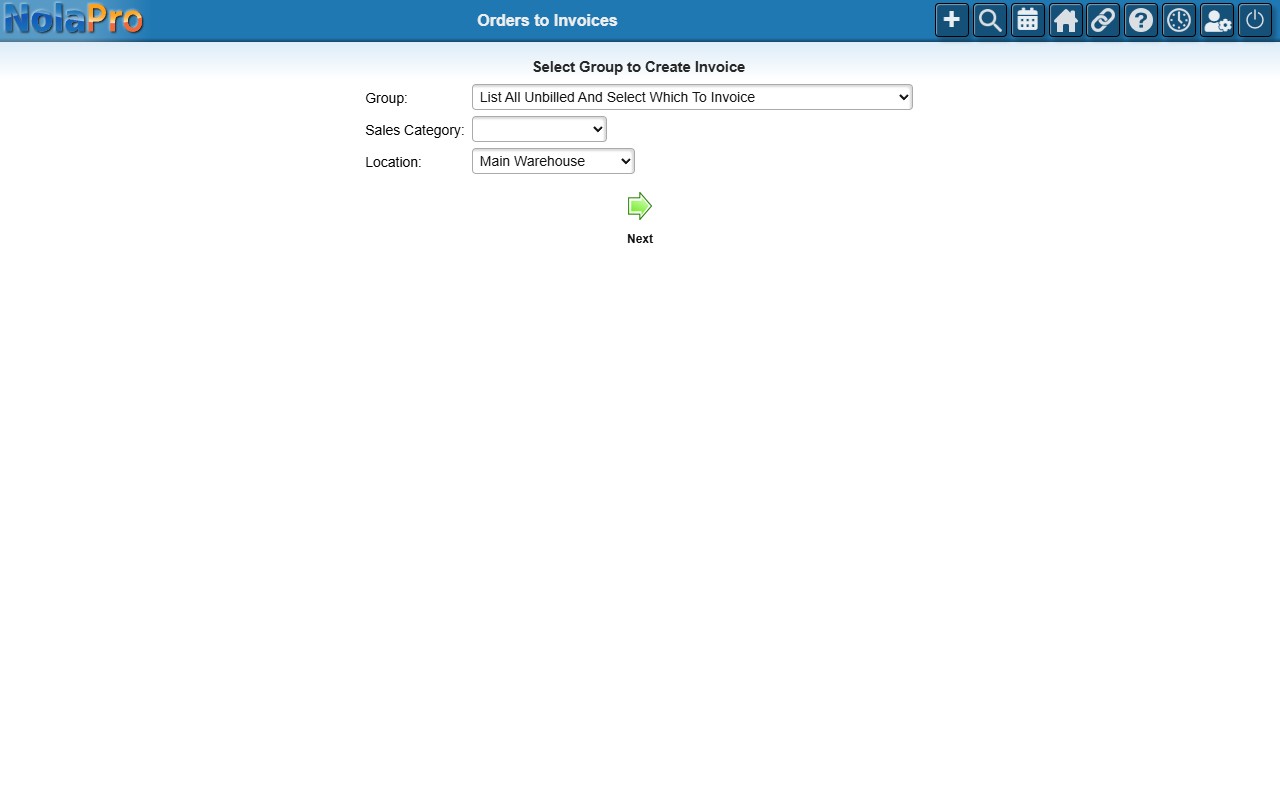
1) Choose a Group that controls which orders are billed. List All Unbilled And Select Which To Invoice lets you review and pick orders before anything is created; Send All Unbilled Orders To Invoicing bills everything in the filtered set automatically.
2) Optionally narrow by Sales Category and Location, then continue.
3) On the picker page, check the orders to invoice.
4) If the Invoice Number Override feature is on, type the exact invoice number to use for each order, or leave it blank to auto-assign.
5) Submit to create the invoices. Each new invoice copies the order's customer, line items, taxes, notes, and any recorded deposits, and posts the matching GL transactions.
Notes
- Converting orders to invoices is normally a deliberate step you run yourself (Step 3). A per-customer option on the customer record can instead invoice a shipment automatically the moment it is recorded — set per customer to Never, Partial & Full Shipments, or Only Complete Shipments. Most companies leave it off and bill on their own schedule.
- Only what was actually shipped is billed: an order with some lines shipped and some not becomes an invoice for the shipped lines, leaving the rest open on the order.
- Cancelled orders and orders already fully billed are excluded from the conversion automatically.
- Deposits recorded against the order are applied to the new invoice in the same transaction, so the invoice opens with the correct balance.
- Send All Unbilled runs silently across every matching order; choose a "List ... And Select" group when you want to review first.
- After conversion, the page lists the new invoices with links so you can print, email, or take payment on each.