
Cash Requirements Report
The Cash Requirements report forecasts how much cash you will need to pay your open vendor bills over the next five weeks. It groups every unpaid bill by vendor and by the week it falls due, so you can see at a glance what has to be paid this week, next week, and so on, and which vendors make up each week's total.
Requirements
The Payables Cash Requirements Report add-on and the Accounts Payable module. The report is read-only; running it changes nothing.
Running the report
Where: Expenses -> Reports -> Cash Requirements

1) If bills must be approved before payment (Admin, Expenses, General Setup), choose Base Report on Which Date: Due Date uses each bill's due date, Payment Date uses the payment date assigned when the bill was approved, and only approved bills with a payment date are included. Without bill approval the report always uses the due date and this choice is not shown.
2) If you pay from more than one bank account, pick the Payment Bank Account (active accounts only) or leave All. The account filter matches the bank account assigned to a bill when it was approved, so it only narrows the report when bill approval is in use; with no approval and a single bank account the options page is just the button. Click Next (its hover text reads "Continue").
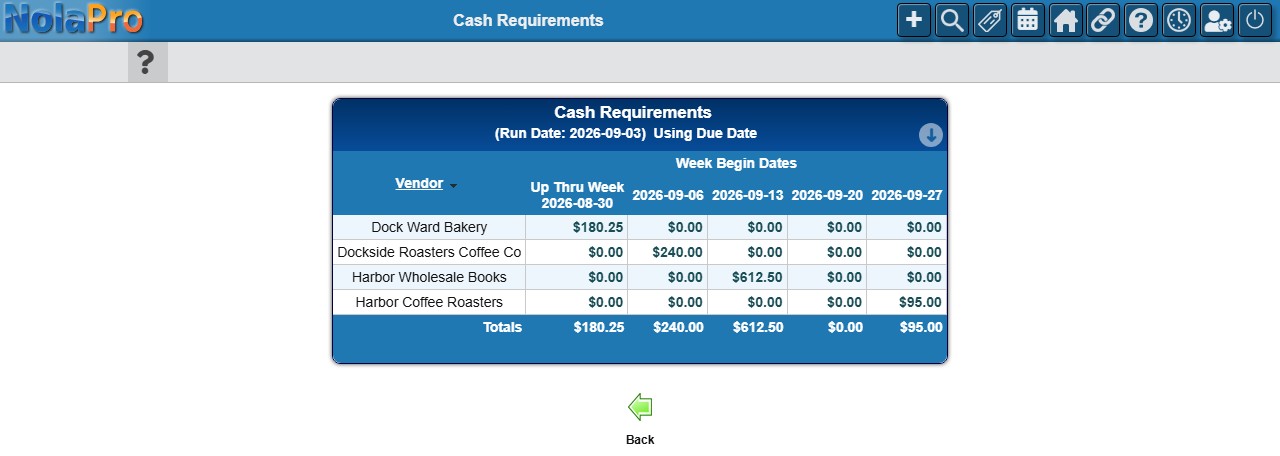
3) The forecast heading shows the run date, whether it is Using Due Date or Using Payment Date, and For Account when one was chosen. There is one row per vendor (shown with the vendor code) and five columns under Week Begin Dates: the first, Up Thru Week and the Sunday of the current week, includes everything already past due; each following column is the next week. Vendor credits are netted into the vendor's week amount. A Totals row closes the table and the Vendor heading sorts the rows. Back returns to the options with your selections kept. When nothing matches the filters, only the headings are shown.
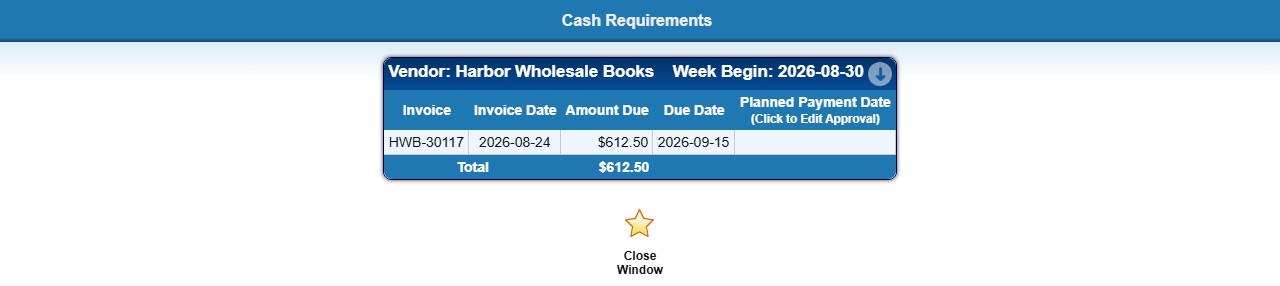
4) Click any amount to open Cash Requirement Details for that vendor and week in a new browser tab. The heading shows the run date and For Account when a bank account was chosen, then the vendor and the week you clicked: Up Thru Week with the Sunday of the current week for the first column, or Week Begin with that week's own date for the others. Each bill is listed with its invoice number, invoice date, amount due (credits as negative amounts), due date and Planned Payment Date (Click to Edit Approval). For an approved bill the planned payment date is a link that opens the bill's approval; for a bill that is not approved yet the cell is empty. A Total row closes the list. Click Close Window or close the tab to return to the forecast.
Notes
- Only open bills count. Bills marked complete, cancelled or fully paid are excluded, and partial payments are subtracted from what is owed.
- A bill approved for a specific amount shows that approved amount (plus any approved interest) rather than its full remaining balance.
- Bills in different currencies are kept apart: a vendor billed in two currencies appears on two rows, and the week totals are shown per currency.
- To act on the forecast, pay the bills from Expenses, Payments; the report itself does not schedule or make payments. The Export and Print quick links copy or print the forecast.