
Employee Reviews and Rating Scales
NolaPro can keep employee performance reviews with the payroll record: who evaluated the employee, when, the rating given, and the evaluator's comments. The ratings themselves come from a rating scale you define once, so every review uses the same set of labels. This article covers setting up the rating scale and then writing, finding, editing, printing and deleting reviews.
Requirements
The Payroll module. Setting up the rating scale needs Payroll Setup rights; writing, editing and deleting reviews needs Payroll write rights (or the pages granted under Advanced User Rights). Define at least one rating before writing reviews: a review saved without a rating never appears in the review search.
Rating Scale for Reviews
Where: Admin -> Payroll -> Rating Scale for Reviews

Define the labels reviewers can choose from, for example Exceeds Expectations, Meets Expectations, Needs Improvement. The page opens with a Description dropdown of the existing ratings and an arrow beside it ("No Records Found" and just the Add button until the first rating exists).
1) Click Add, enter the Description (the label) and click Save. "Review rating added successfully" appears and the form stays open so you can add the next rating; a label that already exists is rejected with "Rating already exists by that name" and a Back button that returns to the add form. Click Back on the add form to return to the list.
2) To rename a rating, pick it in the dropdown and click the arrow (or Edit), change the Description and Save ("Review rating updated successfully"; a blank description is ignored and renaming to an existing label is not checked). Delete on the edit form removes the rating after a confirmation.
Writing a review
Where: Payroll -> Employees -> Employee Review New/Edit, then Add
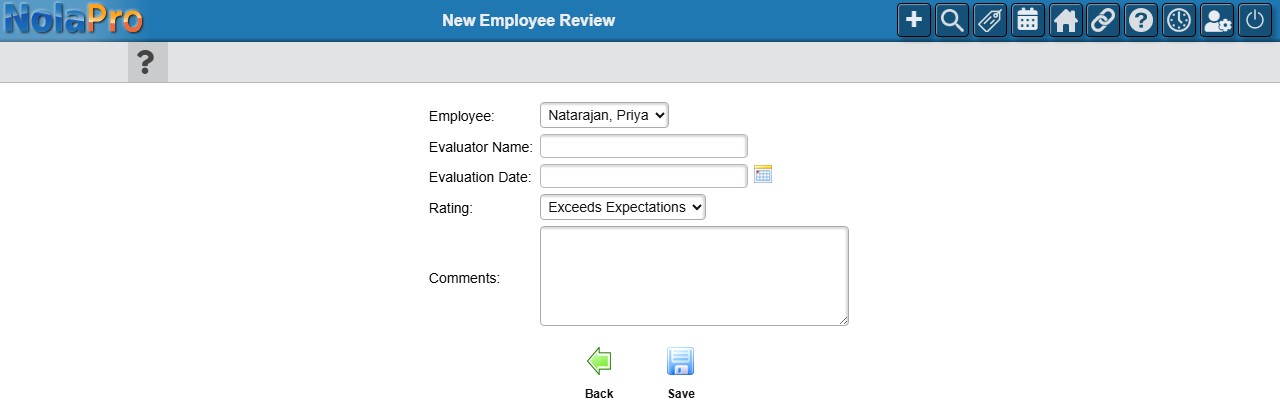
1) On New Employee Review, choose the Employee (active employees only), enter the Evaluator Name and the Evaluation Date, pick the Rating from your scale, and type the Comments.
2) Click Save. "Employee Review added successfully" appears and the form clears for the next review. The review is stored in the employee's review history.
Finding, editing and printing reviews
Where: Payroll -> Employees -> Employee Review New/Edit
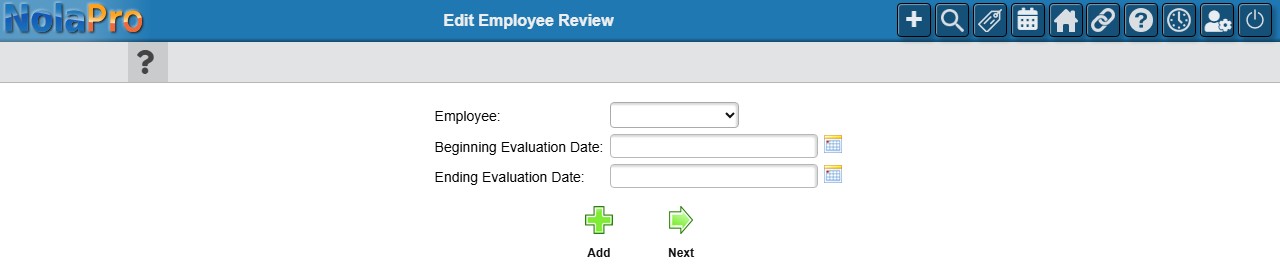
1) On the Edit Employee Review search screen, optionally pick an Employee (the list includes inactive employees) and a Beginning and Ending Evaluation Date, then click Next. Leave the filters blank to list every review. "No reviews match search" is shown when nothing fits.
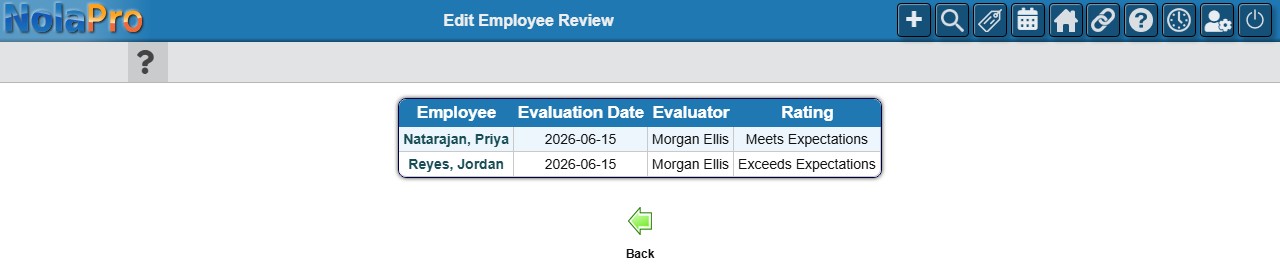
2) Matching reviews are listed by employee name, then newest evaluation date first, with the employee, evaluation date, evaluator and rating; click the employee's name to open the review (Back returns to the search). When exactly one review matches, it opens directly.
3) On the review the employee is shown as text and cannot be changed; change the evaluator, date, rating or comments and click Save ("Employee Review updated successfully"; a blank evaluator name is ignored). Print opens a formatted PDF of the review in a new browser tab for the employee's file; save your changes first, because the PDF uses the saved comments. Delete asks for confirmation, shows "Employee Review deleted successfully" and returns to the empty search screen; the record is kept but hidden.
Notes
- If a review was written against the wrong employee, delete it and add a new one.
- Rating labels are shared by every company on the install, and renaming a rating changes how it reads on every review that used it. Do not delete a rating that existing reviews still use; rename it instead.
- Reviews are payroll records and are only visible to users with Payroll rights.