
How to Approve and Edit Time Clock Entries
Before time clock hours can be processed for payroll, a manager must review and approve them. The Approve/Edit Times screen lists unposted entries for a chosen date range and lets you correct the regular hours, overtime hours, and notes on each entry; saving marks the entry as management-approved. Payroll only posts entries that have been approved here, so unapproved time is never paid until a manager signs off on it.
This article covers reviewing and approving time that has already been logged. To learn how employees clock in and out, see Time Clock Login.
Requirements
The Payroll System and Employee Time Tracking features must be enabled.
Step 1: Filter the Time Entries to Review
Where: Payroll -> Time Clock -> Approve/Edit Times
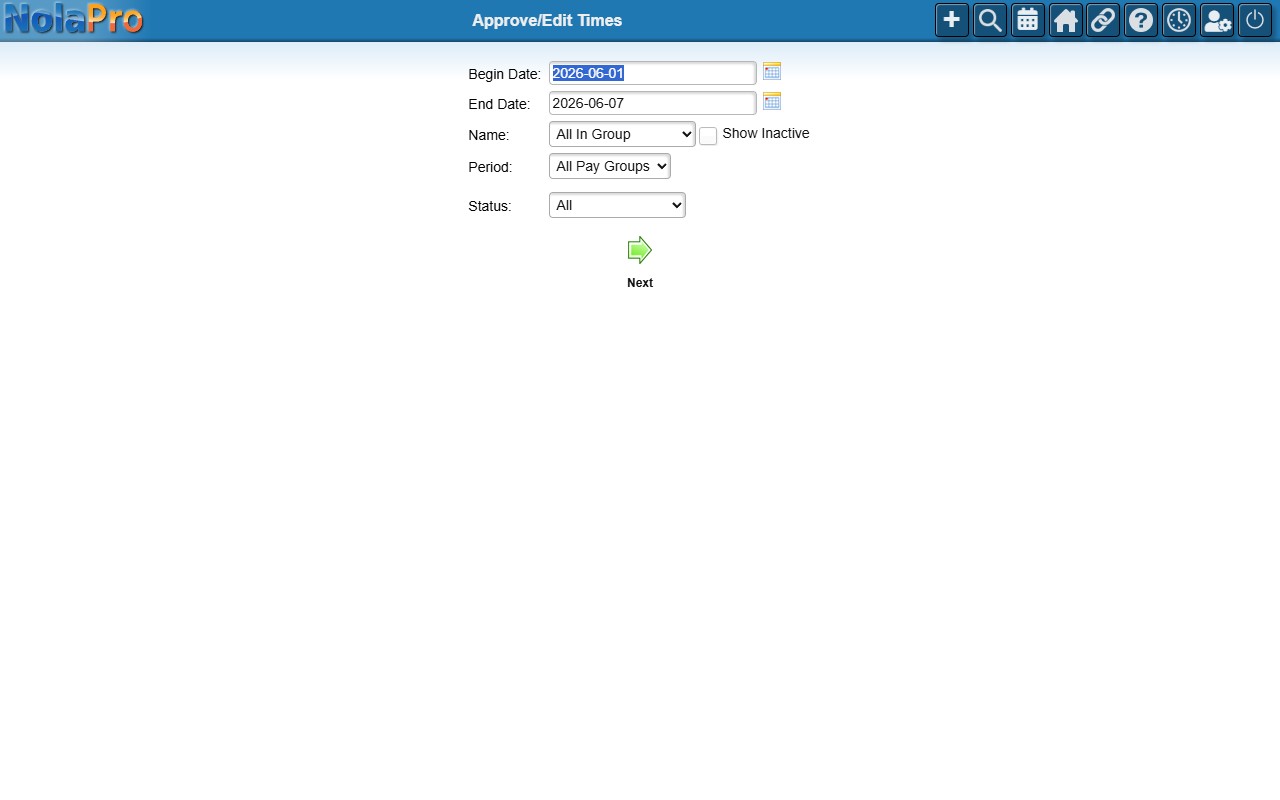
1) Set the Begin Date (defaults to 7 days ago) and End Date (defaults to yesterday) to cover the period you want to review.
2) Optionally narrow by Name (All In Group by default; a Show Inactive checkbox reveals terminated employees) and by Period (All Pay Groups by default).
3) Use Status to show All entries, Only Approved, or Only Unapproved.
4) Submit the filter to load the editable entries.
Step 2: Adjust and Approve the Entries
Where: Payroll -> Time Clock -> Approve/Edit Times (after filtering)
1) The report lists each entry grouped by employee and date, showing the action type, recorded hours, calculated regular and overtime hours, rates, pay, and clock-in/clock-out times.
2) Rows where the employee-edited hours differ from the system's calculated hours are highlighted in pink for your attention.
3) Edit Hours Regular, Hours Overtime, and Notes on any entry. Changing the hours recalculates the pay immediately on screen.
4) Save to record your changes; each edited entry is flagged as management-approved.
Time Clock Other Time categories
Where: Admin -> Payroll -> Time Clock Other Time
Besides plain clock-in and clock-out, employees can log time against categories you define, such as deliveries, service calls or training. These categories appear in a dropdown on the time clock screen and show up as the action type on the entries you approve above.
1) Click Add. Enter the Other Time Name shown on the time clock, tick Is This Paid Time? when hours logged to this category should be paid (leave it clear for unpaid categories such as lunch), and set the Sort Order (lower numbers appear first in the dropdown). Click Save.
2) To change a category, pick it and click Edit, then Save; Delete removes a category you no longer use after a confirmation.
Notes
- An asterisk next to the action type marks entries that have already been approved.
- Entries whose clock-out day differs from the clock-in day are flagged with a pink End time cell to highlight overnight shifts.
- Daily total hours and pay are shown as a summary row after each employee-date group.
- The filter remembers its date range in the URL so you return to the same view after saving.
- Overtime classification is driven by the configured daily hour threshold, and special rules can apply to salaried employees based on the time clock overtime settings.