
How to Enter and Post a Manual Journal Entry
A manual journal entry (a voucher) is how you post directly to the General Ledger for items that do not flow in from another module, such as accruals, depreciation, reclassifications, and corrections. Every voucher must balance, meaning total debits equal total credits, and NolaPro enforces this before it lets you save. You can also create a reversing entry that automatically posts an offsetting voucher on a future date, or start a new voucher by copying an existing one. Once a voucher has been posted it becomes read-only, so the way to undo or change it is to cancel it (which posts an offsetting voucher) rather than edit it in place.
Step 1: Create the Journal Entry
Where: Ledger -> Journal Entries -> New Journal Entry
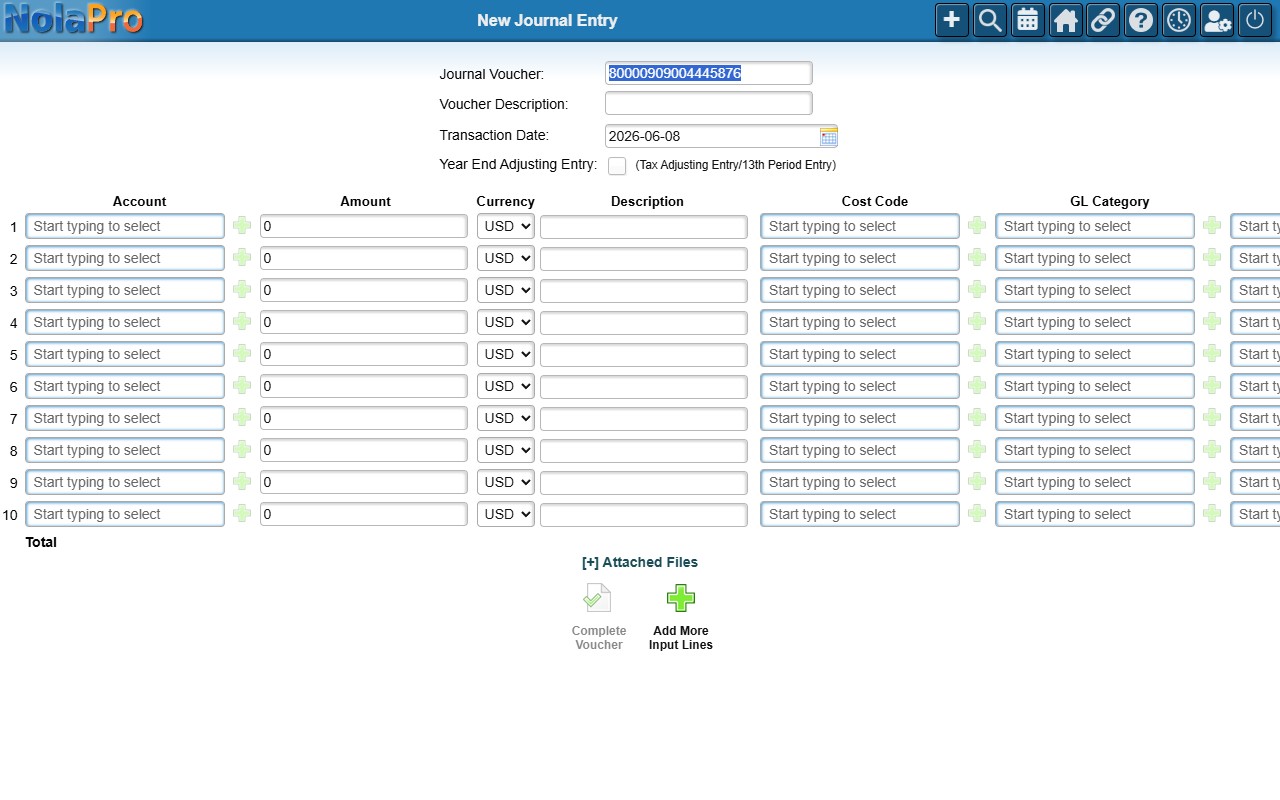
1) Enter the Journal Voucher number (up to 20 characters; it is pre-filled with the next sequential number when auto-numbering is on), an optional Voucher Description, and the Transaction Date.
2) Tick Year End Adjusting Entry if this is a tax / 13th-period adjusting entry.
3) In the lines grid, enter each line's Account and its Debit or Credit amount. (When the company groups the columns, you enter a single Amount instead, with positive values as debits and negative as credits.)
4) Add a per-line Description and Cost Code where those columns are available, and a per-line Currency when multiple currencies are in use.
5) Use Add More Input Lines to append more rows, and attach supporting documents through the Attached Files panel.
6) Watch the running Total at the bottom. The Complete Voucher button stays greyed out and reads "(Unbalanced Journals)" until debits equal credits for every currency. Click it to post.
Step 2: Post a Reversing Entry or Copy a Voucher (optional)
Where: Ledger -> Journal Entries -> New Journal Entry
1) For an accrual that should auto-reverse, open the page in reversing mode. A Reversing Transaction Date field appears (defaulting to one month after the transaction date). Saving posts the original voucher plus a paired offsetting voucher on that date with every amount sign-flipped.
2) To start from an existing voucher, use the Copy option to pre-fill a new voucher with the original's number, description, and lines (Copy is offered on direct journal entries, not on vouchers generated by another module). The transaction date is advanced automatically: an entry from the current year is moved forward one month, while an entry from a prior year is shifted to the current year. Adjust as needed and post.
Step 3: Find and Edit an Existing Voucher
Where: Ledger -> Journal Entries
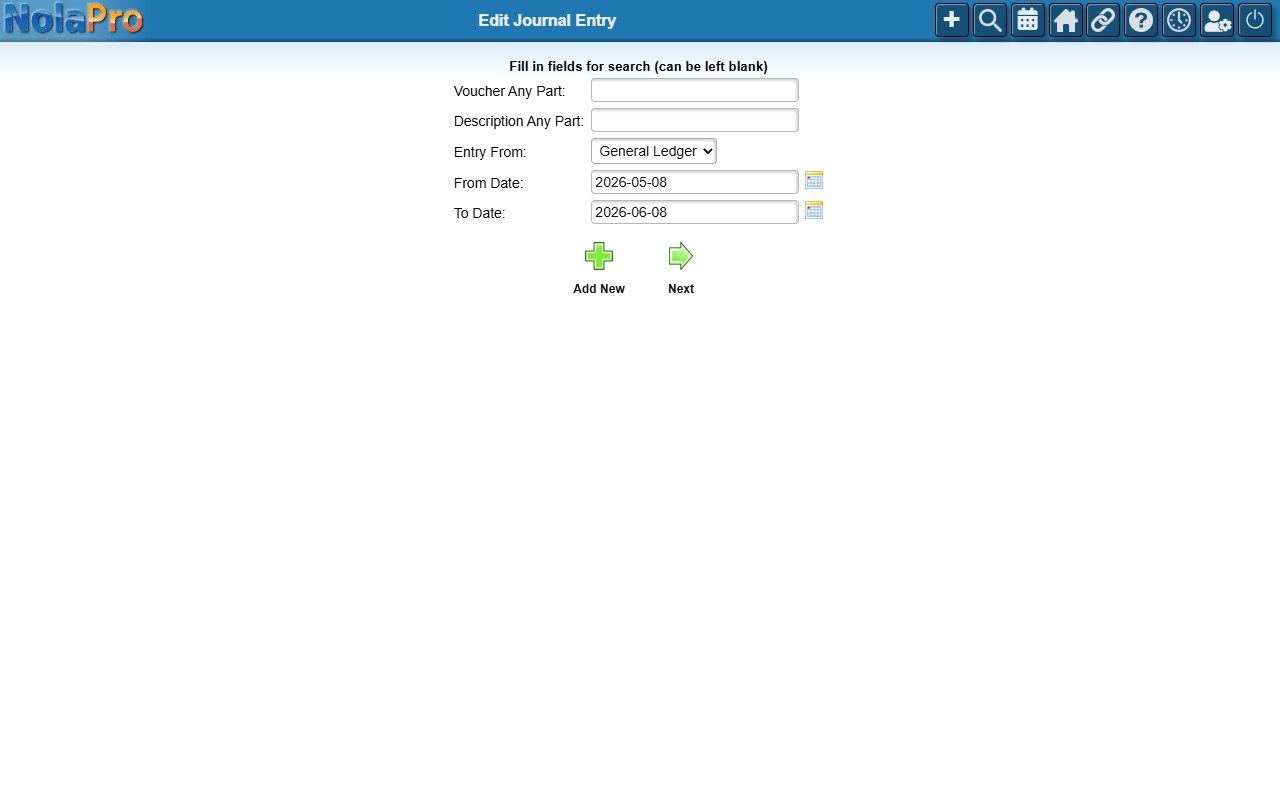
1) Optionally fill in Voucher Any Part, Description Any Part, an Entry From source, and a From Date / To Date range, then continue to the results list.
2) Select a voucher and open it. On the header step you can change the Journal Voucher, Voucher Description, Transaction Date, and Year End Adjusting Entry flag.
3) Continue to the lines step to change accounts, debits, and credits. As on entry, the form must balance per currency before Save will accept it.
Step 4: Cancel or Delete a Voucher
Where: Ledger -> Journal Entries
1) From the header step of an open voucher, click Cancel to create a new offsetting voucher (the original number with "-C" appended) with every line sign-flipped, leaving the original intact for the audit trail. This is the way to reverse a posting that can no longer be edited.
2) Click Delete to soft-delete the voucher after a confirmation.
3) Click Copy to open the New Journal Entry page pre-filled from this voucher.
Notes
- Posted vouchers and vouchers in a closed accounting period are read-only; the edit page redirects to the read-only voucher detail report instead of opening the form. Cancel such a voucher rather than trying to edit it.
- A voucher tied to a bank deposit cannot be edited or deleted; its Save and Delete controls are replaced by a "Cannot Change - Deposited in Bank" indicator. Edit the bank deposit itself first to break the link.
- The balance rule is strict and per currency. In intercompany mode each company's debits and credits must also net to zero on their own, and one voucher is posted per company.
- A line with an amount but no account aborts the save and rolls back the whole entry.
- Editing keeps history: each save writes a snapshot of the prior values, and a concurrency check blocks you from overwriting changes another user saved while you had the voucher open.
- Recurring vouchers and already-cancelled vouchers cannot be cancelled again.