
How to Create a Project from a Template
A project template is a reusable blueprint that holds an ordered set of milestones and tasks, each with its own priority, estimated hours, duration, a day-offset from the project start date, and a team role to assign. Applying a template to a project generates all of those milestones and tasks at once, with their dates calculated from the project's start date. This is the fast way to launch projects that follow a repeatable process. This workflow has you confirm (or build) the template, create the project that will receive it, and then apply the template.
Requirements
Requires the Team Project Management feature.
Step 1: Confirm or Build the Template
Where: Projects -> Templates
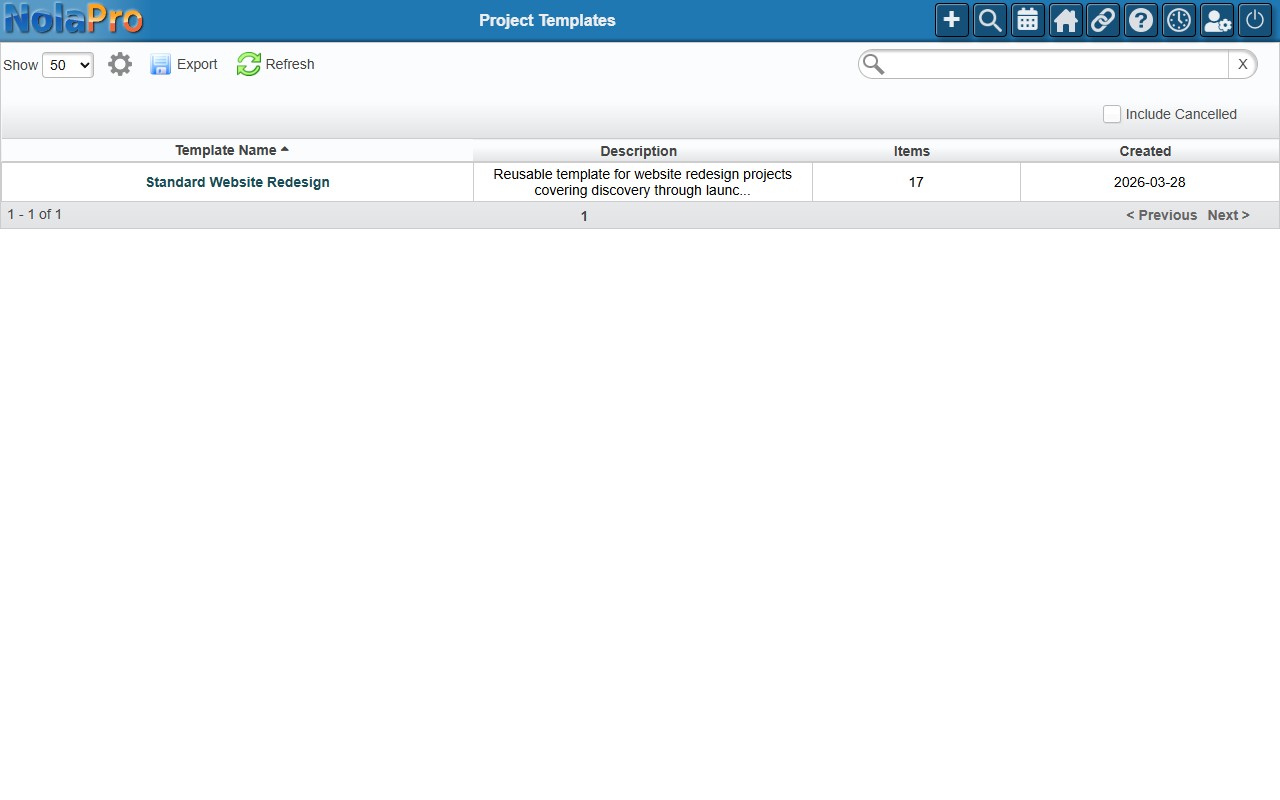
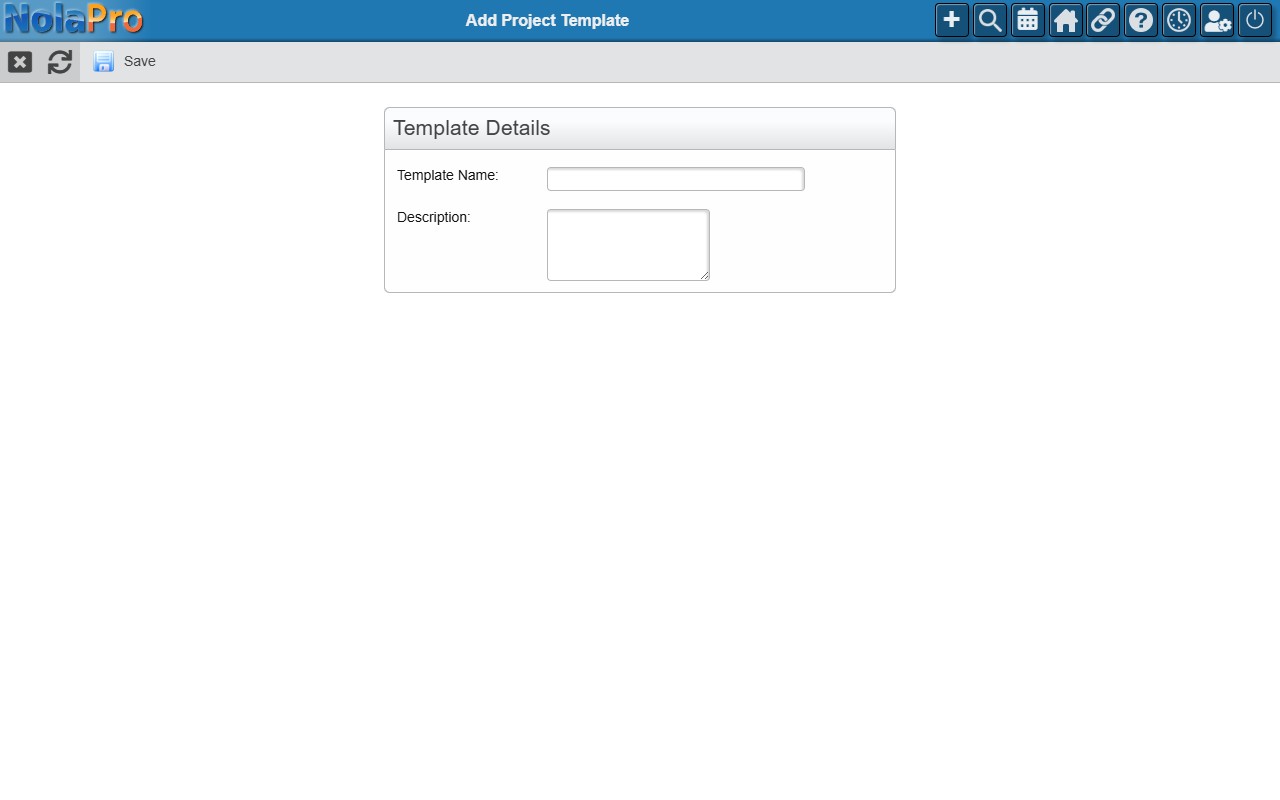
1) If a suitable template already exists, skip ahead to Step 2.
2) Click Add and enter a Template Name (required) and an optional Description, then Save.
3) On the Edit Template page, use the Template Items section to add each milestone or task. For each item set its Title, Type (Milestone or Task), and for tasks the Priority, Estimated Hours, Duration (days), Offset (days after project start), optional Parent Item for sub-tasks, and the Assign Role.
4) Drag rows by the grip handle to set the order.
Step 2: Create the Project
Where: Projects -> Projects
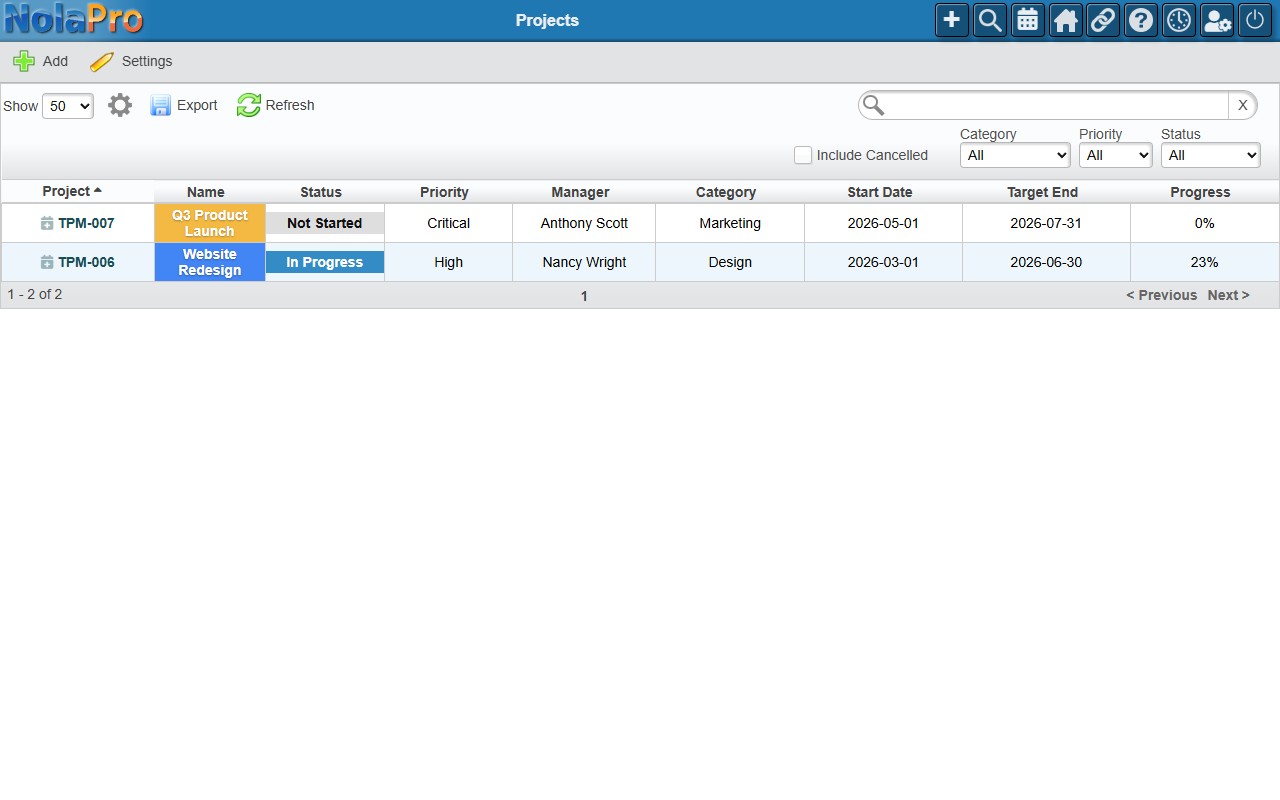
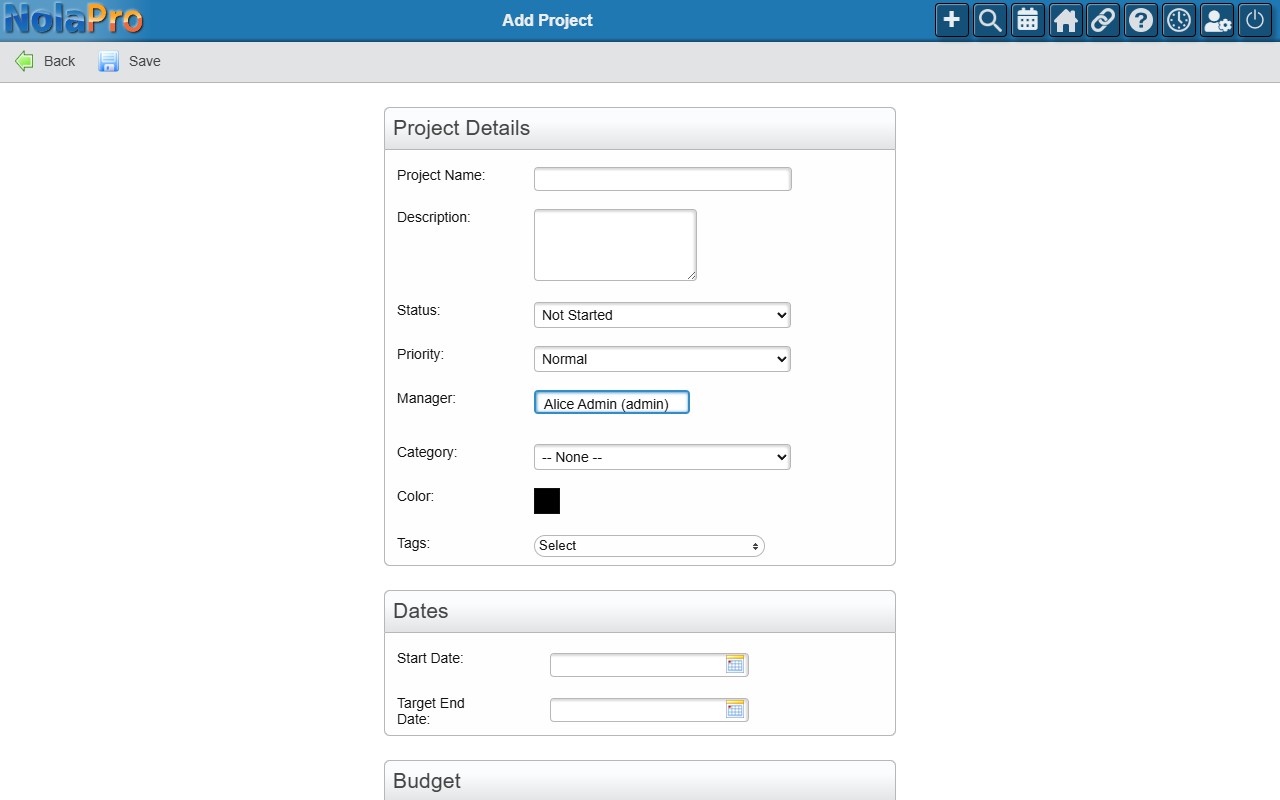
1) Click Add in the toolbar.
2) Enter the Project Name (required) and set the Start Date (the template's day offsets are calculated from this date), plus any Manager, Category, Priority, Budget Hours, or Budget Amount you want.
3) Save. NolaPro assigns a project code and opens the Edit Project page.
Step 3: Apply the Template to the Project
Where: Projects -> Projects (or Projects -> Templates)
1) From the Edit Project taskbar, click Apply Template and choose the template.
2) Or, from the template's Edit page, use Apply to Project and choose the project.
3) Either way, NolaPro creates the milestones first, then the tasks, links each task to its matching milestone, dates them from the project start date, and assigns each to the first team member holding the named role.
Notes
- Applying a template to a project that already has tasks adds to them; it does not replace existing tasks.
- The Assign Role on each template item maps to the project team, so make sure the project has team members in those roles for assignments to land.
- You can capture an existing project's structure into a new template with the Save as Template action on the project's edit page; captured items keep their relative day offsets.
- Deleting a template, or one of its items, only changes the template definition; it does not modify projects or tasks already created from it.
- The assigned project Manager is automatically added to the project team in the Manager role.