
Project Templates
Templates save a project structure (milestones and tasks) for reuse across new projects.
Path: Projects -> Templates
Template List
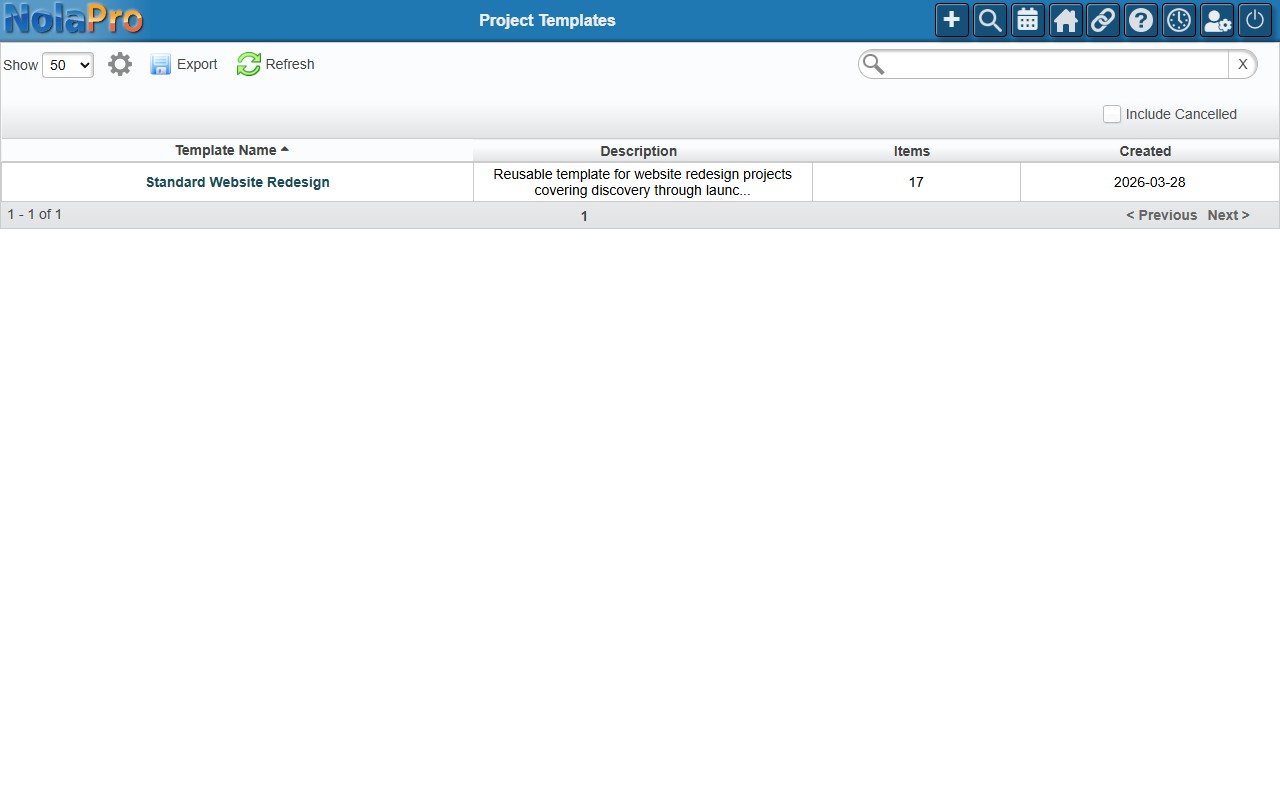
A DataTable of all templates with columns: Template Name, Description, Items count, and Created date.
Creating a Template
From scratch:
- Click Add in the taskbar.
- Enter a Template Name and optional Description, click Save, then switch to the Items tab.
- Click Add Item to add milestones or tasks. Each item has a Type (Milestone or Task), Title, Description, Priority and Estimated Hours (tasks), Duration (days), Offset (days) (days after project start), Parent Item (tasks), and Assign Role (Manager, Member, or Viewer — role-based, not user-specific).
- Drag items by the grip handle to reorder.
From an existing project:
- Open the project edit page.
- Click Save as Template in the taskbar.
- Enter a template name and click Save.
- All milestones and tasks are copied into the template, preserving parent/child relationships and priority.
Applying a Template
- Open the target project edit page.
- Click Apply Template in the taskbar.
- Select a template from the dropdown and click Apply.
- Milestones and tasks are created in the project. Start and due dates are calculated using offset/duration days relative to the project start date.
Cloning a Project
Cloning duplicates an entire project (not from a template) with selective options.
- Open the source project edit page and click Clone in the taskbar.
- Enter a name for the new project.
- Check which elements to copy: Clone Milestones, Clone Tasks (includes subtask relationships and dependencies), Clone Team, and Clone Tags.
- Click Clone. You are redirected to the new project, which starts with "Not Started" status and a new project code.