
Projects
Project List
Path: Projects -> Projects
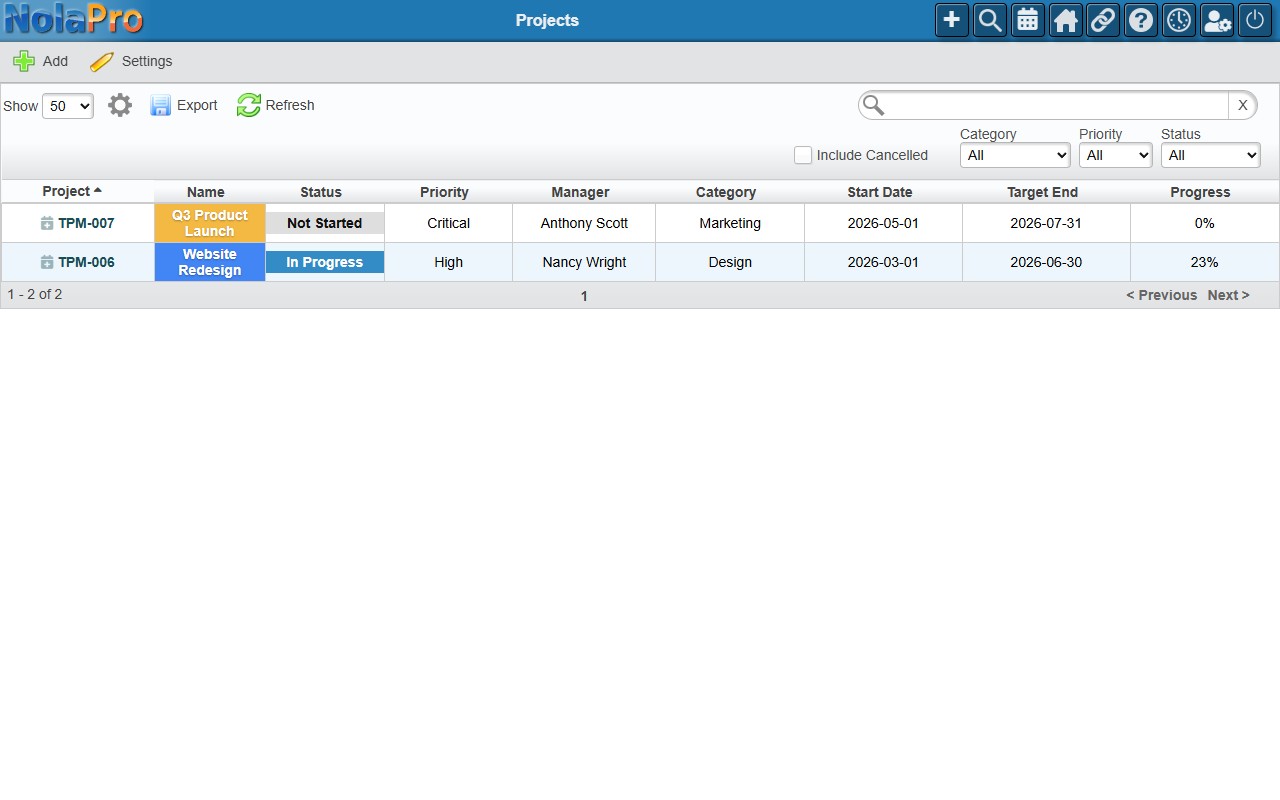
The project list shows all projects in a sortable, filterable table.
| Column | Description |
|---|---|
| Project | Auto-generated code (e.g. TPM-001). Click to open the project. |
| Name | Project name with color swatch. |
| Status | Not Started, In Progress, On Hold, Completed, or Cancelled. |
| Priority | Low, Normal, High, or Critical. |
| Manager | The user responsible for the project. |
| Category | Project category (if assigned). |
| Start / Target End | Planned start and target completion dates. |
| Progress | Percent-complete bar. |
Inline editing: Click any value in the Status, Priority, Manager, Category, Start Date, or Target End columns to edit it in place. A dropdown or date picker appears — select a new value to save immediately without opening the project.
Filters above the table let you narrow by Status, Priority, Category, or check Include Cancelled.
Creating a Project
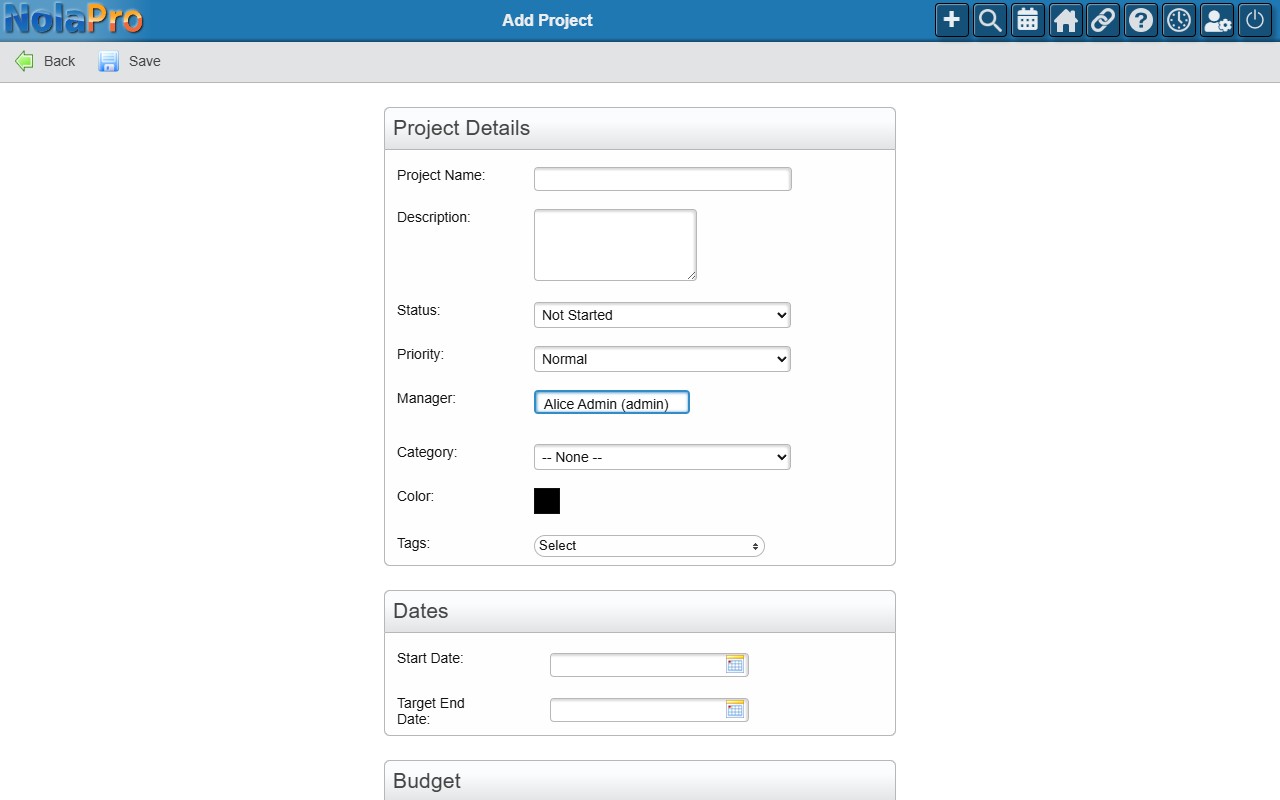
- Click Add in the taskbar.
- Fill in the Project Details group: Project Name (required), Description, Status, Priority, Manager (type to search; defaults to you), Category, and Color.
- Fill in the Dates group: Start Date, Target End Date, Actual End Date (all optional).
- Fill in the Budget group: Budget Hours, Budget Amount, Percent Complete (all optional).
- Click Save.
A project code is generated automatically on first save (e.g. TPM-001). The manager is automatically added as a team member.
Editing a Project
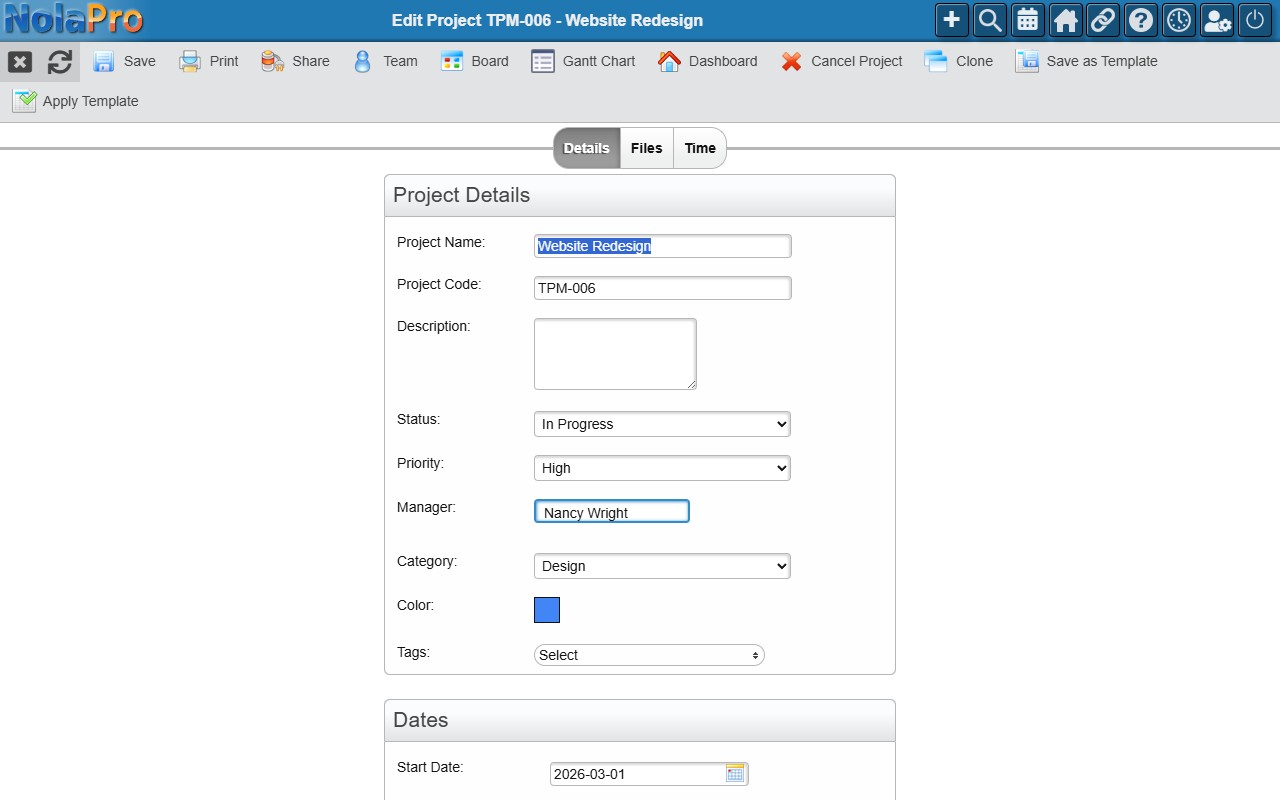
Click a project code in the list to open it. Make changes and click Save. The edit page has Details, Time (if time tracking is enabled), and Files tabs.
The edit-page taskbar includes:
- Cancel Project Soft-deletes the project, cascading to milestones, tasks, and running timers.
- Clone Duplicate the project with options to copy milestones, tasks (including dependencies), team, and tags. Creates a new project with a fresh code.
- Save as Template Save the project structure (milestones + tasks) as a reusable template.
- Apply Template Add milestones and tasks from an existing template into this project.
Sharing a Project
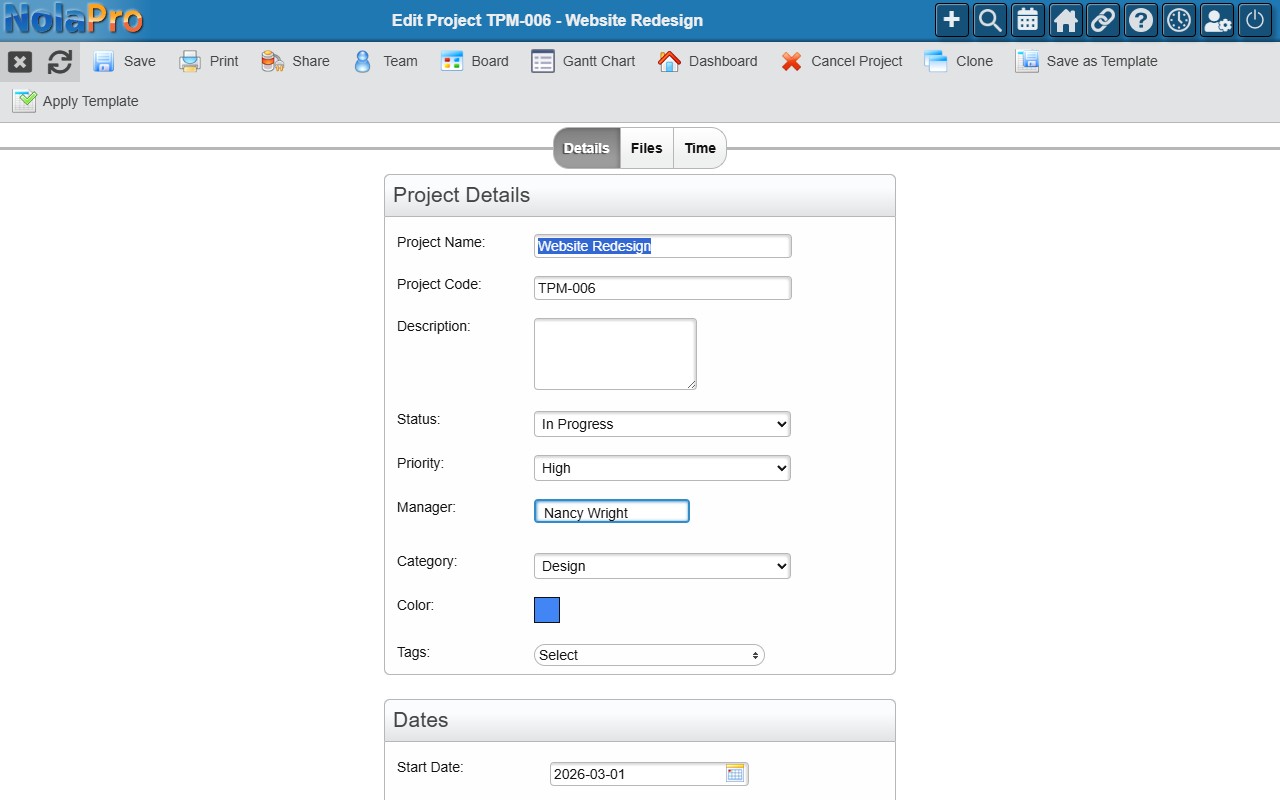
Click Share in the project edit taskbar to open the Share dialog. Sharing generates a unique URL that gives external users (or anyone with the link) access to the project without logging in.
| Mode | What the recipient can do |
|---|---|
| View Only | Browse the project dashboard, tasks, milestones, and team — read-only. |
| Manager | Full manager-level access to the project via the shared link. |
- Copy link: Click Copy next to the URL field to copy the share link.
- Email the link: Enter one or more comma-separated email addresses and click Send. The recipient gets an email with the project name, access level, and a clickable link (sent via NolaPro's mail queue).
Share tokens are generated automatically on first use (SHA-256) and remain stable — the same URL works until the project is cancelled.
Printing a Project
Click Print in the project edit taskbar to generate a printer-friendly summary including project details, milestones, and the task list.