
How to Set Up Recurring Project Tasks
A recurring task is a saved template plus a schedule. The template holds the details every generated task will carry (title, description, project, priority, status, assignee, estimated hours), and the schedule controls how often a new task is spawned, daily, weekly, monthly, or at a custom day interval. A background process checks the schedules each day and creates a task whenever a definition's next run date arrives, then advances that date to the next occurrence. The generated tasks then appear and are worked exactly like any other project task. This workflow defines the recurrence, then shows where the generated tasks land.
Requirements
Requires the Team Project Management feature.
Step 1: Define the Recurring Task
Where: Projects -> Recurring
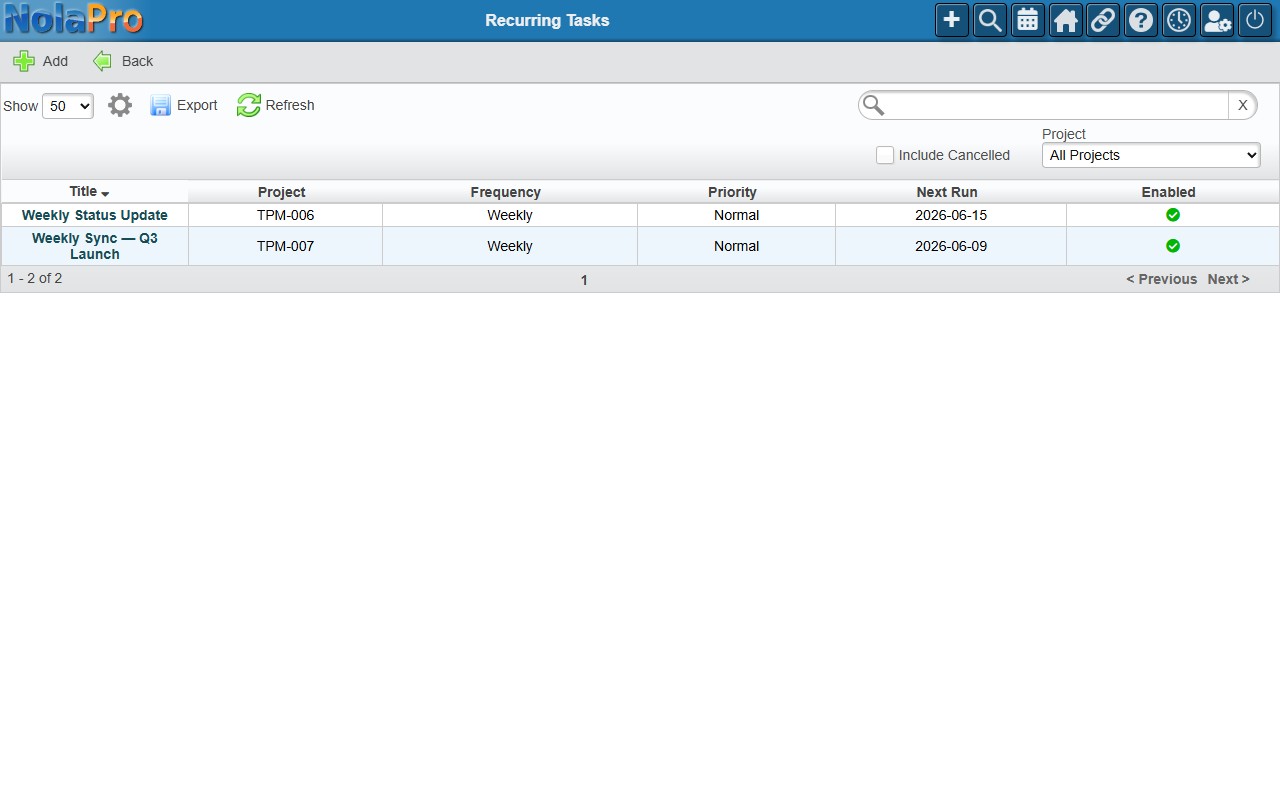
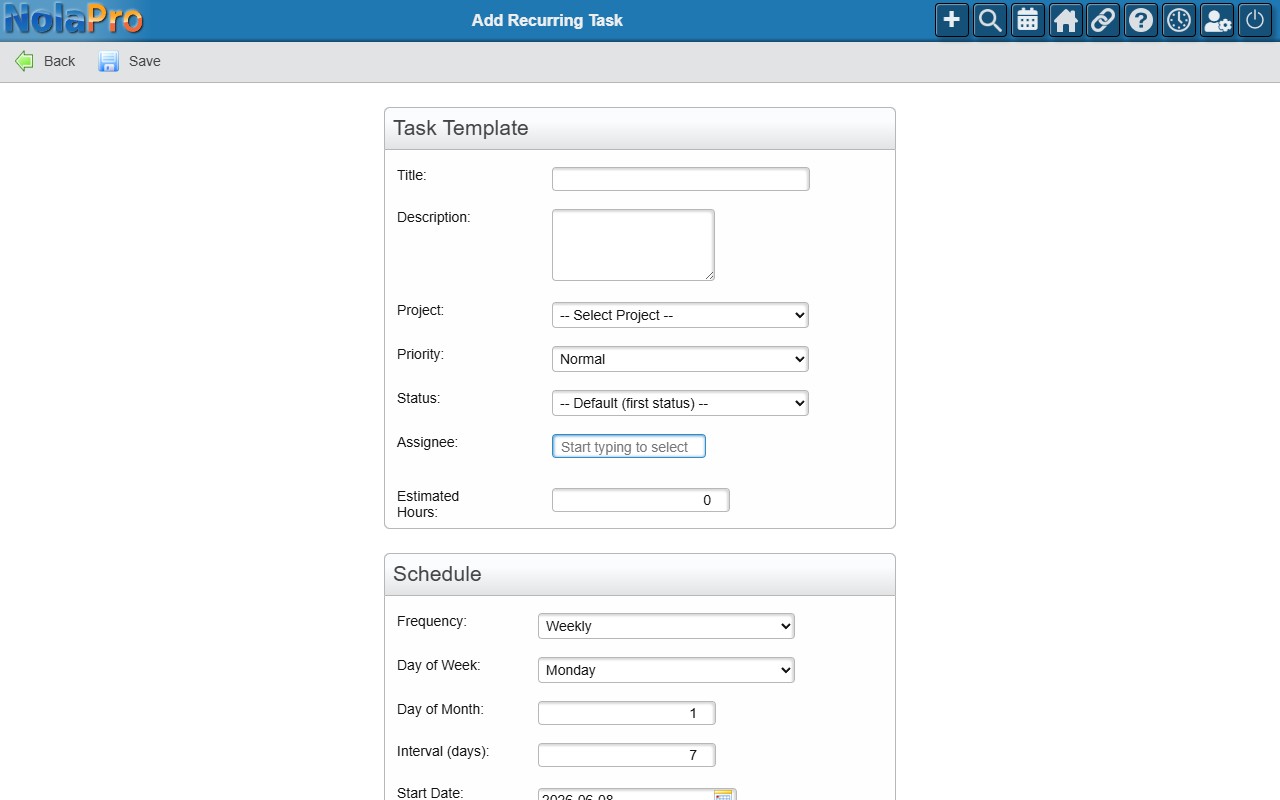
1) Click Add. In the Task Template section, enter the Title (required) and choose the Project (required). Optionally set Description, Priority, Status, Assignee, and Estimated Hours, which are copied onto every task this definition creates.
2) In the Schedule section, pick a Frequency: Weekly uses Day of Week, Monthly uses Day of Month, and Custom uses Interval (days).
3) Set the Start Date, an optional End Date (leave blank to recur indefinitely), and set Enabled to Yes.
4) Save the definition.
Step 2: Verify and Manage the Generated Tasks
Where: Projects -> Tasks
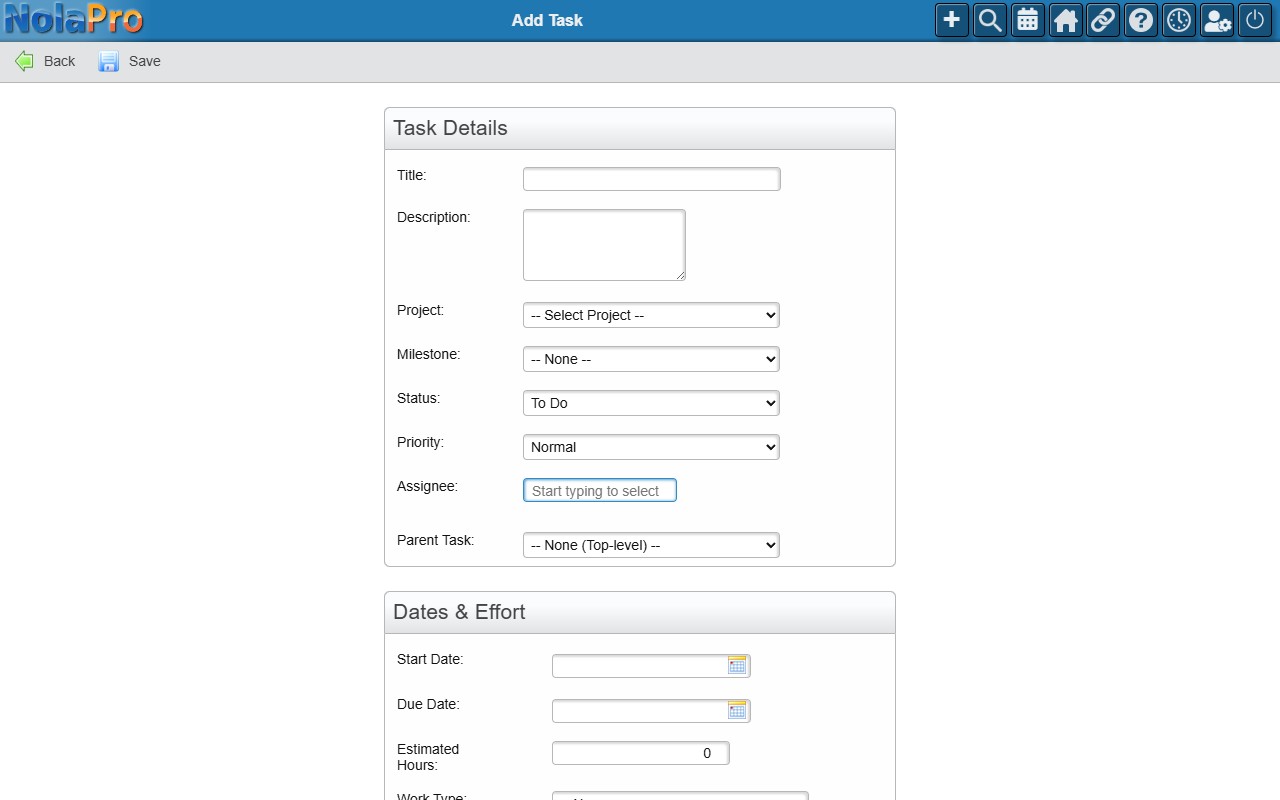
1) Tasks created by the schedule appear in the normal task list, where you track and complete them.
2) Filter by the Project to find the generated tasks, and open one to edit its Details, log time, add comments, or work through its checklist.
3) To produce a task right away instead of waiting for the schedule, return to the recurring definition's Edit page and use Run Now. You can also adjust the Next Run Date there.
Notes
- The background process runs once per day; a task is generated for each enabled definition whose next run date has arrived, and the next run date then advances automatically.
- Setting Enabled to No pauses generation without deleting the definition; deleting the definition does not remove tasks it already created.
- If an End Date is set and has passed, no further tasks are generated.
- Each generated task's activity log notes that it came from a recurring definition.
- Generated tasks behave like any other task: cancelling a task also cancels its sub-tasks and stops running timers, and the creator is added as a watcher.