
How to Set Reorder Points and Run the Reorder Report
Reordering in NolaPro is driven by per-location, per-item stocking levels: a Minimum, a Maximum, and a Reorder quantity. You can set those levels by hand on each item, but the Calculate Item Reorder Points tool can suggest them for you based on actual sales over a window you choose, multiplying each item's average monthly sales by the months-of-inventory targets you specify. Once the levels are saved, the Item Reorder List report compares current stock against those levels for the current season and shows what has dropped below threshold, so you can create purchase orders right from the report.
Requirements
The Inventory & Ordering System feature must be enabled.
Step 1: Calculate and Save Reorder Levels
Where: Inventory -> Items -> Calculate Item Reorder Points
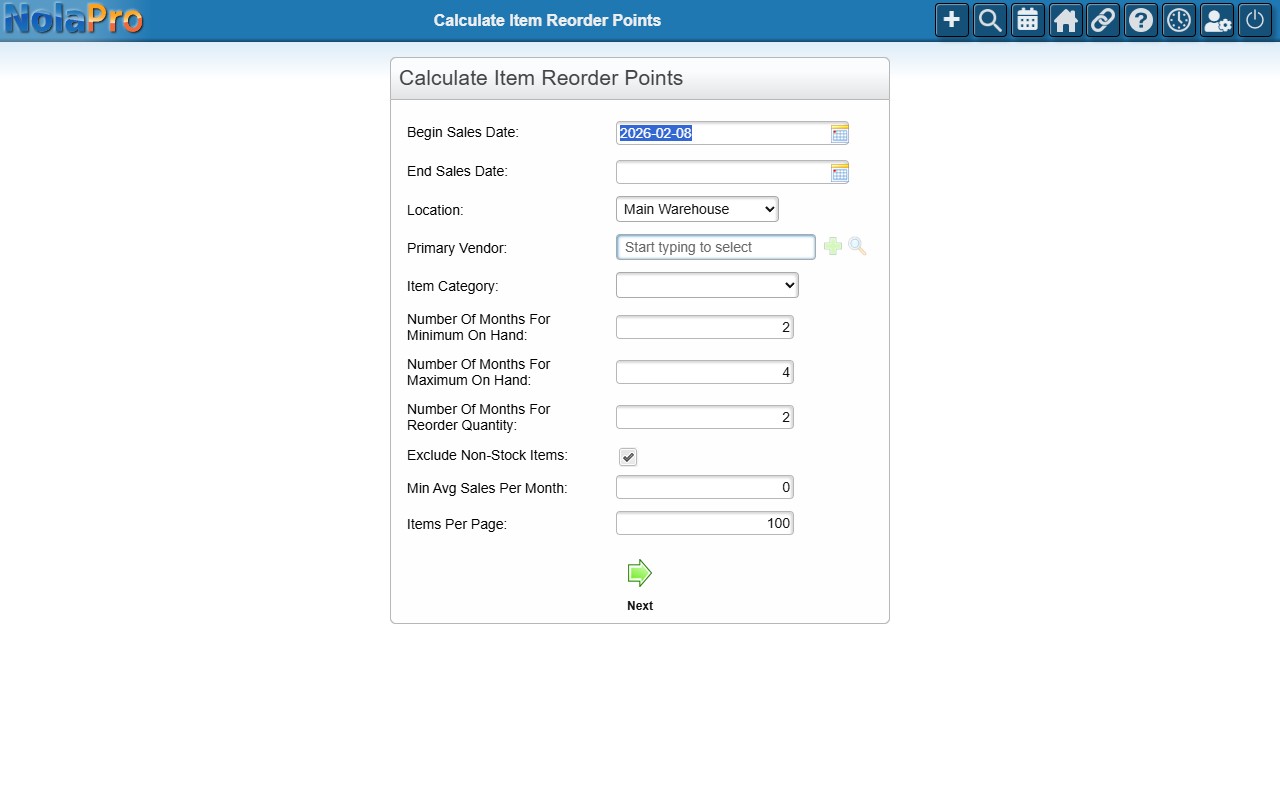
1) Set the sales window with Begin Sales Date (the start of the window, despite the name) and End Sales Date, and choose the Location the levels apply to.
2) Optionally narrow the items by Primary Vendor or Item Category, and use Exclude Non-Stock Items and Min Avg Sales Per Month to skip items you do not want to evaluate.
3) Enter Number Of Months For Minimum On Hand, Number Of Months For Maximum On Hand, and Number Of Months For Reorder Quantity. These multiply each item's average monthly sales to produce the suggestions.
4) Click Next to run. Each row shows current values alongside editable Suggested Minimum, Suggested Maximum, and Suggested Reorder values.
5) Adjust any suggestions, check the Save box on the rows you want to apply (or use Save All), then click Save to write the new levels back to the items.
Step 2: Run the Reorder Report and Create Purchase Orders
Where: Inventory -> Items -> Item Reorder List
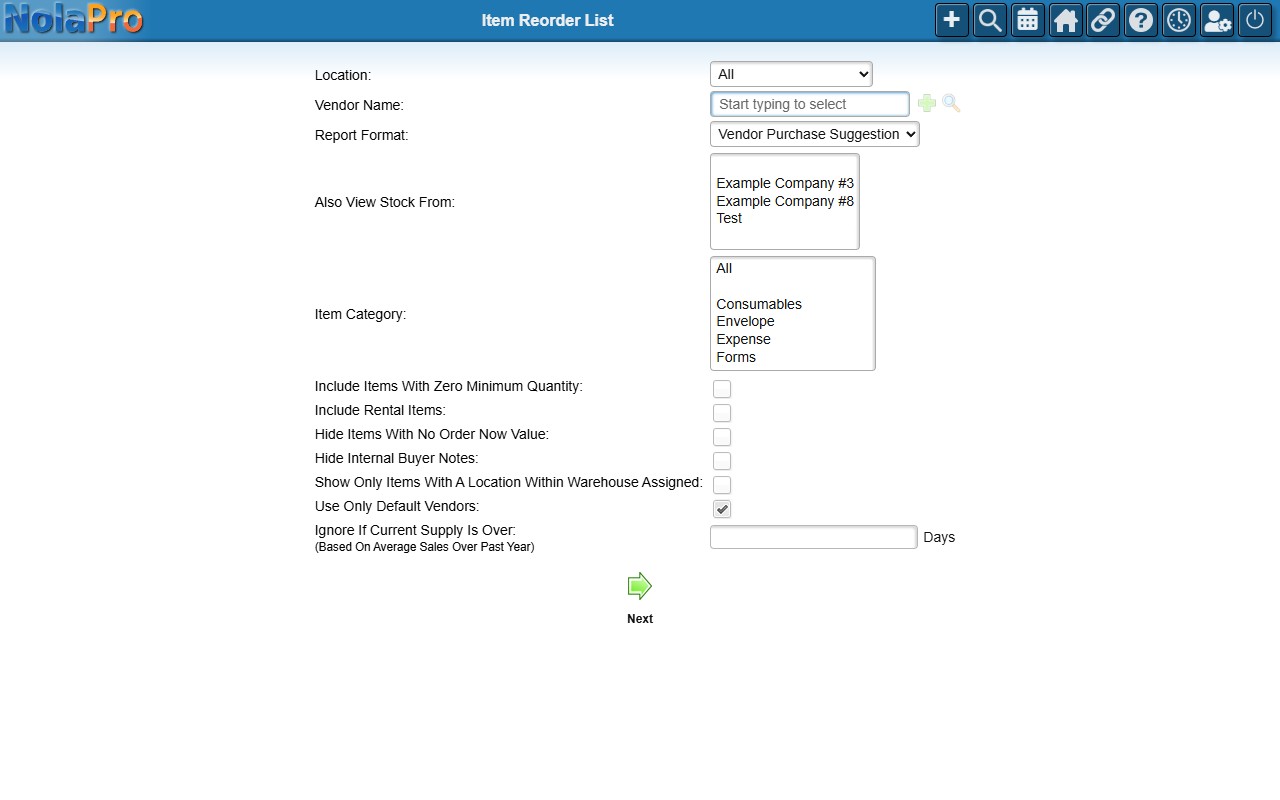
1) Optionally choose a Location, Vendor Name, and Item Category, then pick a Report Format: Items Needing Reorder for a sortable list, or Vendor Purchase Suggestion for an editable purchase order form (which requires a specific vendor and location).
2) Use the checkboxes such as Include Items With Zero Minimum Quantity, Hide Items With No Order Now Value, and Ignore If Current Supply Is Over to focus the list.
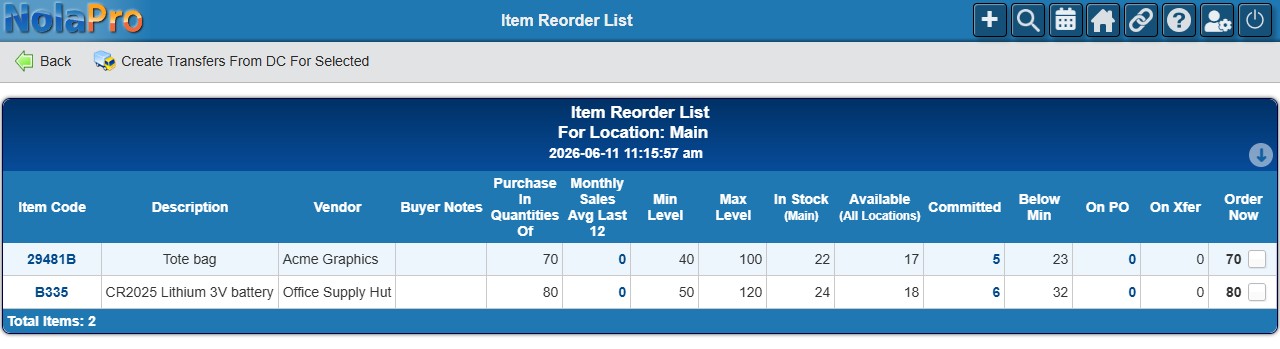
3) In Items Needing Reorder, check the Order Now boxes for the items to buy and use the ship action to create purchase orders using each item's default vendor and location.
4) In Vendor Purchase Suggestion, review the suggested quantities and prices (both editable), use the Include checkboxes to keep or drop lines, set the carrier and due date, and click Save to create a single purchase order for the vendor.
Notes
- Minimum, Maximum, and Reorder levels are stored per location, and the Calculate tool applies the same values to all seasons in one save; sites needing different values per season should set them on the item-location screen.
- For items without a location record at the chosen location, saving the calculated levels creates one automatically.
- Cancelled items, items in other companies, and items below the Min Avg Sales threshold are excluded from the calculation automatically.
- The reorder report's thresholds are seasonal: the active season comes from each item category's configured season date ranges, falling back to the first season's values when none are set.
- Build orders contribute to the On PO quantity shown on the report.
- An option exists to base the suggested order quantity on the maximum stock level instead of the minimum; when enabled, suggestions target the maximum.