
How to Build a Composite Item with a Build Order
A build order is a work order that tracks the intent to assemble a composite item (a kit or assembly) out of the sub-components listed in its bill of materials. The process has three stages. First you open a build order, choose the composite item and location, set the target quantity to produce, and commit the sub-component quantities that will be reserved. If some sub-components need to be purchased, you can request them from a vendor so they appear on a new purchase order. Finally, you fill the build order: you record how many of each sub-component were actually used and how many finished items were produced, which reduces sub-component on-hand quantities and increases the composite item's on-hand quantity.
Requirements
The Inventory & Ordering System feature must be enabled. Serial/lot entry in Step 3 applies only when Item Identifiers tracking is configured for an item.
Step 1: Start the Build Order and Commit Sub-Components
Where: Inventory -> Home -> Manage Build Orders -> New Build Order
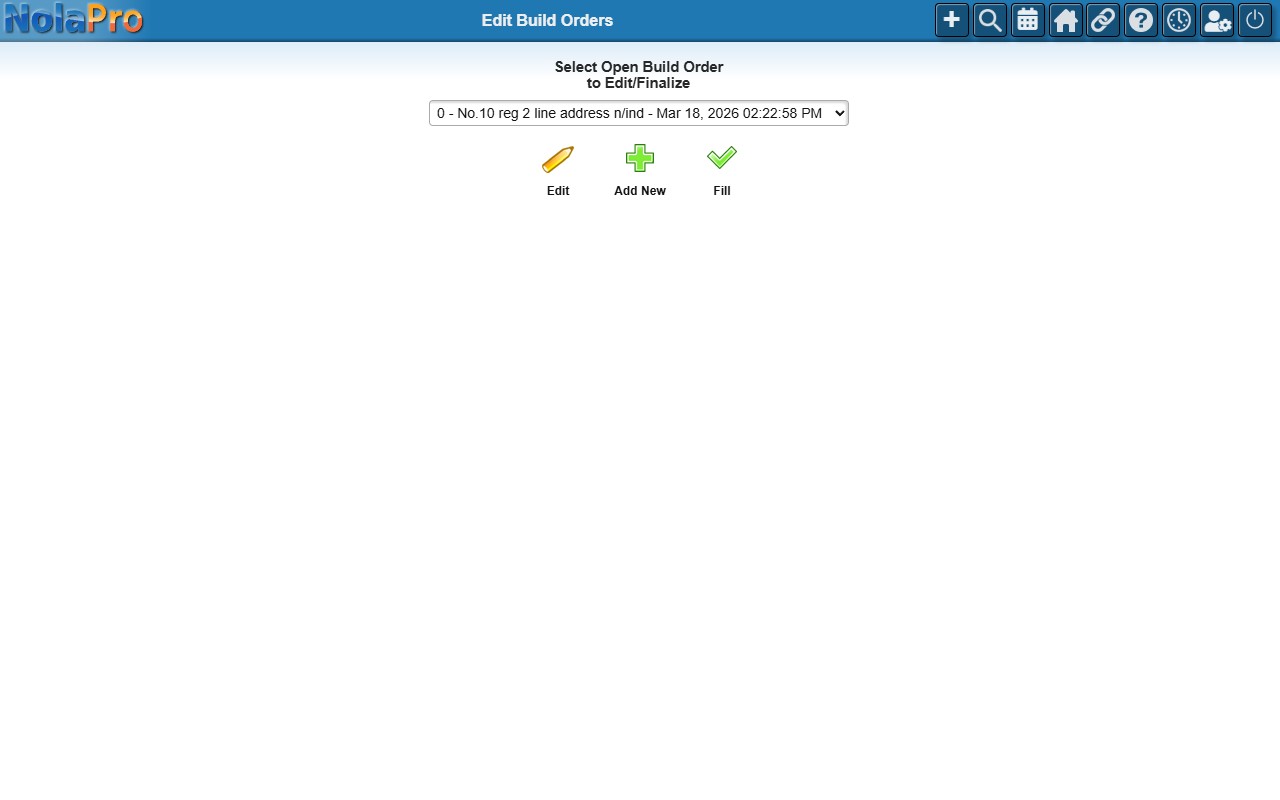
1) On the Manage Build Orders screen, choose an existing open build order to edit, or click Add New to start a new one.
2) For a new build order, select the Build Item (the composite item to produce) and the Inventory Location, then continue. If only one location exists and an item is already selected, the form advances automatically.
3) Enter the Target Qty. of Master Items to Produce. Changing this value automatically recalculates the committed quantity for every sub-component based on its quantity-per-master from the bill of materials.
4) Review the sub-component rows; each shows the quantity per master, quantity available, and quantity committed.
5) Optionally use the Add Sub-Item rows at the bottom to include parts that are not in the original bill of materials. These extras are saved with this build order only and do not change the master definition.
6) Click Save to save the build order.
Step 2: Request Missing Sub-Components from a Vendor (Optional)
Where: Commit Sub-Item to PO (popup opened from the build order form)
1) Click the sub-component row in the build order form to open the vendor popup.
2) The popup lists every vendor assigned to that item, with the quantity already on existing purchase orders. The default vendor row is highlighted.
3) Enter the Qty for New PO for the vendor(s) you want to order from, then save the popup. The build order form updates the committed quantity and shows a checkmark for that line.
4) The quantities are held until you create the purchase orders separately on the Create PO page; no purchase order is created from this popup directly. Once purchase orders are created from the build order, the build order is locked and cannot be altered.
Step 3: Fill the Build Order
Where: Fill Build Order (reached via the Fill button on the Build Orders listing)
1) The fill form shows the target quantity plus a table of sub-components with each item's available quantity, expected use, and quantity used to date.
2) Enter the New Actual Master Items Produced to auto-populate each sub-component's Qty Used proportionally, or enter the Qty Used for each sub-component directly.
3) When item identifiers (serial or lot numbers) are configured for a sub-component or the produced item, enter the identifier values in the rows that appear beneath the relevant fields.
4) Leave Order Now Complete checked to close the build order and release any remaining reservations, or uncheck it to keep the build order open for additional partial fills. It is checked automatically when every sub-component's total used equals its expected use.
5) Click Save. On-hand quantities for the sub-components are reduced, the composite item's on-hand quantity is increased, and inventory transactions are recorded.
Notes
- Changing the target quantity proportionally recalculates all committed quantities from each sub-component's quantity-per-master.
- A build order can be filled more than once; saving a partial fill leaves it open until Order Now Complete is checked.
- The cost of the produced items is calculated from the actual sub-component costs consumed, including any extra build-order charges when that option is enabled.
- If the composite item does not yet exist at the chosen location, a location record is created automatically before the fill is processed.
- If a sub-component has no vendors assigned, the request popup shows an error with an Add Vendor link instead of the vendor table.
- The Delete button soft-deletes a build order; deleted build orders no longer appear in the listing.