
How to Transfer Items Between Warehouses or Locations
An item transfer relocates inventory from a source (from) item and location to a destination (to) item and location. The source and destination can be the same item as long as the locations differ, which lets you move a single item between warehouses. They can also be different items, which is useful for repackaging or unit conversion. The total quantity going out must equal the total quantity coming in. On save, the system records inventory transactions, a transfer record linking them, and a general ledger voucher for the cost moved.
Step 1: Choose the Source and Destination
Where: Inventory -> Items -> Item Transfers
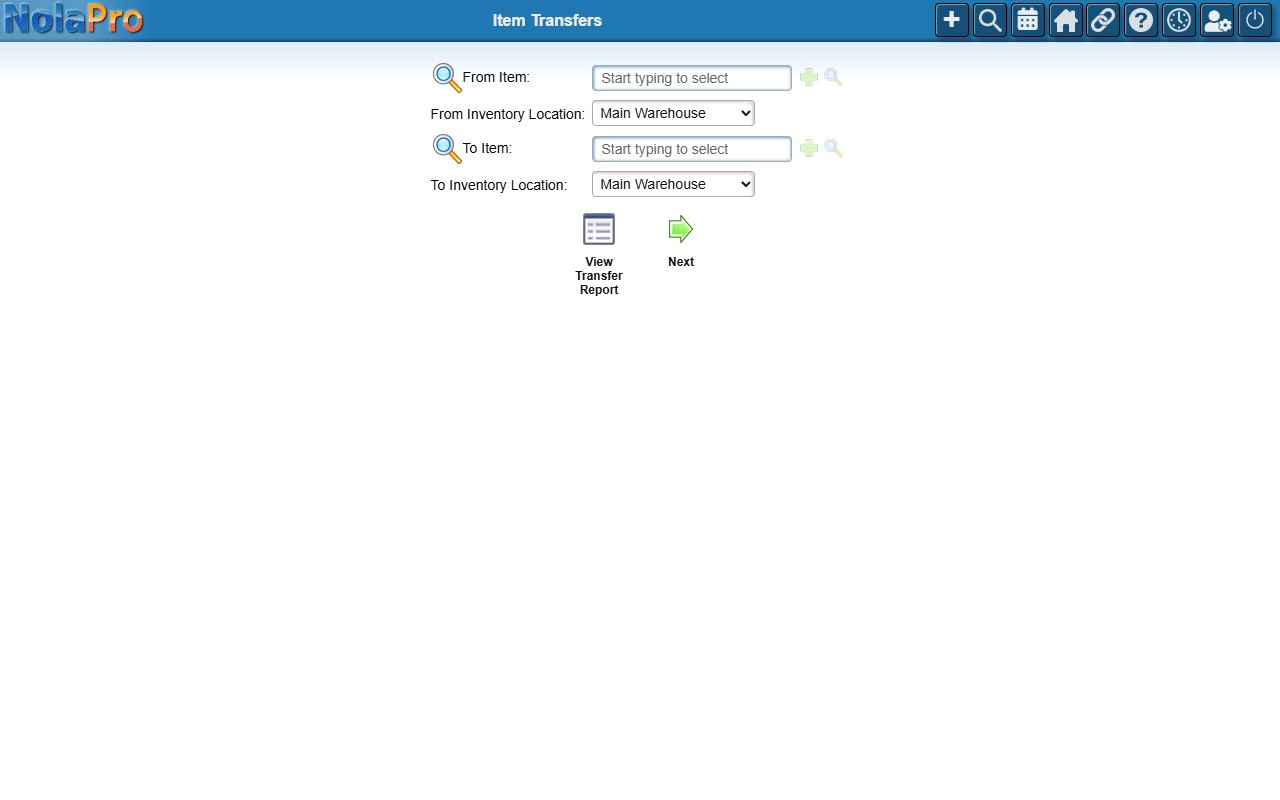
1) Enter the From Item and, if it is stocked in more than one place, the From Inventory Location.
2) Enter the To Item and, if needed, the To Inventory Location. The To Item can be the same as the From Item provided the locations are different.
3) If an item is stocked in only one location, that location resolves automatically and you do not need to choose it.
4) Click Next to continue to the quantity entry form.
Step 2: Enter Quantities and Save
Where: Item Transfers (Transfer Setup, after clicking Next)
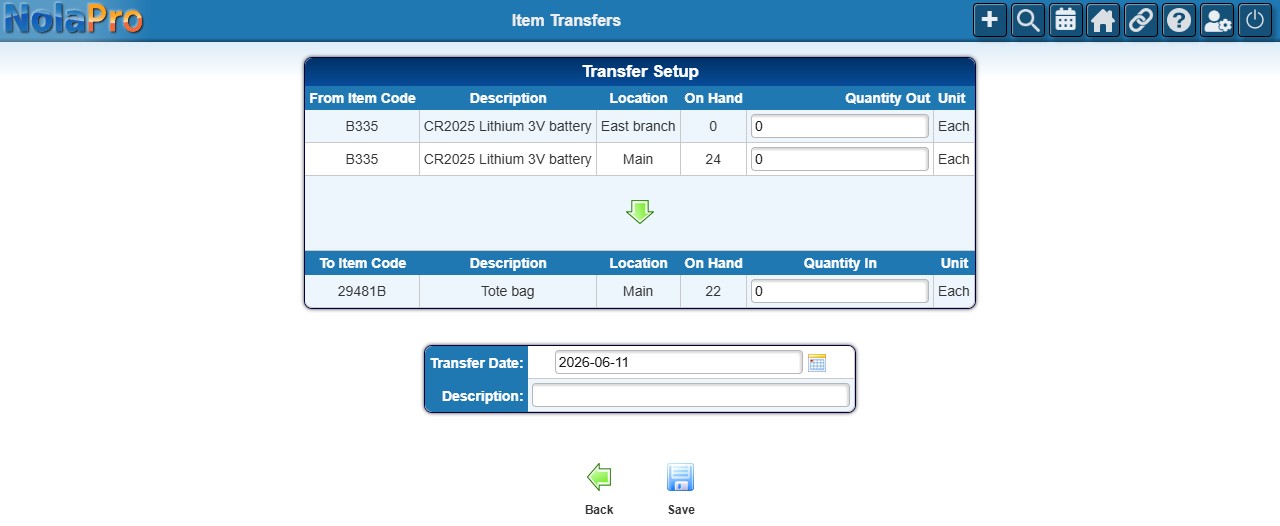
1) Enter the Quantity Out for each source location row and the Quantity In for each destination location row. The total Quantity Out must equal the total Quantity In, or the transfer is rejected.
2) When both sides resolve to a single location each, you can set Number Of To Units Per From Unit to auto-fill the Quantity In proportionally (useful when transferring into a different unit size).
3) Set the Transfer Date (defaults to today) and optionally a Description.
4) Click Save to post the transfer.
Notes
- The total Quantity Out and total Quantity In must match exactly; a mismatch produces an error and nothing is saved.
- Transfer cost is taken from the source item's current cost at transfer time and distributed proportionally to the destination quantity.
- Saving creates inventory transactions for each side, a linking transfer record, and a general ledger voucher posting the inventory asset cost moved.
- After a successful save, the page returns to the Item Transfers selection form.
- A View Transfer Report button on the selection form opens the Item Transfers report listing all past transfers.
- When user location restrictions are enabled, the location dropdowns and location rows are limited to the locations assigned to you.