
Team Members
Viewing the Team
Path: Edit a project → Team (taskbar)
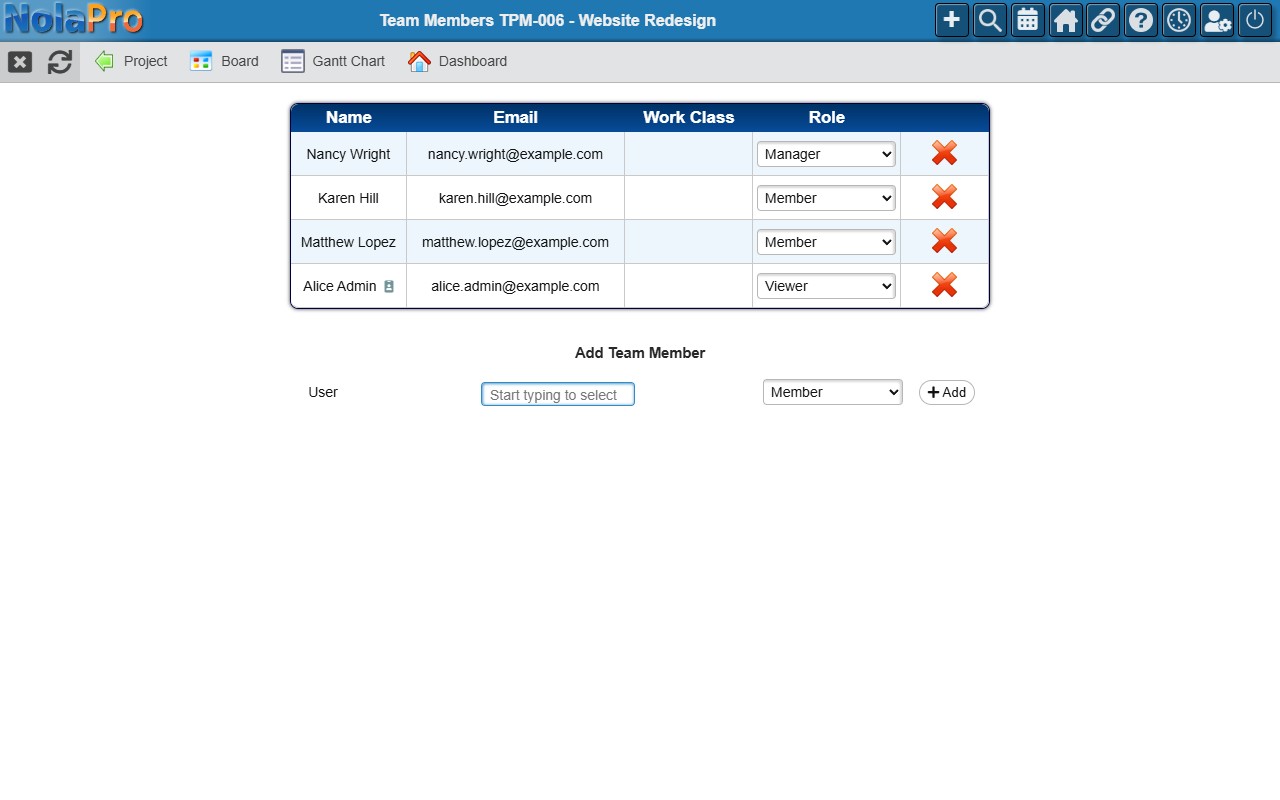
Shows all team members for the project with their name, email, work class, and role. If a member is linked to an employee record, a badge icon appears next to their name linking to their employee profile.
Roles
| Role | Description |
|---|---|
| Manager | Full control over the project. |
| Member | Can work on tasks, log time, and comment. |
| Viewer | Read-only access to the project. |
Adding a Team Member
In the Add Team Member section at the bottom of the team page, start typing a user name, select a role (defaults to Member), and click Add. The project manager is automatically added as a team member when a project is created.
Changing Roles & Removing Members
Select a new role from the dropdown next to a member's name; the change saves immediately. Click the delete icon to remove a member. The project manager cannot be removed — change the manager on the project edit page first.