
Chart of Accounts: List, Account Activity by Month, Import, Export and Standard Layouts
The chart of accounts is the list of General Ledger accounts every transaction in NolaPro posts to. This article covers the tools for reviewing and moving it as a whole: the Chart of Accounts List report and its per-account activity view, importing a chart from a file or from an industry standard set, browsing the standard sets, and exporting your chart to a file.
Adding and editing individual accounts is done on the New GL Account and Edit GL Account pages under Ledger, Chart of Accounts, and is described in Getting Started with Admin -> Ledger.
Requirements
The General Ledger module. Import and export need Setup rights for the Ledger module, and Export Accounts also needs the Misc Exports feature. Opening an account's activity from the list, and the View Account Balances link, need General Ledger Read rights; a user given only the Chart of Accounts List page under Advanced User Rights can see the list but gets "You are Not Authorized" on both.
Chart of Accounts List
Where: Ledger -> Reports -> Chart of Accounts List
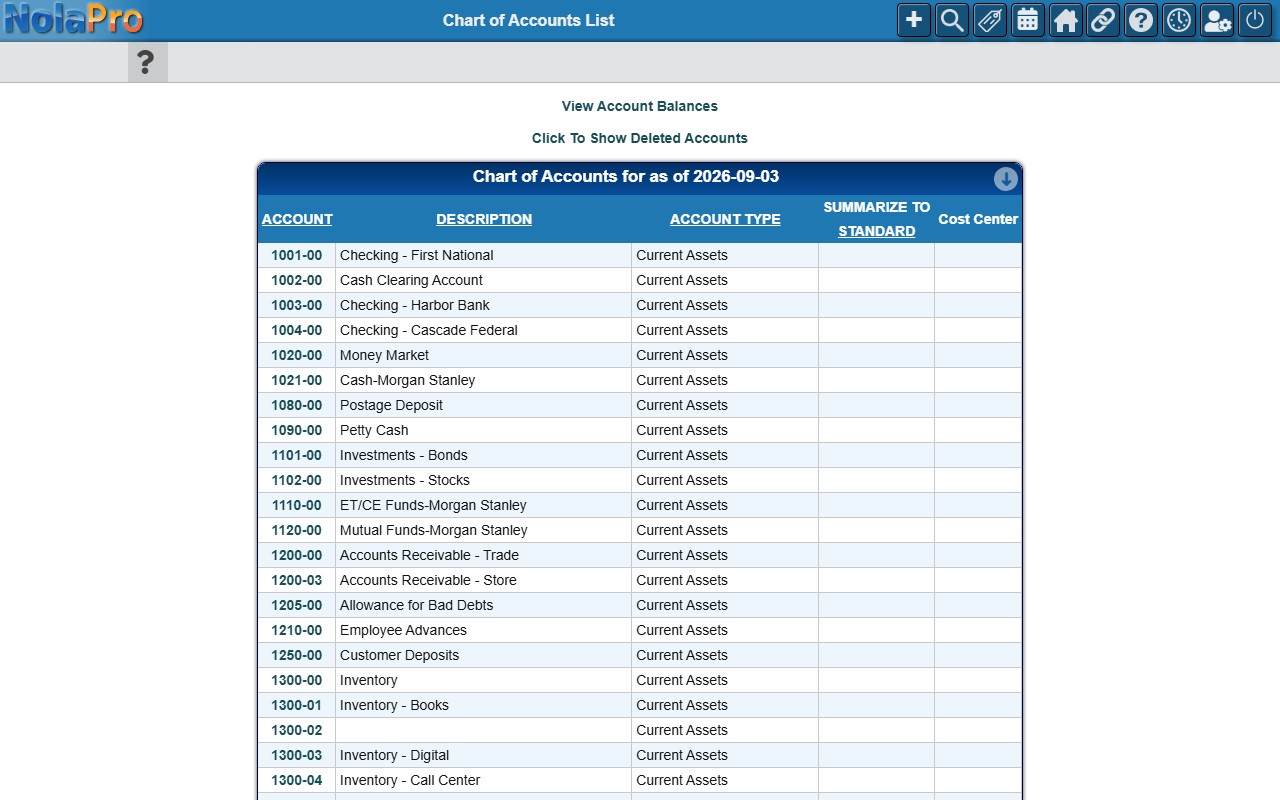
A read-only listing of every account in the company as of today, headed Chart of Accounts for the company and the date.
1) Each row shows the account number, description and account type. The Summarize To columns show which account it rolls up into: the Standard summary account, plus one column for every summary level defined for the company (see Account Summarization). A Cost Center column is shown as well (empty when the company does not use GL cost centers).
2) Click a column heading to sort. Click Click To Show Deleted Accounts above the report to include cancelled accounts, which are then labelled Deleted; the link changes to Click to Hide Deleted Accounts to hide them again (sorting the list returns to the normal view).
3) View Account Balances opens the Account Balances report for the current month.
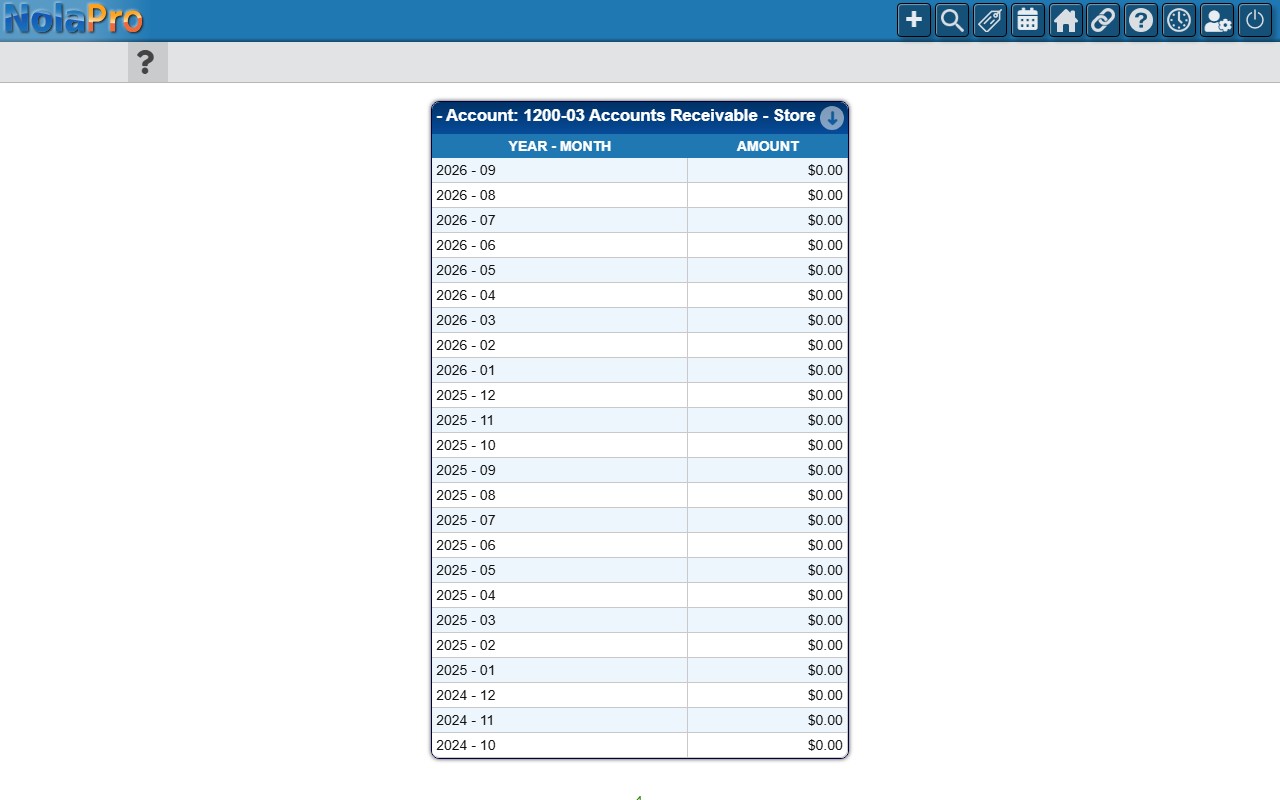
4) Click an account number to open General Ledger Account by Month: the account's net activity for each of the last 24 months (one row per currency when more than one is used), with a bar chart of the last 12 months when there is activity. Months with activity are links that open the GL Activity Detail for that account and month; zero months are plain text. Back returns to the list.
Import Accounts
Where: Tools -> Import -> Import Accounts
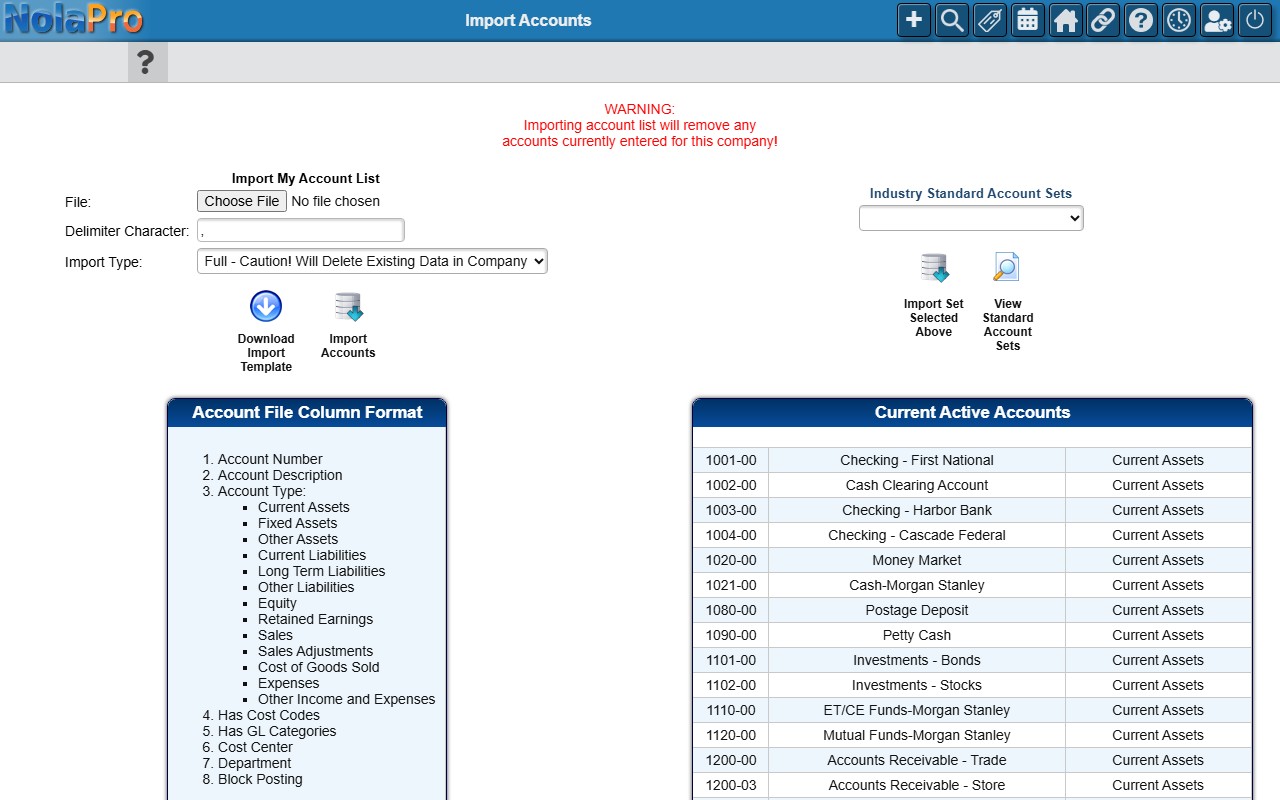
Import Accounts loads a chart of accounts into the company, either from your own file or from one of the industry standard sets that ship with NolaPro. It is normally used once, when a company is set up, but the Partial option also lets you add accounts in bulk later.
Warning: the page opens with a red warning for a reason: the Full import type deletes every existing GL account in the company before loading the file, and the standard account sets always import as Full. Full is pre-selected in Import Type, so switch to Partial on a company that already has accounts and postings. A Full file import asks "Are You Sure You Want To Delete All Existing Accounts" when you click Import Accounts and shows a red Full - Caution! Will Delete Existing Data in Company banner on the review page; nothing is deleted until you click Next there. Importing a standard set has no confirmation and no review page: it replaces the chart immediately.
1) Import My Account List: click Download Import Template to get a CSV with the right column headings for your company. The columns are Account Number, Account Description, Account Type (spelled as one of the types listed under Account File Column Format on the page; "Revenue" is accepted for Sales), Cost Code (0 or 1, when the GL Cost Codes feature is on), GL Category (0 or 1, when the GL Categories feature is on), Cost Center and Department (when the GL Cost Center feature is on), and Block Posting (0 or 1). The heading row may stay in the file; it is skipped. Remove every blank line from the file: the rows after a blank line still appear on the review page, but they are not imported and no error is reported.
2) Fill in the file, choose it in File (.csv, .txt, .tab or .tsv; anything else is refused with "Incorrect File Type"), set the Delimiter Character if the file does not use commas (one character, not a letter or digit), choose the Import Type (Full - Caution! Will Delete Existing Data in Company or Partial - No Existing Data Deleted) and click Import Accounts.
3) A Please check and confirm data page shows every row read from the file, with the account type matched to a dropdown and the cost code, category, cost center, department and block-posting values as switches and dropdowns. Correct anything that was read wrongly, then click Next to run the import, or Back to abandon it. A row whose account type still cannot be matched stops the whole import ("Invalid Account Type").
4) The result page (headed Processing...) lists every row that was imported with a check or an X. When at least one account was added it ends with Accounts Added Successfully and Errors counts; when every row failed it ends with "Import Failed". Compare the count with your file. Partial adds the account numbers that do not exist yet; a row whose account number already exists is marked X with "already exists" and skipped, so edit existing accounts on the Edit GL Account page instead. Supervisors also get a Next button to verify the GL setup.
5) Industry Standard Account Sets: pick a set from the dropdown (they are grouped by language) and click Import Set Selected Above. The company's accounts are replaced at once ("Updated Successfully!" or "Update Failed!") and the standard default accounts for receivables, payables, inventory and payroll are filled in from the set. Click View Standard Account Sets first to browse what a set contains.
6) The lower half of the page lists the column format again and the company's current active accounts, so you can check the result of an import without leaving the page.
Standard Account Layouts
The View Standard Account Sets window opens in a new tab and shows the accounts in each industry template: account number, description and account type, one table per set. Use the Industry Standard Account Sets dropdown at the top to show ALL sets, all sets in one language, or a single industry. It is a reference only; nothing is imported from this window. Click Close Window when done.
Export Accounts
Where: Tools -> Export -> Export Accounts

1) The page has a single Export button. Click it and NolaPro downloads a CSV named accounts_ followed by the date and time, containing every active account in the company sorted by account number: Account Number, Account Description, Account Type and Block Posting, plus the Has Cost Codes, Has GL Categories, Cost Center and Department columns when those features are on.
2) The file uses the same column order as the import template, so it can be used to set up another company with the same chart, or kept as a backup of the account list.
Notes
- Cancelled accounts are left out of the export and hidden from the list by default; an account that once had postings can be undeleted by adding a new account with the same number (see Undelete a GL Account).
- In Small Business mode the Chart of Accounts List shows only the account, description and type columns.
- Summary levels and cost centers are set up under Admin, Ledger; the list and the import template follow whatever the company has enabled.