
How to Set Up Item Beginning Balances
When you first start tracking inventory (or bring a new location online), each item needs an opening on-hand quantity and a cost per unit. Beginning balances are entered in two stages so they can be reviewed before they affect inventory. First you build a worksheet and type the opening quantity and cost for each item; saving stores those entries as pending. Then you open the review page, confirm the entries you want, and apply them, which posts the on-hand quantities and cost tiers to the items as a starting point.
Step 1: Enter the Beginning Balances
Where: Admin -> Inventory -> Item Beginning Balances
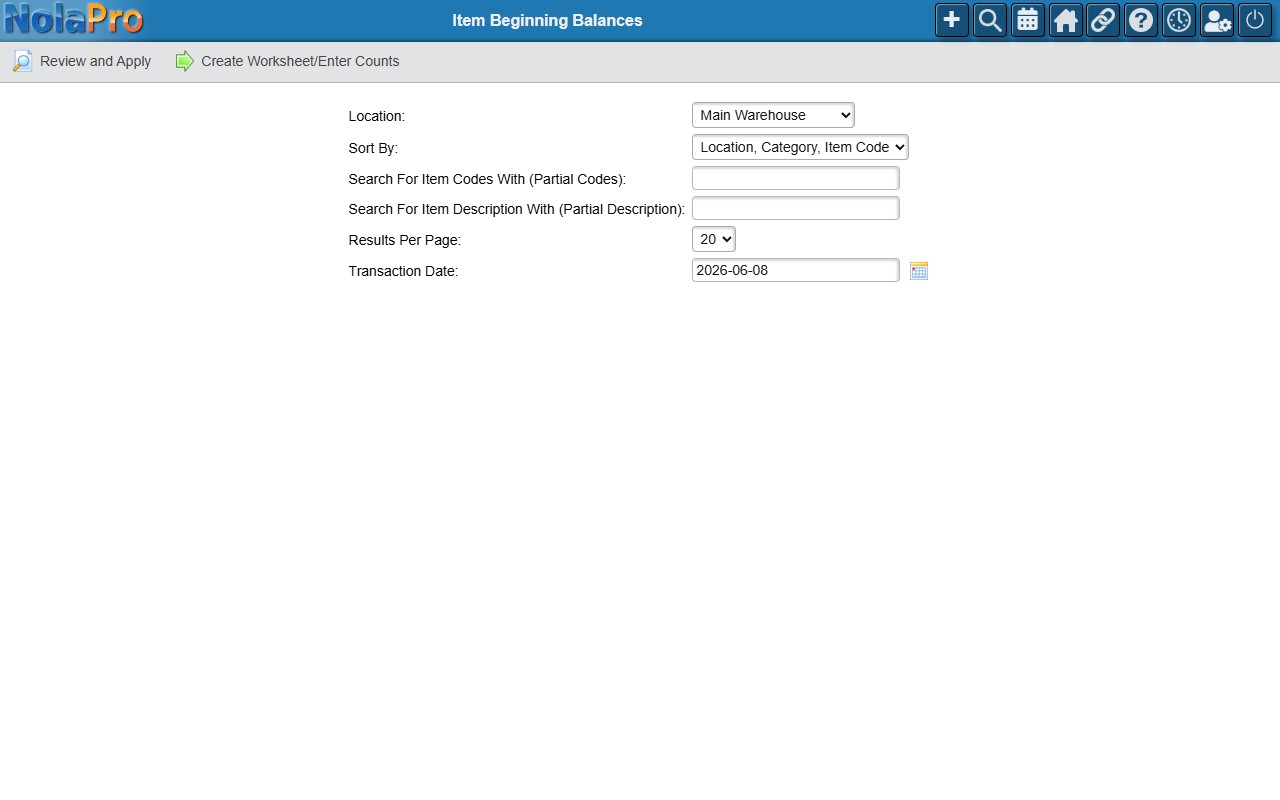
1) On the Search Options screen, optionally pick an Inventory Location, choose a Sort By order, and optionally filter by Search For Item Codes With or Search For Item Description With.
2) Set Results Per Page and the Transaction Date (the date recorded against all the balances; defaults to today), then continue.
3) On the worksheet, enter the Beginning Balance quantity and Cost Per Stock Unit for each item that should have an opening balance. Leave items you are not setting up blank.
4) Use Previous and Next to page through a long list; entered values are preserved in the session as you navigate.
5) Click Save to store the entries. A confirmation appears with a button to proceed to the review step.
Step 2: Review and Apply the Balances
Where: Review and Apply Beginning Balance Entries (reached from the confirmation after saving)
1) Choose a Sort By order to arrange the pending entries, then continue to the review table.
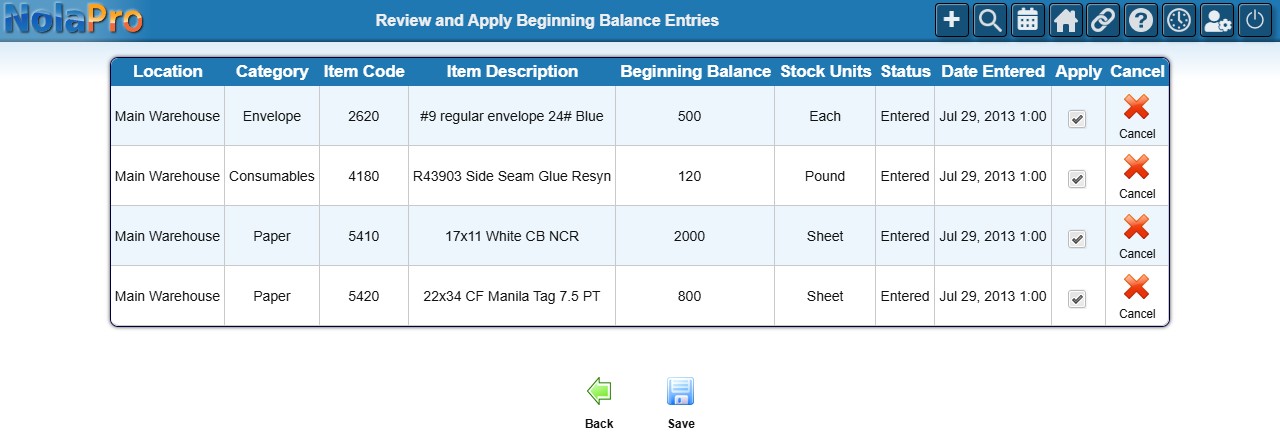
2) Each pending entry has an Apply checkbox (pre-checked). Uncheck any entry you do not want to post yet.
3) To discard a single entry, click its Cancel Entry button; it is voided immediately without needing a save.
4) Click Save to apply the checked entries. For each one, the on-hand quantity and cost tier are written to the item location and the entry is marked complete.
Notes
- Beginning balances are entered and applied in two stages on purpose: saving on the worksheet only creates pending entries; nothing affects inventory until you apply them on the review page.
- The Transaction Date from the worksheet is recorded against every balance entry.
- The review table shows only entries that are still pending and have a non-zero count.
- Cancelling an entry on the review page takes effect immediately, before any Save.
- Applying entries uses the company's default price level to calculate the price per unit.
- When user location restrictions are enabled, only the locations assigned to you appear in the location list.
- Confirm with your administrator whether applying beginning balances is reversible before posting.