
How to Set Up Recurring Billing with a Payment Plan
A payment plan is a template invoice that NolaPro re-bills on a fixed cadence — daily, weekly, monthly, quarterly, yearly, or a custom number of days. Use it for subscriptions, retainers, financing schedules, or any arrangement where the customer is invoiced the same amount on a repeating schedule. You create the plan once (the "source" invoice, which does not bill money by itself), then run Post Payment Plans each period to generate the actual invoices. The source invoice's counters advance with every run until the configured number of occurrences is reached.
Requirements
Optional features (Cost Codes for AR/AP, Email Templates) add related fields when enabled — Email Templates lets you attach a template when posting plans.
Step 1: Create the Payment Plan
Where: Income -> Payment Plans -> New Plan
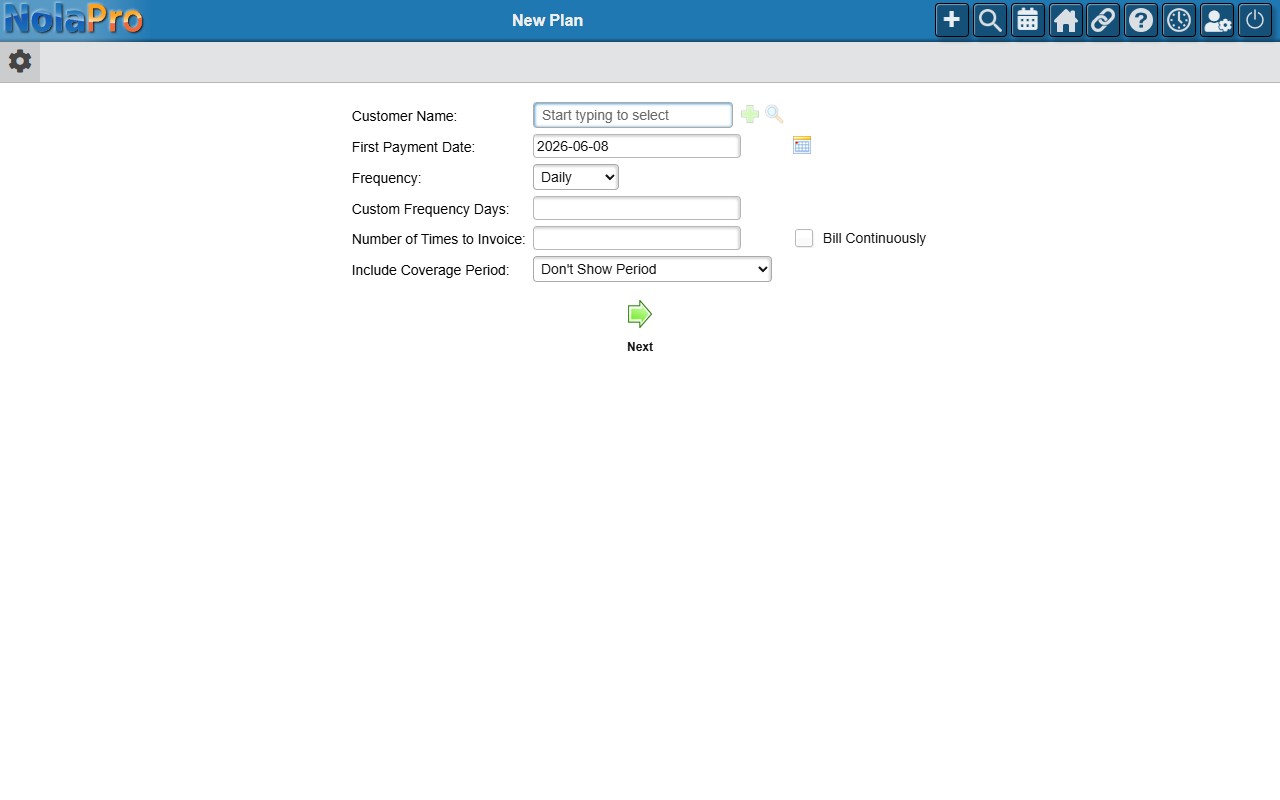
1) On the plan-setup step, choose the Customer, set the Invoice Date, pick the Frequency (and Custom Frequency Days if Custom), enter the Number of Times to Invoice, and optionally check Bill Continuously (to run indefinitely, ignoring the times limit) or Include Coverage Period (to add coverage dates to each generated invoice).
2) On the billing-setup step, confirm the Ship To, Plan Invoice Number, Sales Category, and Payment Terms.
3) On the items step, enter each recurring line: the Item, a Description, the Price charged per period, tax flags, and the GL Sales Account that recognizes the income.
4) Click Next to proceed to the Edit Costs step (adjust any cost-of-goods entries there as needed), then click Next again to finalize. A "Plan added successfully" confirmation appears. (The footer total reflects one period's charge, not the whole contract value.)
Step 2: Post the Plan Each Period
Where: Income -> Payment Plans -> Post Plans
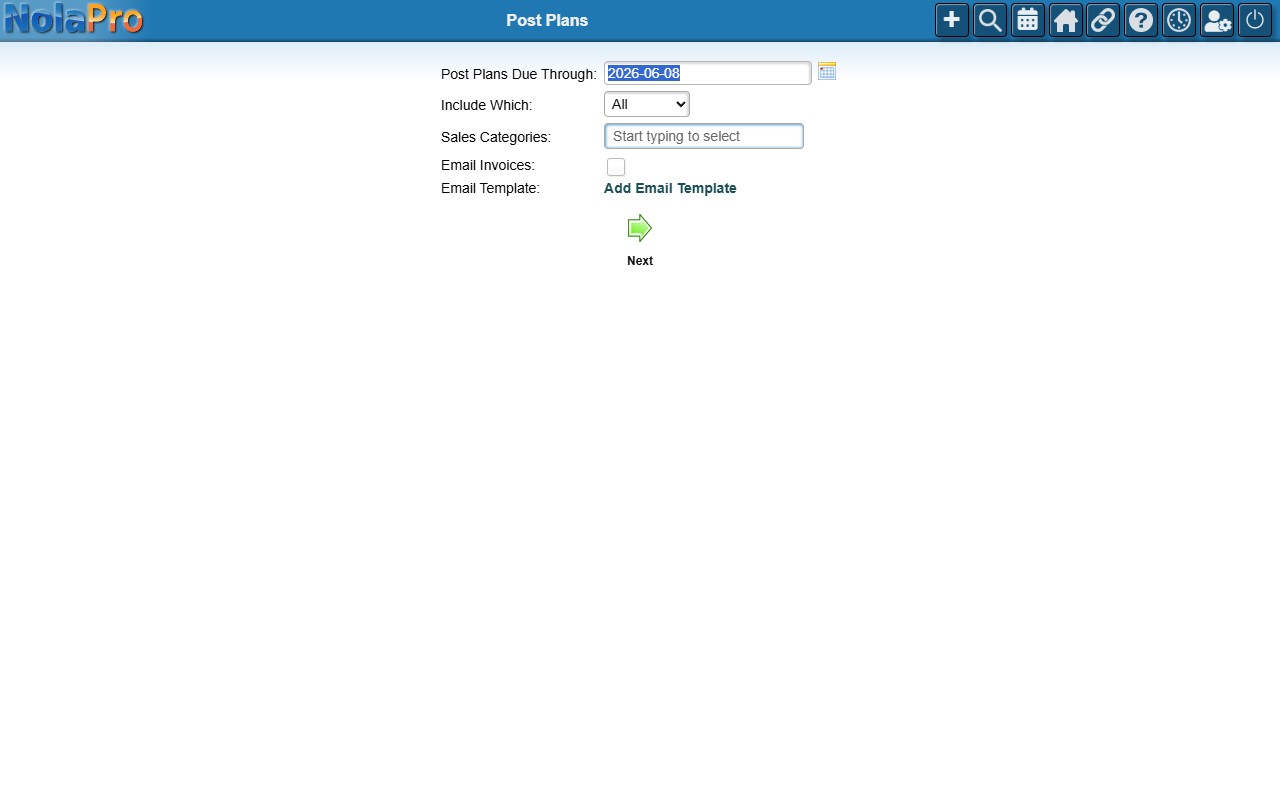
1) Set Post Plans Due Through to the cutoff date; only plans whose next-due date is on or before it are considered.
2) Optionally restrict by Include Which period or Sales Categories.
3) Check Email Invoices (and pick an Email Template) to email each new invoice to the customer automatically.
4) Click to load the candidate list. Every eligible plan is listed with a toggle that defaults ON — click a row to skip it this run.
5) Click Next to create the new invoices for the period.
Notes
- The source invoice created in Step 1 never bills money on its own; only Post Payment Plans generates the billable invoices.
- "Price" on each line is the amount billed per period, not the lifetime contract value.
- If the new plan would push the customer over their credit limit, a warning appears but does not block saving.
- Toggling a row off on the post page skips it for that run only; its next-due date is unchanged, so it returns on the next run.
- After posting, a "Print Entire Group of Invoices" link produces one combined PDF of all newly created invoices, and a summary email is queued to the company's AR Email address.
- Post Payment Plans can also run unattended via a scheduled (cron) job to auto-post plans on schedule.