
How to Batch Reprint and Email Invoices
Reprint Invoices pulls a set of posted invoices and lets you print them all as one PDF or email them all to their customers at once. You choose the set either with filters (date range, invoice-number range, status, customer, location) or by hand-picking specific invoices into a Print Queue. It is the standard tool for end-of-month catch-up runs and collections, and it respects each customer's "Do Not Send" flag so you don't accidentally re-mail customers who opted out.
Step 1: Choose the Invoices
Where: Income -> Reports -> Billing -> Reprint Invoices
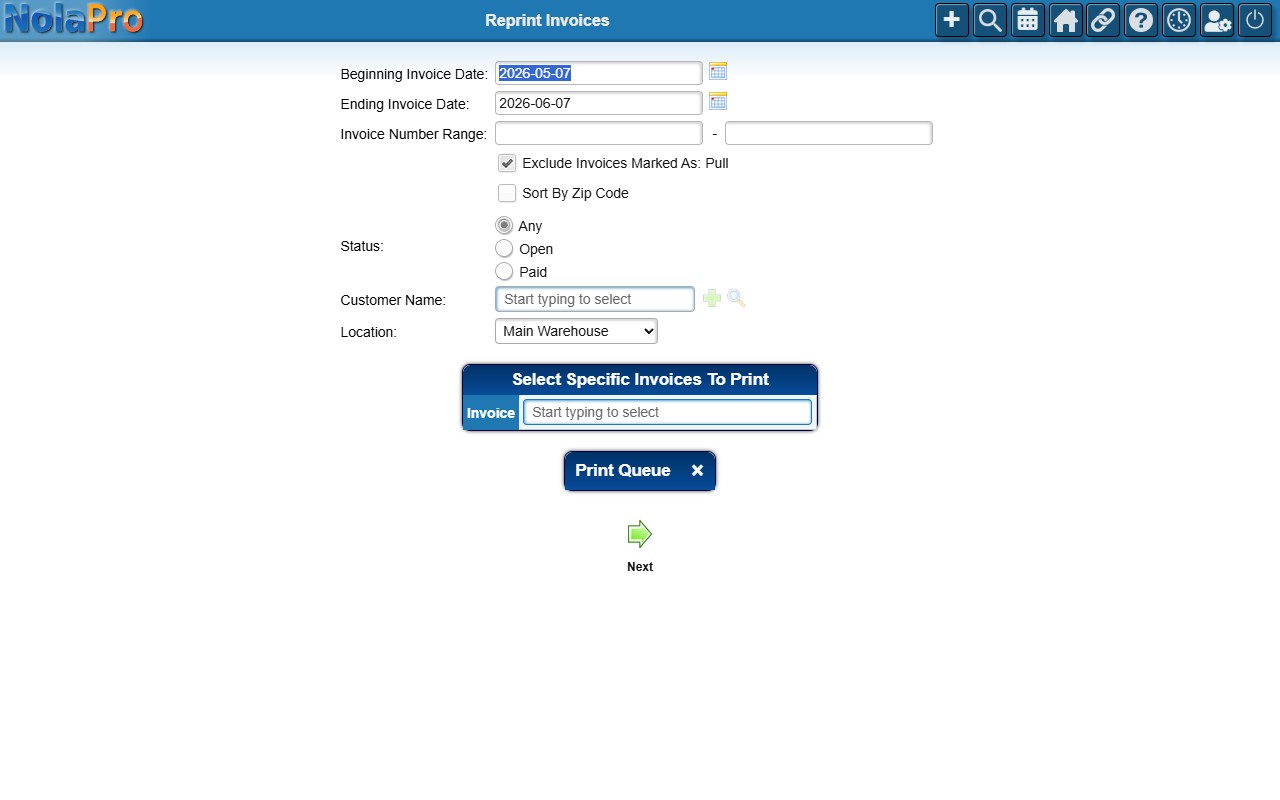
1) Set the Beginning and Ending Invoice Date (defaults to the last month), and optionally an Invoice Number Range.
2) Choose a Status (Any, Open, or Paid), and optionally narrow by Customer Name or Location.
3) Leave Exclude Invoices Marked As Do Not Send checked (the default) so opted-out customers are skipped.
4) Check Sort By Zip Code if you are sequencing a physical mailing.
5) Alternatively, in the Select Specific Invoices To Print panel, pick invoices into the Print Queue (drag to reorder, × to remove) to act on an exact set, overriding the filters.
6) Click Create Report.
Step 2: Print or Email the Batch
Where: Income -> Reports -> Billing -> Reprint Invoices — result list
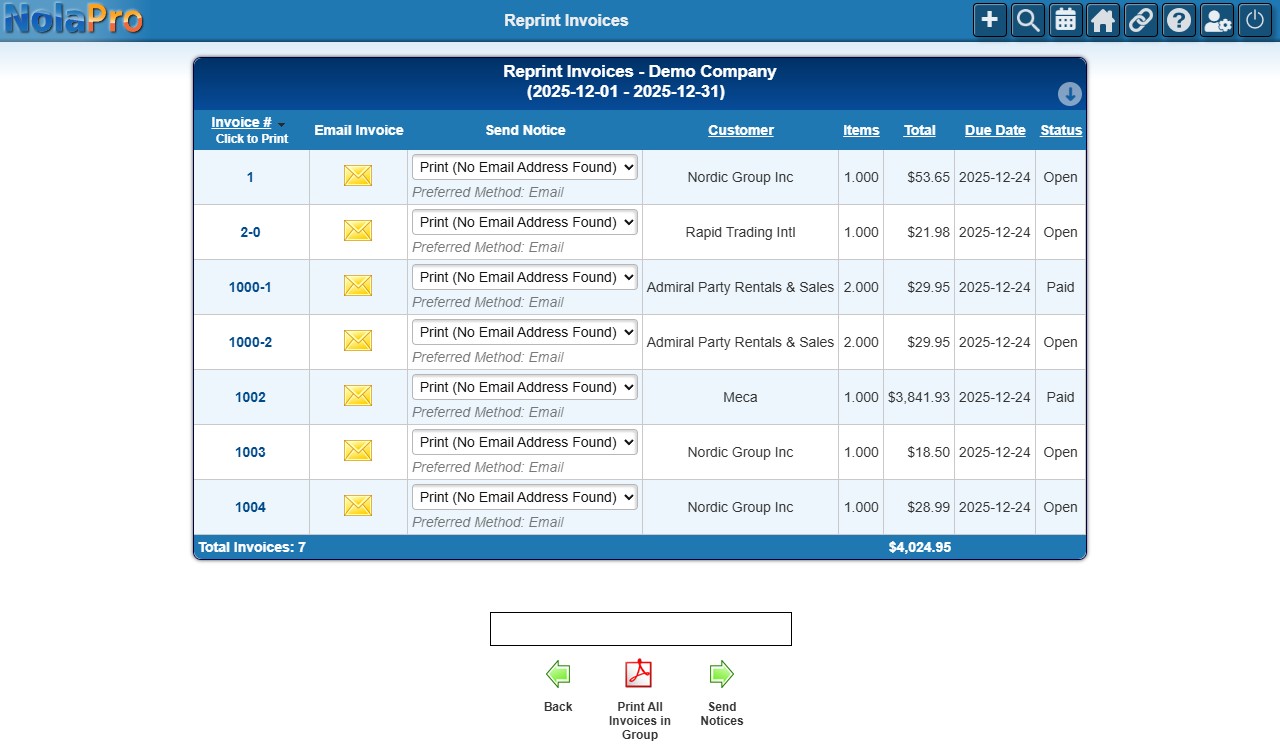
1) The result list shows one row per invoice with its customer, total, due date, status, and ZIP.
2) Per invoice: click the invoice number to open its PDF, or use Email Invoice / Send Notice to email that one.
3) For the whole batch: Print All Invoices in Group combines them into a single PDF, or Send Notices emails each invoice to its customer using their preferred notification method.
Notes
- Cancelled invoices are excluded automatically.
- Customers with no email on file are listed but cannot be emailed — the per-row email action is suppressed and the bulk Send Notices skips them.
- The Print Queue is independent of the filters and overrides them, which is the easiest way to assemble a precise, ordered set.
- "Print All Invoices in Group" concatenates the PDFs in the order shown, so set Sort By Zip Code or arrange the Print Queue first to control sequence.
- After a Send Notices run, the page shows "Finished Sending Notifications" to confirm the batch completed.