
How to Set Up SMTP Email Delivery
NolaPro sends email through SMTP, and the connection details live in an Email Setup section that can be configured at three levels: on the company record, on an individual user's record, and system-wide in System Settings. When NolaPro sends a message it chooses which Email Setup to use in a fixed order: the sending user's own setup first, then the company's setup, and finally the system-wide setup. In other words, if a user has filled in their personal Email Setup their mail goes out through their own mailbox; otherwise NolaPro falls back to the company setup, and finally to the system settings. Most companies just set up the company-level Email Setup (Step 1) and leave it at that.
Step 1: Configure the Company's Email Setup (the usual starting point)
Where: Admin -> System -> Company New/Edit
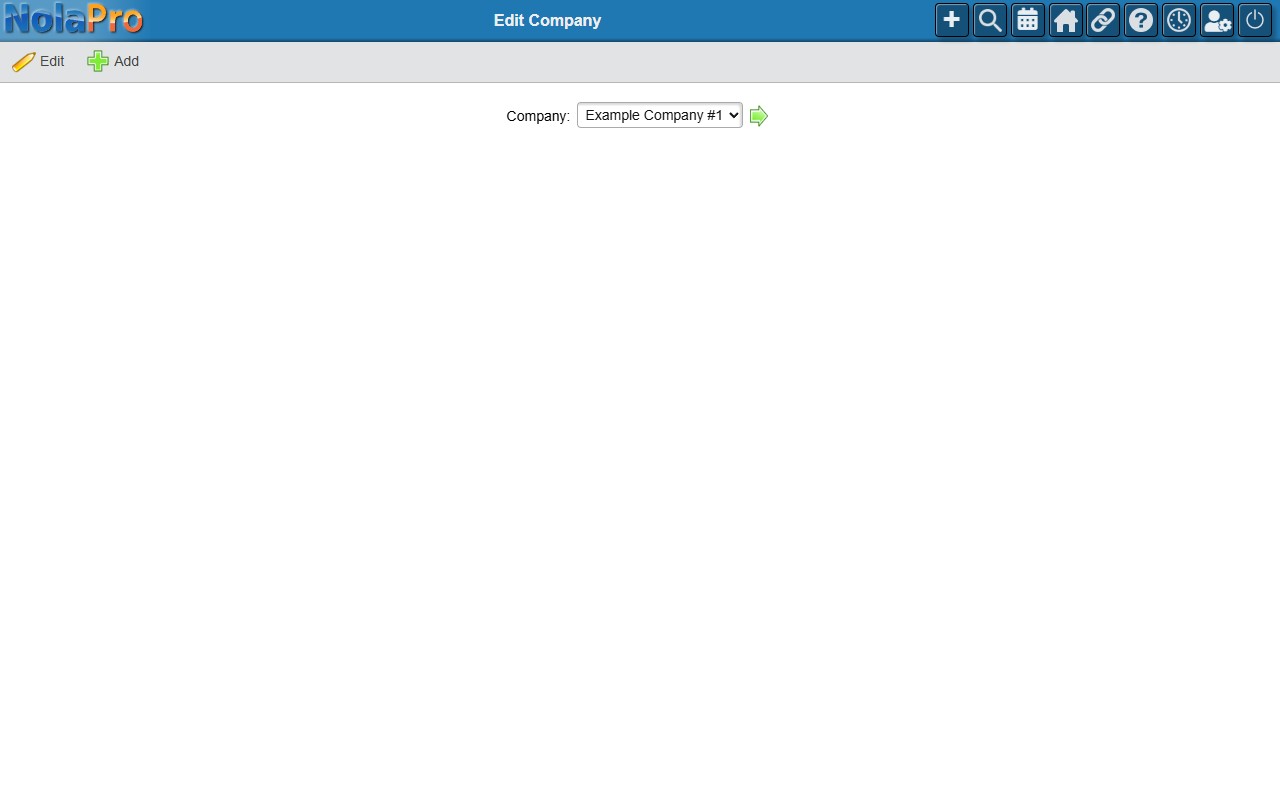
1) This is the most common way to set up outbound mail — most companies configure email here, at the company level. Select the company you want to configure and open it for editing.
2) Confirm the company contact addresses are correct: Email (the main address), and optionally AR Email, Order Email, and AP Email (each falls back to the main Email if left blank).
3) Open the Email Setup section and enter your SMTP server connection details.
4) Save the form to store the email configuration along with the rest of the company settings.
Step 2: Configure a User's Email Setup (optional, highest priority)
Where: Admin -> System -> Users
1) Open the user whose mail you want to send from their own mailbox.
2) Open the Email Setup section and enter that user's SMTP server connection details.
3) Save. Messages that user personally sends now go out through these settings, taking priority over the company and system-wide setups.
Step 3: Configure System-Wide Email Settings
Where: Admin -> System -> System Settings
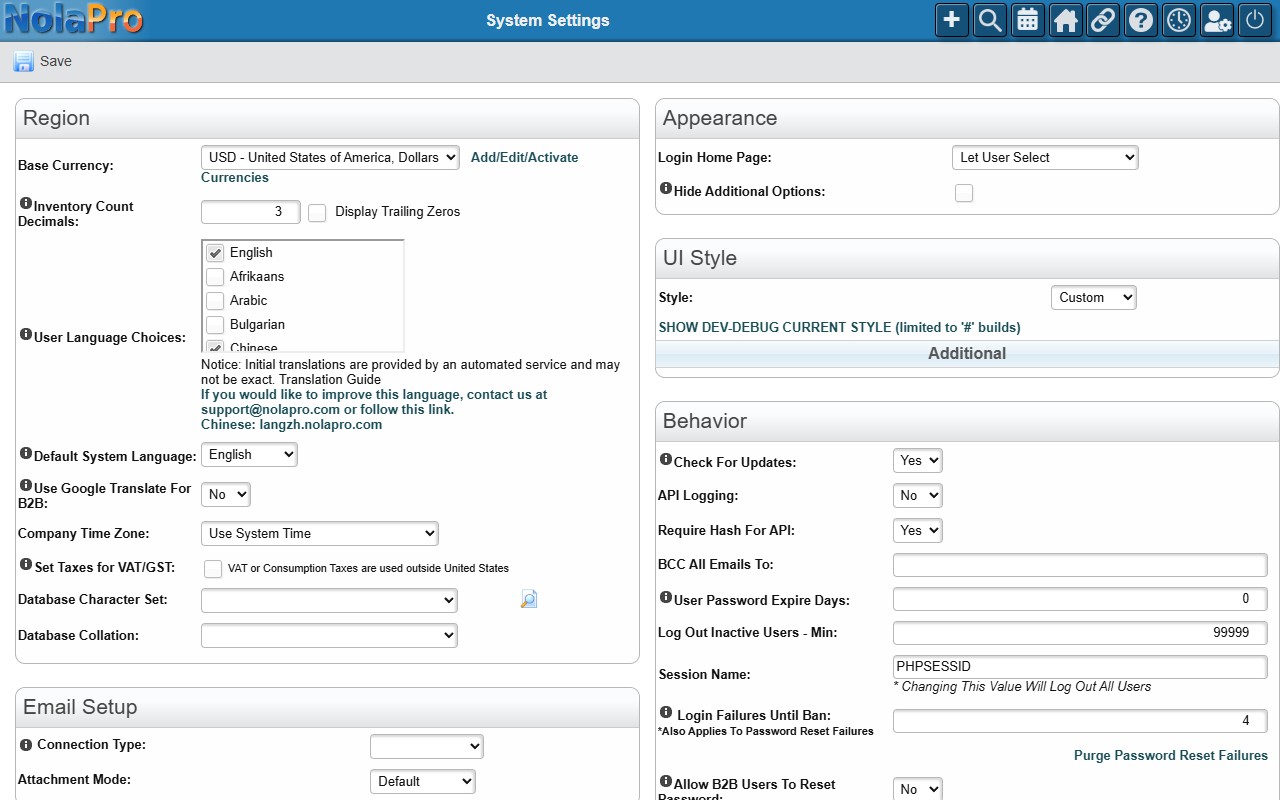
1) Open the Email Setup section and enter or confirm the installation-wide SMTP settings. These are used whenever the sending user and the company have no Email Setup of their own.
2) In the Behavior section, set Verify Email DNS Before Sending to control whether recipient domains are checked before mail goes out.
3) Optionally set BCC All Emails To to silently copy every outgoing message to a monitoring address.
4) Save the form. All System Settings changes are saved together.
Notes
- NolaPro picks the Email Setup to send through in this order: the sending user's own Email Setup, then the company's, then the system-wide one. The first level that has a configured, enabled Email Setup is used, so a personal user setup overrides the company setup, and the company setup overrides the system one.
- Automated mail that is not tied to a specific user (such as scheduled jobs) has no user-level setup to use, so it sends through the company or system-wide Email Setup.
- Each Email Setup is saved as part of its own form (the company record, the user record, or System Settings); there is no separate "save email" button.
- Saving System Settings updates company-level and server-level settings in a single transaction, so if any part fails the whole save is rolled back.
- The AR Email, Order Email, and AP Email addresses on the company record default to the main Email when left blank, so set the main Email at minimum.
- BCC All Emails To and a few other System Settings options are part of the Premium System Settings add-on, so they appear only when that is enabled.